

The MAIB bank integration in Zafirok, CRM and ERP software for small businesses, brings the balances and statements of your business account into the Finance module, next to orders and payments. You press “Sync”, see who paid, how much and with what payment details, then match each transfer to the right record. The connection only reads data from the bank: it never initiates payments and never creates records on its own.
Without it, checking a payment looks the same in many small companies: the manager asks the accountant whether the deposit has arrived, the accountant opens the banking app and searches by amount, and the order waits. This guide covers what you need from MAIB, how to connect, what the statement contains and how to get from a transfer to a correct order balance.
In short
- Zafirok reads MAIB balances and statements through the bank's API. It does not make payments or change anything in your account.
- You need API credentials for the business account, issued by MAIB: an “API client ID” and an “API password / secret”.
- Syncing is manual: “Sync” (one bank) or “Sync statements” (all banks) fetches the month on screen.
- Transfers are matched by hand. The app does not look for matches by name, IDNO or amount.
- To reduce “Left to collect” on an order, record the payment in Finance and then match it to the transfer with “Already recorded”.
- The Bank module costs USD 5 per month, and the 3 free days start after the first successful connection.
What the MAIB bank integration does in the Zafirok app
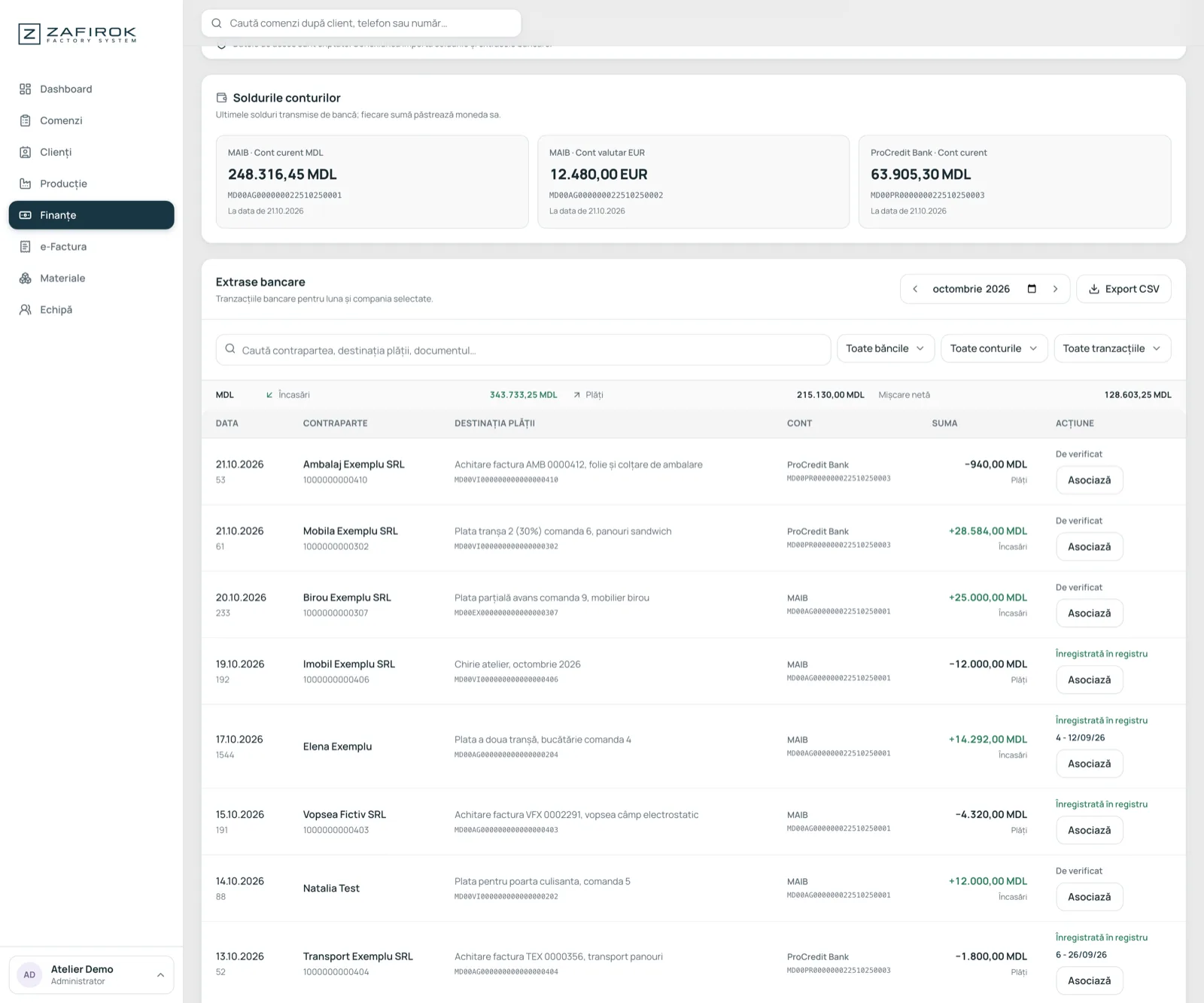
The connection uses MAIB's API: the app authenticates with the bank using the credentials MAIB issued for your company. Zafirok receives account balances and, for each transaction, the date, document number, direction (in or out), amount, currency, the counterparty's name and IDNO (the Moldovan company ID) and the payment details. MAIB also sends the closing balance of each day.
Transactions appear under Finance → Bank, in the “Statements” list. There you search, filter and decide what each one means for your books. Nothing moves into payments or expenses automatically: the person reviewing makes that call.
What MAIB does not send
- The payer's IBAN is not included in MAIB statements. You find payers by name, IDNO, payment details or document number.
- Each request to the bank covers one month. For an older month, go to it with the arrows and sync again.
- There is no scheduled sync and no import of statement files (MT940, CSV or XLSX).
What you need from MAIB
To connect, you need two credentials issued by MAIB for API access to the business account: an “API client ID” and an “API password / secret”. Request them from the bank through your account manager or MAIB's support for business clients. The bank sets the conditions, the documents it needs and any fees.
It also helps to prepare the list of accounts you want to see in the app, with each IBAN. One MAIB connection holds up to 10 accounts of these types:
- Current account – where client payments usually arrive.
- Card – a card account, for which you also enter the last 4 digits of the card.
- Deposit and Loan – if you want these accounts next to your operating ones.
How to connect your MAIB account, step by step
- In Settings → System, turn on “Bank” in the menu and press “Save menu”.
- In Settings → “Account and companies”, edit the company: the country must be Moldova and “Bank” must be ticked.
- Open Finance → Bank, press “Add a bank” and choose Country – Moldova, Bank – MAIB.
- Activate the module with “Activate”. The 3 free days start only after the first successful connection, not at activation.
- Fill in “API client ID” and “API password / secret”, then for each account the “IBAN / account number”, “Account type” and “Account label”, for example “Current account MDL”.
- Press “Verify and connect”. The bank checks the credentials before they are saved, and the app stores them encrypted.
- Press “Sync” to fetch the transactions of the month on screen.
You type the IBAN yourself, so it is worth comparing it with the contract or the banking app. If your Zafirok account holds several legal companies, each one has its own bank connections, and you pick the company from a selector in the statements.
How to check client transfers
The “Statements” list shows the transactions of the chosen month for the selected company. You change the month with the arrows, and above the list you see totals per currency: “Incoming”, “Outgoing” and “Net movement”. The “Account balances” card shows the latest balances reported by MAIB, with their date.
Three tools are enough for client payments:
- The “Incoming” filter keeps only money received; “Outgoing” shows what left the account; “All transactions” shows everything.
- Search (“Search counterparty, payment details, document…”) finds the payer's name, IDNO, text in the payment details or the document number.
- Bank and account filters help when the company has several accounts or works with several banks.
Each row has a status: “To review” (not checked yet), “Order linked”, “Recorded in ledger”, “Excluded from accounting” or “Changed by bank — review again” when the bank later changed a transaction that was already matched. For the accountant there is also “Export CSV”.
A habit that helps: you can ask clients to put the order number in the payment details. Search then finds the transfer at once, even when another company paid on the client's behalf.
Practical tip
From transfer to order balance: how it works
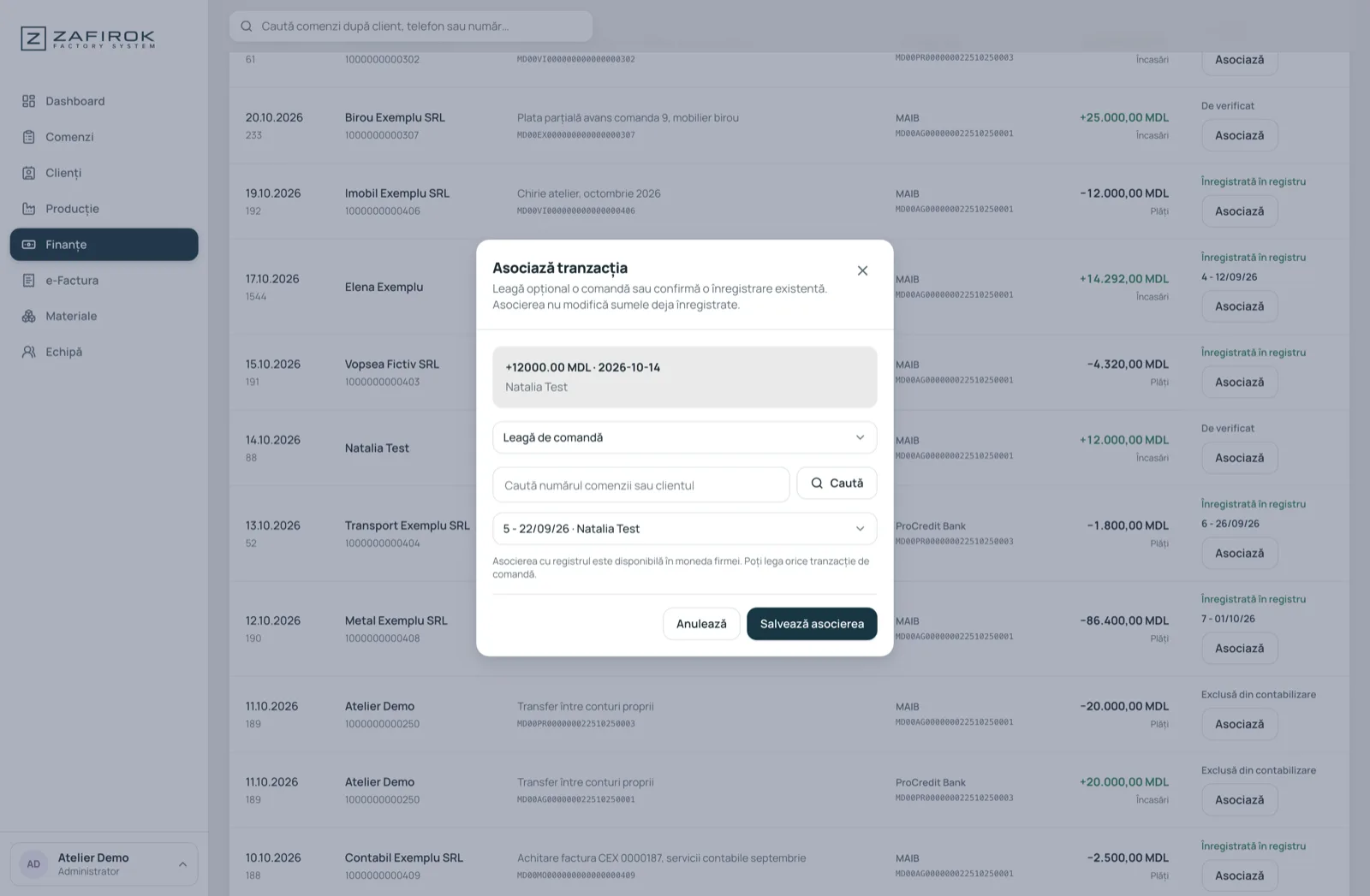
This is where most confusion happens. The “Match” button opens the “Match bank movement” window with four actions (Romanian interface labels in brackets):
- “Link an order” („Leagă de comandă”) – notes which order the transfer belongs to; you search by order number or client. The amount paid on the order does not change.
- “Already recorded” („Este deja înregistrată”) – matches the transfer to a paid payment or expense that already exists in Finance with the same date and amount, paid with a bank-type method (for example «Transfer bancar»). It works for transactions in the company's currency; a transaction in another currency can only be linked to an order or excluded. After matching, that record can no longer be edited.
- “Internal transfer / exclude” – for moves between your own accounts or other movements that are neither income nor expense.
- “Undo match” – when the match was wrong or you need to correct the record in Finance.
“Left to collect” and “% paid” on the order are calculated from payments with the status “Paid”. For a transfer to change the order balance, the steps are:
- In “Statements”, find the transfer and note its date and amount.
- In Finance, press “New payment”: choose the order, enter the amount, the method «Transfer bancar» (the default method name, shown the same way in the English interface), the status “Paid” and the date from the statement.
- Back in Bank, press “Match” on the transfer, choose “Already recorded” and select the payment you just created.
- The row gets the status “Recorded in ledger”. The order balance was already updated in step 2, when you saved the paid payment.
Step 3 prevents double counting: the same money does not show up once as a payment and again as an unreviewed transfer. If you only used “Link an order”, the transfer stays visible in the statement but the order keeps its old balance. To correct a payment that is already matched, undo the match first.
When a client says “I've paid”: an example five-step check
- Press “Sync” to fetch the latest transactions of the month.
- Search by company name, IDNO or the order number in the payment details.
- Compare the amount with “Left to collect” on the order.
- If the transfer is there, record the payment and match it with “Already recorded”.
- If you cannot find it, ask the client for the date, amount and payment order number, then check again after the next sync.
These steps are only an example, and you set the rhythm: for instance, one check in the morning and one before an order goes into production. For deposit and instalment rules, see the guide on tracking deposits and balances on orders.
How safe is the connection?
The connection is read-only. The app reads balances and statements; it does not initiate payments and does not create Finance records by itself. Credentials are checked with the bank before saving and are stored encrypted.
If you disconnect the bank, the access keys are deleted and the statements already imported stay for your records. What each colleague can see is set through team roles, with access per module: Hide, View or Edit.
How Zafirok helps
- Finance → Bank: a read-only MAIB connection through the API, with up to 10 accounts per connection (Current account, Card, Deposit, Loan).
- “Statements”: month navigation, company selector, search, filters by bank, account and direction, totals per currency and “Export CSV”.
- “Account balances”: the latest balances reported by the bank, with their date.
- “Match bank movement”: link to an order, match to an existing payment or expense, exclude, or undo the match.
- On the Finance overview, the “Bank” card shows how many transactions are to review, matched to the ledger or excluded in the chosen period.
- On each order: “Left to collect” and “% paid”, calculated from paid payments. More on the Finance module.
The checking routine in this guide is a starting model, not a rule. Each company decides who reviews the statements and how often, and sets up its own payment methods, expense categories, roles and access rights in Zafirok. If you prefer, the Zafirok team can set it up for you: write to us via the contact page or create an account.
What it does not do: it does not match transfers to clients or orders automatically, does not create payments from the statement, does not send SMS payment reminders, does not forecast cash flow and does not plan salaries from bank data. Tax invoices do not come from the bank; for those there is the e-Factura integration.
The Bank module costs USD 5 per month. The first 3 days are free and start only after the first successful connection, so the trial is not used up while you wait for credentials from the bank.
Frequently asked questions
Can Zafirok make payments from my MAIB account?
No. The connection is read-only: the app reads balances and statements. You keep making payments through the bank's own channels.
Are transfers linked to orders automatically?
No. You match each transfer by hand with the “Match” button. The app does not search for matches by name, IDNO or amount.
Why didn't the balance change after “Link an order”?
Because that action only records the link. The balance is calculated from payments with the status “Paid”: record the payment in Finance, then match it to the transfer with “Already recorded”.
How often are statements updated?
Every time you press “Sync” or “Sync statements”. There is no scheduled sync; each sync fetches the month on screen. How often you check is up to each company.
Can I also see a card or deposit account?
Yes. With MAIB you can add Current account, Card (with the last 4 card digits), Deposit and Loan accounts, up to 10 per connection.