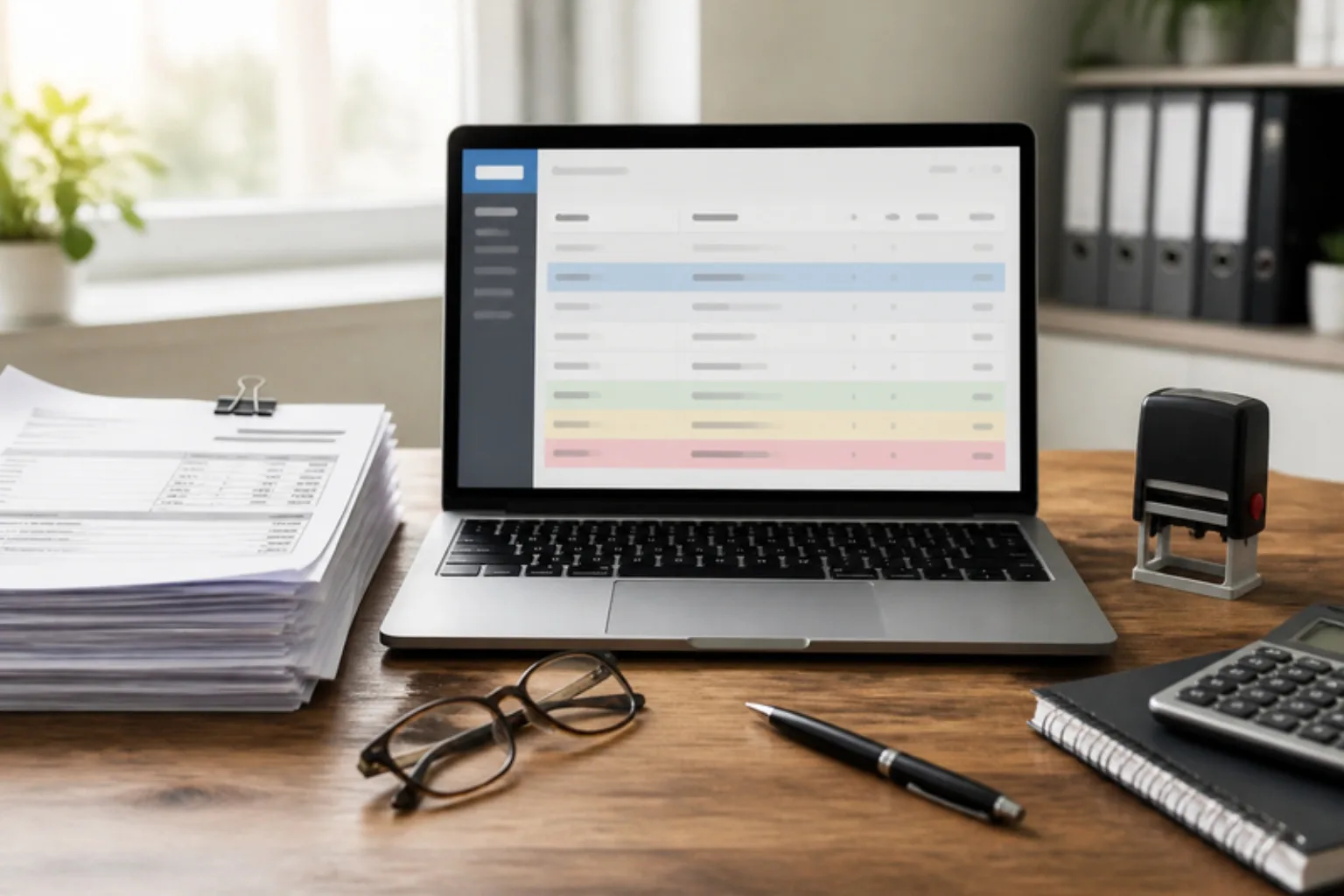
The e-Factura Moldova integration in Zafirok, CRM and ERP software for small businesses, brings the electronic tax invoices your company receives and issues into one screen, read directly from the State Tax Service (SFS) system. The connection is read-only: you still create, sign, accept or reject invoices in e-Factura. If you run several companies, you connect each one with its own API user and see all their invoices in one list, filtered by company.
For an owner or an accountant, the hard part is rarely issuing an invoice. It is the daily control: what suppliers have sent, what is waiting for a signature, how much VAT has built up this month and what each company has issued. With two legal entities, someone logs into each company's account in turn and compares files. This guide explains what e-Factura is, what the integration does and does not do, how to connect one or more companies and how to hand the list to your accountant.
In short
- e-Factura is the SFS system for electronic tax invoices. Invoices are created, signed, accepted and rejected there.
- Zafirok reads the invoices in which your company is the supplier, buyer or carrier, in every status. It does not issue or sign anything.
- To connect, you need an API user created in your e-Factura account; your usual login details will not work.
- You can connect your main company and up to 20 additional company profiles, each with its own API user, in the same CRM.
- Sync covers the last 365 days and runs while the e-Factura page is open; you can also start it manually.
- The CSV export has one row per invoice and opens directly in Excel.
- Only the administrator connects it; employees see the invoices if their role has access to Finance.
What e-Factura is, briefly
e-Factura (officially the automated information system SIA “e-Factura”) is the State Tax Service platform through which businesses in the Republic of Moldova register and validate tax invoices instead of using paper. You reach it from the taxpayer's personal account (Cabinetul personal) on sfs.md. The official guide describes three roles: the supplier issues the invoice, the buyer accepts or rejects it, and the carrier handles the related transport documents. Invoices are signed electronically, and the system keeps track of each invoice's status.
Who must use e-Factura, and from when, is a tax question rather than a software setting. The SFS guide states that the system is mandatory for certain categories of taxpayers, and SFS publishes a list of businesses required to use electronic tax invoices. For your own company, check the official sources at the end of this article and ask your accountant.
What the e-Factura Moldova integration does, and what it does not
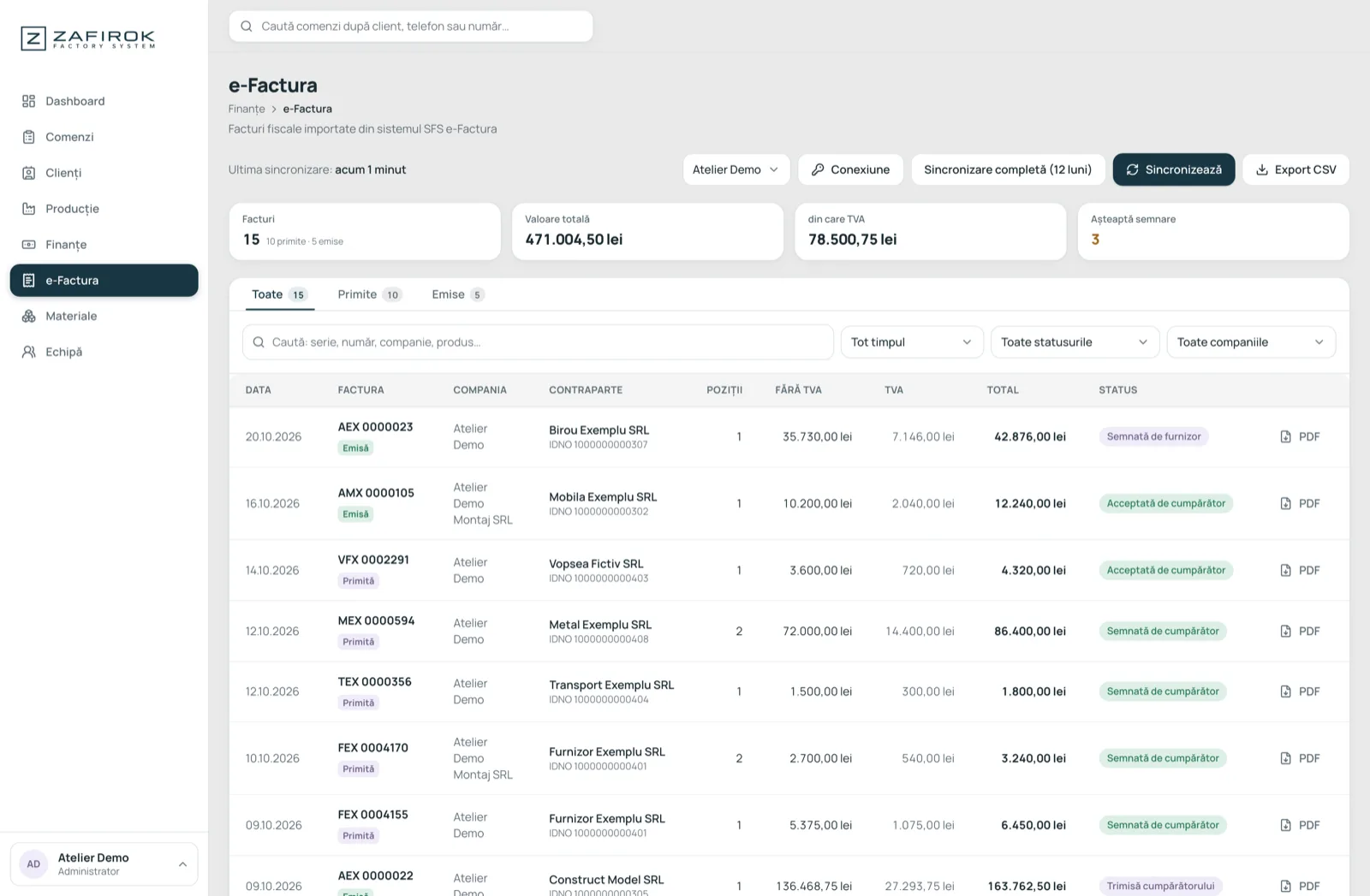
The integration is a read-only connection. Zafirok fetches the invoices in which your company is the supplier, buyer or carrier, whatever their status, and shows them under Finance › e-Factura. The rest of your process stays the same: issuing and signing still happen in e-Factura.
What you get
- received and issued invoices in one list, with parties, line items, VAT and totals;
- the number of invoices waiting for a signature, so you know what to deal with in e-Factura;
- the PDF of each invoice, fetched live from e-Factura when you open it;
- a CSV export for your accountant that follows the filters on screen;
- invoices from every connected company, with a Company column and filter.
What it does not do
- it does not issue, sign, accept or reject invoices;
- it does not move invoice lines automatically into materials, stock, orders or expenses;
- it does not match supplier product names to an internal catalogue;
- it does not send notifications when a new invoice arrives;
- it does not connect directly to Romania's e-Factura or to other invoicing systems; for those, the app refers you to the support team.
Invoices are issued and signed in e-Factura. In Zafirok you find them, check them and pass them to your accountant.
Rule of thumb
Several companies, one CRM
Many small businesses run two or three legal entities, for example one company that manufactures and another that installs. In Zafirok, an account has a main company and can hold up to 20 additional company profiles. The companies share the same CRM, meaning the same clients and orders, but each has its own e-Factura connection.
Each company connects with its own API user, and one API user cannot be linked to two companies. A single sync run covers all of them. The list gets a Company column and filter, so you can see every company's invoices together or just one company's.
A hypothetical example: “Demo Furniture SRL” makes cabinets and “Demo Installation SRL” invoices the fitting work. The accountant wants both companies' received invoices at the start of each month. With both connected, the accountant picks Last month and the Received tab, checks the total and exports one file in which the Company column shows who each invoice belongs to.
Step 1: create the API user in e-Factura
Zafirok does not connect with your normal e-Factura login. It needs an API user: a technical user created in the company's own e-Factura account. The steps below follow the integration guide published by SFS, with the Romanian labels used there; what you see on screen may differ slightly.
- Log in to e-Factura for the company you want to connect, through the personal account (Cabinetul personal) on sfs.md.
- Open Settings (Setări), then Company users (Utilizatorii companiei).
- Click Create an API user (Creează un utilizator API), fill in the required fields and save.
- Keep the username and password somewhere safe. You enter them only once in Zafirok.
According to the SFS guide, only users with the Manager (Director) role in e-Factura can create an API user. If you cannot see the button, ask the person with that role to create it. The same guide notes that the API user has access to all functions of the platform, so treat the password like a key: do not send it in chat or leave it written down in plain sight. Repeat the steps for each company.
Step 2: connect the company in Zafirok
Only the Zafirok account administrator can connect or disconnect e-Factura. Each company is connected separately:
- Go to Settings → Account and companies (Cont și companii) → Company details (Datele companiilor).
- Click Edit next to the company, or Add company for a new one.
- Tick Use e-Factura for this company and choose e-Factura Moldova.
- Enter the API user and API password, then save. Zafirok tests the login before saving, and the password is stored encrypted.
- Repeat for each company, using the API user created in that company's e-Factura account.
If the check fails, look at two things: that you entered the API user rather than your usual login details, and that this API user is not already connected to another company.
How sync works
One sync run covers all connected companies. It starts when you open the e-Factura page, repeats every 5 minutes while the browser tab is visible and runs again when you return to the tab. You can also start it yourself with the Sync button or with Full sync (12 months).
Zafirok always requests the last 365 days from e-Factura. There is no background sync: if nobody opens the page for a few days, new invoices appear the next time someone does. Invoices already fetched are never deleted, even after you disconnect.
Received and issued invoices: what you see
At the top are four tiles: Invoices (how many received and how many issued), Total value, of which VAT, and Awaiting signing. Below them are the All, Received and Issued tabs. Amounts are shown in lei, and cancelled invoices are left out of the totals. You can narrow the list by:
- period: All time, This month, Last month or This year;
- invoice status;
- company, when several are connected;
- search by series, number, company or product.
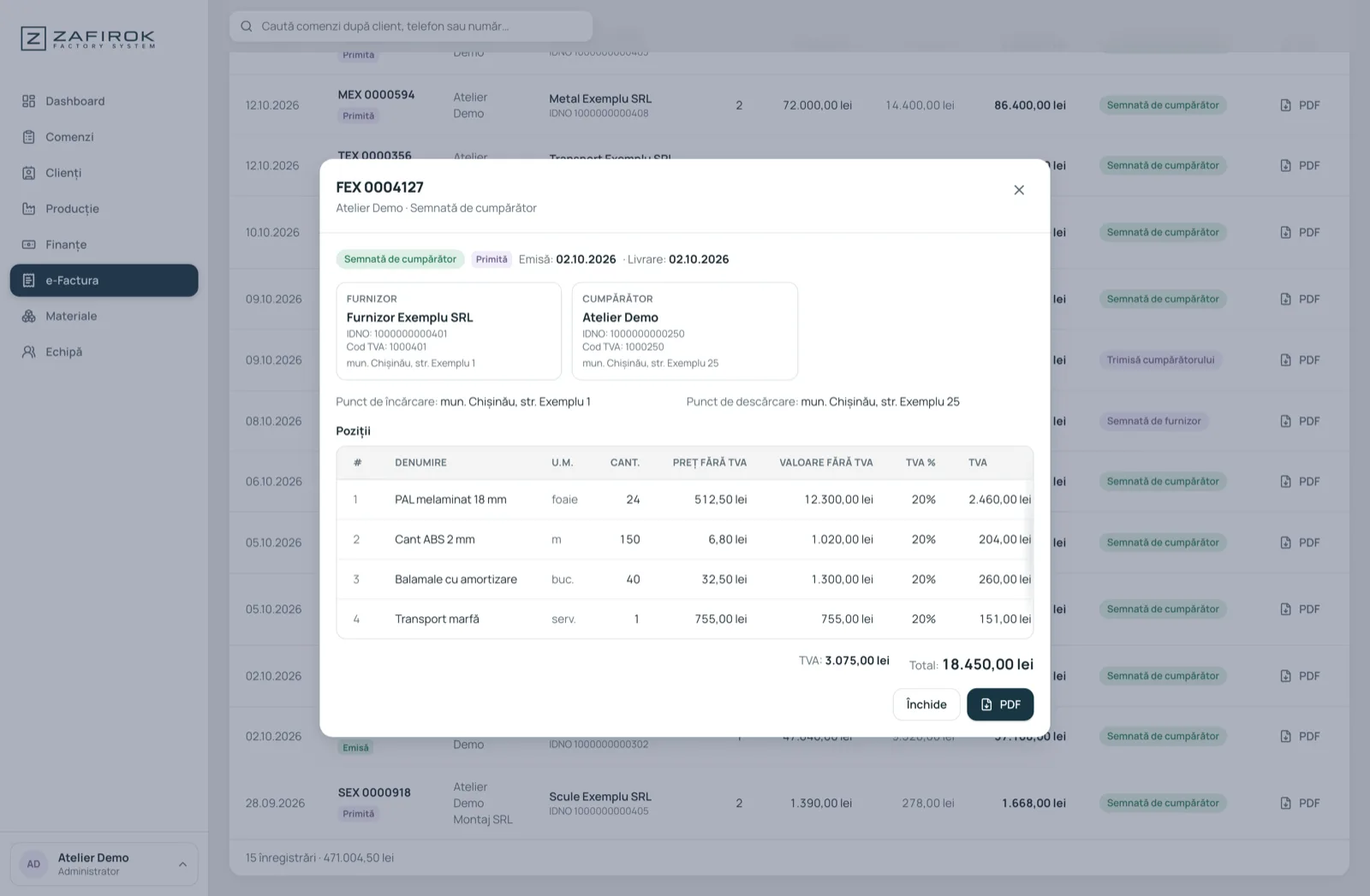
Searching by product helps when you want to know who sold you a particular material, or whom you sold an item to, without opening invoices one by one. Clicking a row opens the invoice with its parties and line items: name, unit, quantity, price without VAT, value without VAT, VAT rate, VAT amount and total. The PDF button fetches the document directly from e-Factura.
CSV export for your accountant
Export CSV downloads the list exactly as you see it, with the chosen tab and filters. Each invoice is one row, with the columns Date, Company (when you have several), Series, Number, Counterparty, IDNO, Direction, Status, Lines, Without VAT, VAT and Total. The file uses a semicolon separator and UTF-8 with BOM, so it opens directly in Excel.
The export has no line-level rows, is not an XLSX file and is not an import file for any particular accounting program. Treat it as a checklist for closing the month.
An example monthly routine
- Choose Last month and the Received tab.
- Check the Awaiting signing tile: anything left there is dealt with in e-Factura, not in Zafirok.
- Search by supplier or product for invoices you do not recognise and clear them up with colleagues.
- Export the CSV, for one company or all of them, and send it to your accountant.
- Repeat for the Issued tab if you want to compare sales with the client payments recorded in Finance.
Who can see the invoices
Only the account administrator connects and disconnects e-Factura. Employees see the e-Factura page if their role can see Finance. For a role that does not need company figures, you can set Finance to Hide.
What it costs
Prices for the subscription and the modules, including e-Factura, are on the pricing page. Check the current terms there before you connect.
How Zafirok helps: CRM and ERP software with e-Factura
The integration is most useful together with the rest of the app, not just as a list of invoices:
- The e-Factura module: received and issued invoices for all connected companies, with filters, product search, PDFs and CSV export.
- Finance: client payments per order and expenses. The e-Factura page sits next to Finance in the menu and follows the same access rights.
- Materials: when you want a supplier invoice to count towards an order's cost, you record it as a new document (Document nou) with its lines assigned to an order or a warehouse. The lines are not taken over automatically from e-Factura.
- Team and roles: access to Finance, and therefore to e-Factura, is set per role as Hide, View or Edit.
- Several companies in one account: the same clients and orders, each company with its own e-Factura connection.
The roles and the monthly routine in this guide are examples: each company decides who sees Finance and e-Factura and how it runs its monthly check. If you prefer, the Zafirok team can help you set up your companies and roles: write to us via the contact page or create an account.
The limits, plainly: the app reads invoices, while issuing and signing stay in e-Factura. Sync runs only while the page is open, and there are no new-invoice notifications and no line-level export.
Conclusion: start with one company
If you want your e-Factura invoices in one place, we recommend starting with the company that receives the most invoices. Create the API user, connect the company, then review last month's list and the CSV export with your accountant. Once the routine works, add your other companies, each with its own API user.
Frequently asked questions
Can I issue or sign e-Factura invoices from Zafirok?
No. The integration only reads invoices from e-Factura. Creating, signing, accepting and rejecting invoices still happen in e-Factura, by the people who hold those rights there.
Can two companies share one API user?
No. Each company needs the API user created in its own e-Factura account, and one API user cannot be connected to two companies. One account can hold the main company plus up to 20 additional company profiles.
Why can't I see an invoice I received yesterday?
Sync runs only while the e-Factura page is open: when you open it, every 5 minutes and when you return to the tab. Open the page or click Sync. If the invoice is still missing, check in e-Factura that it was actually sent to your company.
Do supplier invoice lines flow automatically into orders or stock?
No. e-Factura lines are not transferred automatically into materials, stock, orders or expenses, and they are not matched to a product catalogue. To see costs per order, record the supplier invoice in Materials with its lines assigned to orders.
Is e-Factura mandatory for my company?
It depends on your company's situation. SFS states that the system is mandatory for certain categories of taxpayers and publishes the list of businesses that must use it. Check the official sources and talk to your accountant; this article is not tax advice.
Sources
- State Tax Service (SFS): user guide for the e-Factura service (in Romanian)
- State Tax Service (SFS): semi-automated integration guide for SIA e-Factura, including how to create an API user (PDF, in Romanian)
- State Tax Service (SFS): list of businesses required to use the electronic tax invoice