

The Victoriabank integration in Zafirok, CRM and ERP software for small businesses, brings VB24 Business statements into the Finance module through the bank's web service, using a username and password issued by Victoriabank. Unlike MAIB and ProCredit Bank, the connection only works through a secure channel that the bank must approve, so it cannot be switched on just by filling in a form: you set it up together with the Zafirok team. Once active, statements are reviewed and matched exactly as with the other banks.
Below: what activation involves, what the statement contains, where the limits are, and how you can check client payments on one screen when the company has accounts at MAIB, ProCredit Bank and Victoriabank.
In short
- The connection uses the VB24 Business web service, with a username and password issued by Victoriabank.
- It only works through a secure channel approved by the bank; until it is configured, choosing Victoriabank under “Add a bank” shows a “Contact support” button instead of the connection form.
- Activation is done together with Zafirok support, so the first step is to write to us.
- The statement includes the date, document, direction, amount, currency, counterparty, IDNO, account and payment details; for balances, only the opening and closing balance of the period.
- Syncing and matching are manual, and the connection only reads data: it makes no payments.
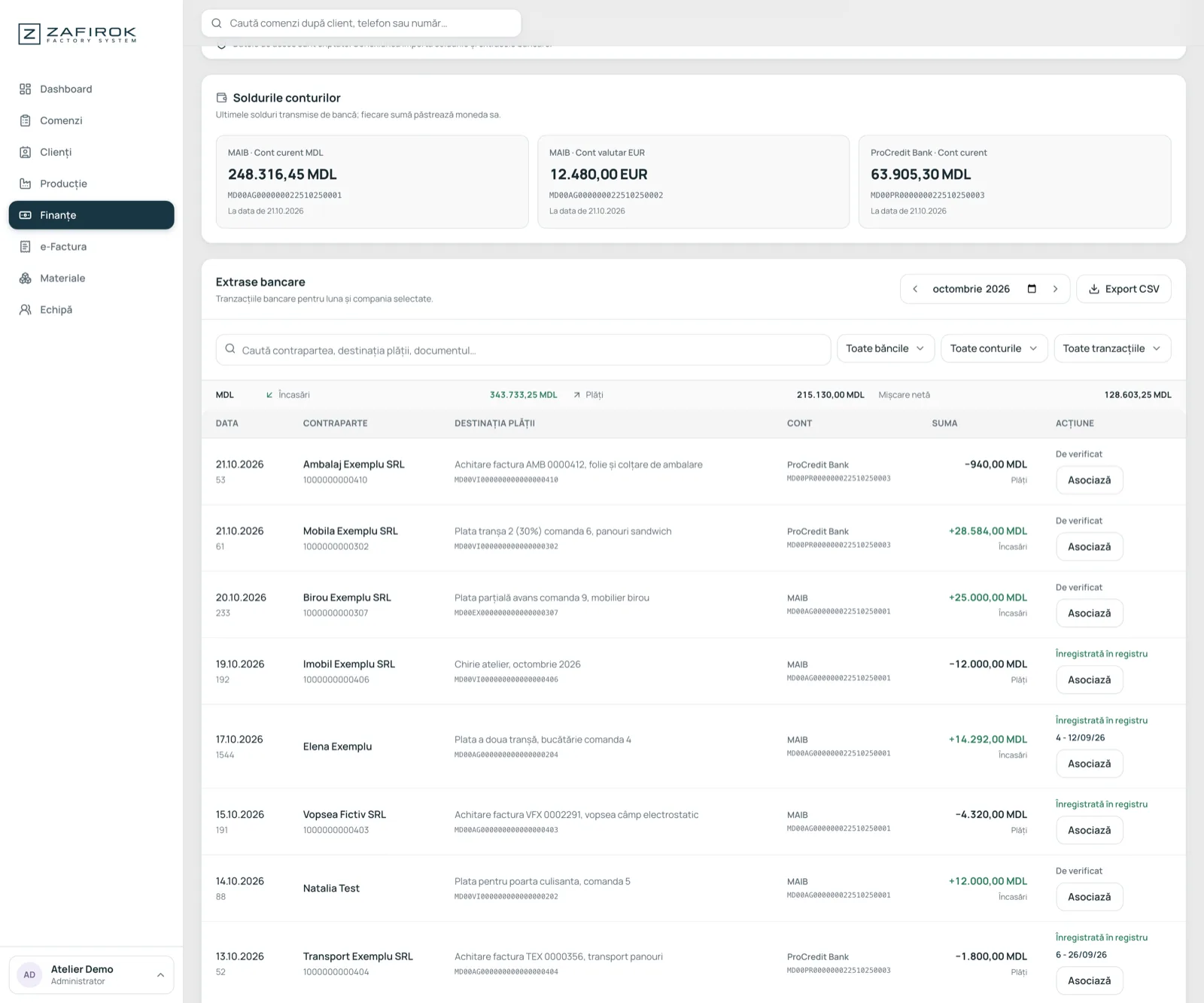
- Statements from all three integrated banks appear and can be filtered in the same list.
What the Victoriabank integration runs on
VB24 Business is Victoriabank's internet banking platform for companies. The Zafirok integration does not work through the platform's screens but through its web service, from which the app reads account transactions and balances. Access uses a username and password that the bank issues for this service.
As with the other banks, the connection is read-only: Zafirok does not initiate payments, changes nothing at the bank and does not create Finance records by itself. Credentials are checked with the bank before saving and stored encrypted.
Why the connection is not instant
The VB24 Business web service that Zafirok uses can only be reached through a secure channel that the bank must approve. Setting up the channel involves the bank, your company and the Zafirok team. Until the channel is ready, choosing Victoriabank under Finance → Bank → “Add a bank” shows the message “Victoriabank needs an approved connection. Contact our team to set up access for your company.” and a “Contact support” button instead of the connection form.
How long it takes depends mainly on the bank, so we do not promise a deadline. One thing is certain: the 3 free days of the Bank module only start after the first successful connection of any bank and are given only once per Zafirok account. If Victoriabank is the first bank you connect, the trial is not used up while you wait for approval.
How to activate the Victoriabank integration, step by step
- Tell the Zafirok team that you want to connect Victoriabank and for which company.
- Ask Victoriabank for access to the VB24 Business web service for the company account: a username and a password. The bank sets the conditions, documents and any fees.
- In Settings → System, turn on “Bank” and press “Save menu”; in Settings → “Account and companies”, tick “Bank” for the company, with Moldova as the country.
- The secure channel the bank requires is set up together with the Zafirok team and approved by the bank.
- Once the channel is ready, go to Finance → Bank and choose Moldova and Victoriabank under “Add a bank”; if the Bank module is not active yet, press “Activate”. Then enter the username issued by the bank (in the “API client ID” field), the password (“API password / secret”) and the IBAN of each account (current accounts only; the label is optional); finally, press “Verify and connect”.
- Press “Sync” and check the first statements.
What the Victoriabank statement contains
For each transaction, Victoriabank sends the date, document number, direction (in or out), amount, currency, the counterparty's name, IDNO (the Moldovan company ID), the counterparty's account and the payment details. The payer's account helps you tell apart clients with similar names, and search in “Statements” also finds IBANs and IDNOs.
Balances differ from MAIB: Victoriabank only sends the opening and closing balance for the synced period, not a balance for each day. As with every bank, the “Account balances” card shows the latest balance reported by the bank, with its date. If you need the balance on a specific day, check it in VB24 Business.
Reviewing and matching transfers
Once active, Victoriabank behaves like the other banks in the “Statements” list: search, filters, statuses, “Export CSV” and the “Match” button. Syncing stays manual and fetches the month on screen. For a transfer to reduce what is left to collect on an order, follow these steps:
- Find the transfer in the statement and note its date and amount.
- In Finance, add a “New payment” for the order: method “Transfer bancar” (the default bank-transfer method; method names come from the company's lists and are not translated), status “Paid”, date and amount from the statement.
- In Bank, choose “Match” → “Already recorded” and select the payment you created.
“Already recorded” appears only for transactions in the currency the company keeps its books in. A transfer in another currency (for example, into an EUR account of a company that keeps its books in lei) can only be linked to an order or excluded. “Link an order” only records the link and does not change the amount paid on the order. The full explanation of all four matching actions is in the guide on the MAIB bank integration.
Several banks in one app: organising payment checks
For example, a company may hold accounts at two or three banks: client advance payments arrive at one, card payments at another, and suppliers are paid from a third. In Zafirok, statements from every connected bank sit in the same “Statements” list. Here are a few habits that make the check easier; treat them as an example and keep what fits the way you work:
- You can sync all banks at once with “Sync statements”, so every statement is up to date as of the same moment.
- A convenient option: work on “All banks” with the “Incoming” filter and go through the rows marked “To review” (the list cannot be filtered by status); use the bank or account filter when you look for something specific.
- A move between your own accounts appears twice: as a payment out of one bank and as money into the other. You can mark both rows with “Internal transfer / exclude”: they get the status “Excluded from accounting” and no longer count as “To review”. The bank totals (“Incoming”, “Outgoing”, “Net movement”) still include them.
- Totals are per currency, without conversion: an EUR account and an MDL account each keep their own totals.
- If it suits you, put a single IBAN for client payments on invoices and contracts: the fewer accounts money arrives in, the faster the check.
- It helps to agree who checks and how often, for example the accountant daily or the manager before delivery. The “Bank” card on the Finance overview shows how many transactions are still to review in the chosen period.
How the three banks differ
- MAIB: access with an “API client ID” and secret; the statement does not include the payer's IBAN; each request covers one month; the bank also sends the closing balance of each day, but Zafirok shows, as for every bank, only the latest balance in “Account balances”.
- ProCredit Bank: access with an API user and password; the statement includes the counterparty's account and the bank's transaction ID; the bank may require IP approval; the day's movements may appear after it closes. Details in the guide on the ProCredit Bank integration.
- Victoriabank: the VB24 Business web service, through a secure channel approved by the bank and activated with Zafirok support; the statement includes the counterparty's account; balances come only for the start and end of the period.
How Zafirok helps
- A read-only Victoriabank connection through the VB24 Business web service, set up together with the Zafirok team.
- One “Statements” list for MAIB, ProCredit Bank and Victoriabank: filters by bank, account and direction, search, totals per currency, statuses and “Export CSV”.
- “Match bank movement”: “Link an order”, “Already recorded”, “Internal transfer / exclude” and “Undo match”.
- “Account balances”, with the date of the latest balance reported by each bank.
- Separate connections for each legal company, with a company selector.
- The link to client payments and order balances in Finance, described in the guide to small business finance tracking.
What it does not do: it is not activated instantly from the app; it does not sync on a schedule; it does not import statement files; it does not match transfers automatically or create payments from them; it does not send SMS payment reminders and does not forecast cash flow.
The checking routine above is just an example: who syncs, who matches payments and what each role sees in Finance are set up to match the way you work. If you prefer, the Zafirok team can help with the setup and with the Victoriabank activation: write to us via the contact page or create an account.
The Bank module costs USD 5 per month (price as of October 2026; the app shows it before you confirm activation), and the 3 free days start after the first successful connection.
Frequently asked questions
Can I connect Victoriabank on my own, from the app?
Not entirely. The connection needs a secure channel approved by the bank, and activation is done together with the Zafirok team; you can write to us via the contact page. Until then, choosing Victoriabank under “Add a bank” shows a “Contact support” button instead of the connection form.
How long does activation take?
It depends mainly on the bank, so we do not give a fixed deadline. The 3-day free period only starts after the first successful connection.
Can I see the daily balance of my Victoriabank account?
No. Victoriabank only sends the opening and closing balance for the synced period. Check the balance on a specific day in VB24 Business.
Can Zafirok make payments through VB24 Business?
No. The connection is read-only: the app reads statements and balances. You keep making payments in VB24 Business.
Can I see statements from several banks in one place?
Yes. MAIB, ProCredit Bank and Victoriabank appear in the same “Statements” list, with filters by bank and account and totals per currency.
Sources
- Victoriabank – official VB24 Business page (checked on 22 October 2026)
- Victoriabank – official contacts page (checked on 22 October 2026)