

The ProCredit Bank Moldova integration in Zafirok, CRM and ERP software for small businesses, brings the statements of your company's current accounts into the Finance module, where you review them and match them to client payments on orders. You connect with an API user and password issued by the bank, then sync the month you need by hand. The connection only reads data: it makes no payments and creates no records.
This guide focuses on what is specific to ProCredit Bank: what to ask the bank for, which extra data you get, why the current day's movements can lag and how to work with several companies. The second half suggests an example weekly routine for checking client payments that you can adapt to your company. The full explanation of matching transfers is in the guide on the MAIB bank integration.
In short
- You need an “API user” and password issued by ProCredit Bank for the company's current account.
- The bank may require approval of the IP address the app connects from; if so, contact Zafirok support.
- Besides the usual data, the statement includes the counterparty's account and the bank's transaction ID.
- Movements from the current day may only appear after the day closes.
- Syncing and matching are manual; the connection makes no payments and creates no client payments.
- Each legal company has its own connection. The Bank module costs USD 5 per month.
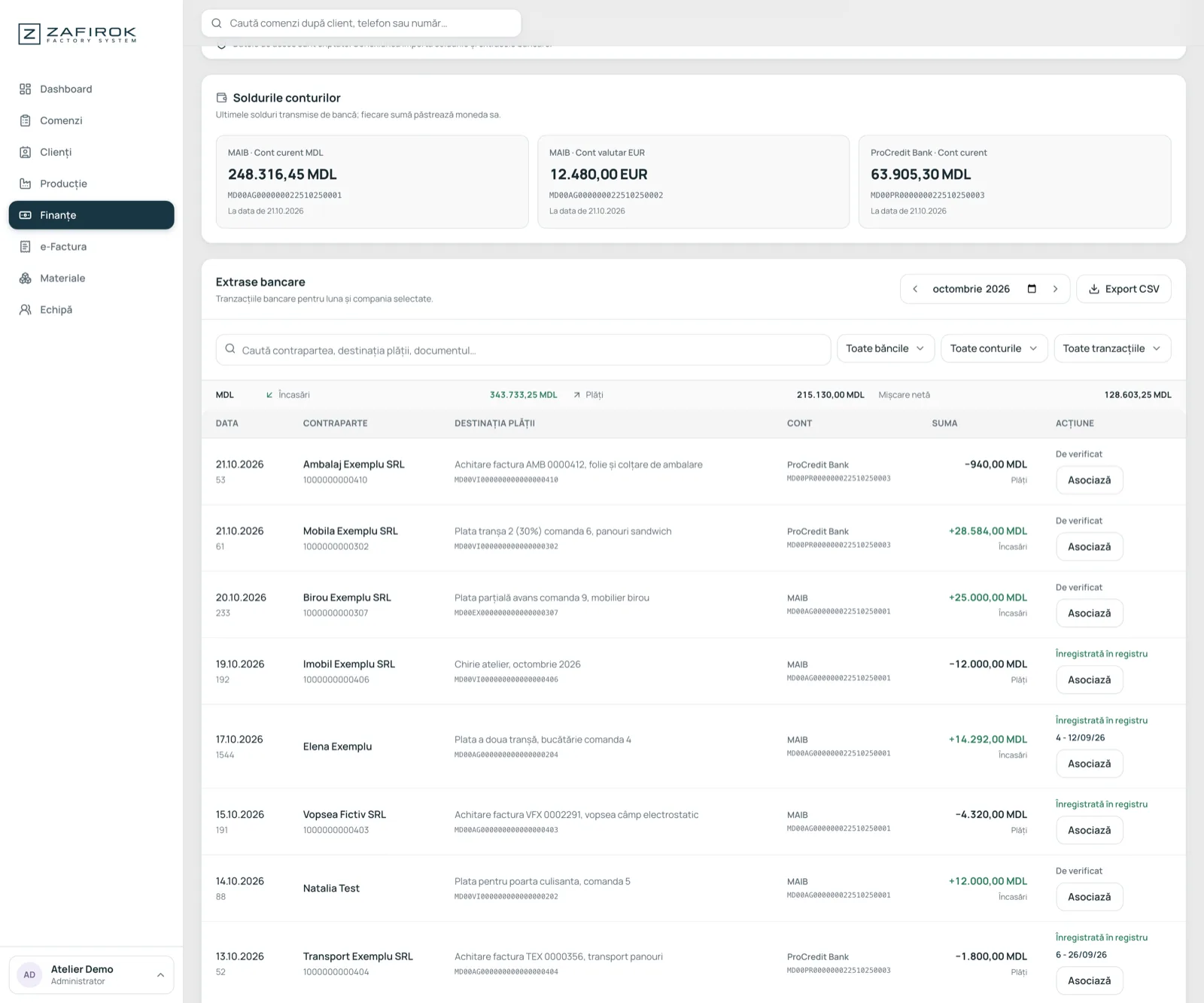
What the ProCredit Bank integration does
The connection uses ProCredit Bank's API over HTTPS, with a user and password. Zafirok reads current account balances and their transactions: date, document number, direction, amount, currency, the counterparty's name and IDNO (the Moldovan company ID) and the payment details. Compared with MAIB, ProCredit Bank also sends the counterparty's account and the bank's transaction ID.
Why the counterparty's account matters
- The payer's account appears in the list under the payment details, so two clients with similar names can be told apart by account; search in “Statements” also finds IBANs and IDNOs.
- When the same client pays from different accounts, you can see where each transfer came from.
- The bank's transaction ID is not shown as a separate column: the app uses it to recognise the same movement when you sync the month again.
What you need from ProCredit Bank
To connect, you need an “API user” and password for API access to the company's current account, issued by ProCredit Bank. Request them from the bank; the bank sets the conditions, the documents it needs and any fees. Its contact details are in the sources at the end.
ProCredit Bank may require the IP address the app connects from to be approved by the bank. If the bank requires this approval, or if the bank refuses the connection although the user and password are correct, contact Zafirok support for this step. It also helps to have at hand the IBANs of the current accounts you want to see: one connection holds up to 10 accounts.
Connecting, briefly
The steps are the same as for the other integrated banks, except that for ProCredit Bank you fill in “API user” rather than “API client ID”:
- Settings → System: turn on “Bank” and press “Save menu”.
- Settings → “Account and companies”: edit the company that holds the ProCredit Bank account; country Moldova, “Bank” ticked.
- Finance → Bank → “Add a bank”: Moldova, ProCredit Bank, then “Activate”.
- Fill in “API user”, “API password / secret” and, for each account, the IBAN, the type “Current account” and a clear label.
- Press “Verify and connect”: the bank checks the credentials before saving, and the app stores them encrypted.
- Press “Sync” for the month on screen.
Why today's payment is not there yet
With ProCredit Bank, movements from the current day may only appear after the day closes. If a client says in the morning that they have paid and the transfer is not in the statement, the payment is not necessarily missing: you can sync again the next day.
The practical consequence: payments are checked most reliably on completed days. If an order has to start urgently on the strength of today's payment, the company sets the rule, for example a copy of the client's payment order, and the statement confirms it later.
An example weekly routine for checking client payments
How often you check and who does it is up to each company: daily, once a week or before payroll. Below is an example of a weekly check, say on Monday morning, as a starting point:
- Press “Sync statements”. At the start of a month, also sync the previous month to catch movements from its last days.
- Choose the “Incoming” filter and look at the rows with the status “To review”.
- For each client transfer: identify the payer by name, IDNO, account or payment details; in Finance press “New payment” and choose their order (method «Transfer bancar», shown with this name in the English interface too, status “Paid”, date and amount from the statement); go back to Bank and choose “Match” → “Already recorded”.
- If a colleague has already recorded the payment, go straight to “Already recorded”.
- Moves between your own accounts are marked with “Internal transfer / exclude”.
- Check rows marked “Changed by bank — review again”: the bank changed something in a transaction that was already matched.
- Open the Dashboard: “Alerts” lists receivables that are due and unpaid. You can call those clients; there are no automatic SMS payment reminders.
- Finally, you can download “Export CSV” for the accountant, if that is how you work.
If it is not recorded as a paid payment, it does not reduce the balance. “Link an order” only records the link.
Remember
The check ends with a short list of rows still “To review”: transfers you cannot assign yet. We recommend noting them and clearing them up with the clients instead of matching them at random. A wrong match is fixed with “Undo match”.
Several companies, each with its own connection
If your Zafirok account holds several legal companies, each one has its own bank connections: you connect ProCredit Bank for the first company and, separately, for the second, each with the credentials the bank issued to it. In “Statements” you pick the company from the selector and see only its transactions.
One limit to know: Finance keeps one set of books for the whole account, in one currency, with no separate books per legal entity. The company selector separates the bank statements, not the rest of the records.
How the Zafirok app helps
- A read-only ProCredit Bank connection with an “API user” and password checked by the bank and stored encrypted; up to 10 accounts per connection.
- Statements that include the counterparty's account, shown in the list and included in search, on top of the usual data.
- “Statements”: search including IBAN or IDNO, filters by bank, account and direction, totals per currency, statuses and “Export CSV”.
- “Match bank movement”: “Link an order”, “Already recorded”, “Internal transfer / exclude” and “Undo match”.
- Separate connections for each legal company, with a company selector.
- The link to the rest of the Finance module: client payments, “Left to collect” on orders, “Alerts” on the Dashboard.
What it does not do: it does not sync on a schedule, does not import statement files, does not match transfers automatically, does not create payments from the statement, does not send SMS payment reminders and does not forecast cash flow. How the bank fits with payments, expenses and payroll is covered in the guide to small business finance tracking.
The Bank module costs USD 5 per month. The 3 free days start after the first successful connection, so they are not used up while you wait for credentials or approval from the bank.
The routine above is a model to start from, not a rule. Each company sets up its own roles and access rights in Zafirok (for example, who sees Finance) and its lists of payment methods and expense categories. If you prefer, the Zafirok team can set it up for you: write to us via the contact page or create an account.
Frequently asked questions
What if ProCredit Bank asks to approve an IP address?
Contact Zafirok support for this step. The 3 free days only start after the first successful connection.
Why doesn't today's payment show in the statement?
With ProCredit Bank, movements from the current day may only appear after the day closes. It is worth syncing again the next day; in the meantime you can ask the client for proof of payment.
Can I search for a transfer by the payer's account?
Yes. ProCredit Bank sends the counterparty's account, and search in “Statements” also finds IBANs and IDNOs, as well as names, payment details and document numbers.
Are transfers recorded as client payments automatically?
No. You record the payment in Finance and match it to the transfer with “Already recorded”. “Link an order” only records the link and does not change the balance.
Can two companies connect to ProCredit Bank?
Yes. Each legal company in your account has its own connection with its own credentials, and statements are shown per company through the selector in “Statements”.