

Good small business finance tracking software should tell you at any moment who owes you money, whom you owe, how much cash and bank money you have and which salaries are coming up. Zafirok is CRM and ERP software for small businesses, and its Finance module keeps all of this around your orders: client payments, expenses, supplier debts, the day's cash, bank statements and payroll.
This guide is for owners and managers of workshops and service companies who keep money in a notebook, a spreadsheet and the banking app today. We walk through each part of the module with the real names used in the app, and we say plainly what it does not do.
In short
- Every client payment has a date and a status, Paid or Unpaid, and is usually linked to an order. An unpaid payment with a date works as a planned receivable.
- Expenses are recorded by category, can be linked to an order and can be paid in part.
- The “Suppliers” tab shows debts by age: up to 30 days, 31–60, 61–90 and over 90 days.
- “Daily balance” shows the day's money in and out; “Close the day” saves the cash and bank balances calculated from your records.
- Statements from MAIB, ProCredit Bank and Victoriabank appear under Finance → Bank, read-only and synced by hand.
- Salaries are calculated by rules, planned for a date and, once paid, automatically become an expense in Finance.
What small business finance tracking should cover
Whatever tool you use, a production or service company usually needs answers to six questions: how much did we collect, how much did we spend, how much is still due to us, how much do we owe suppliers, how much money do we have today and which big payments are coming. In a workshop, the first three say the most when they are tracked per order: a payment that belongs to no order tells you little about how a job went.
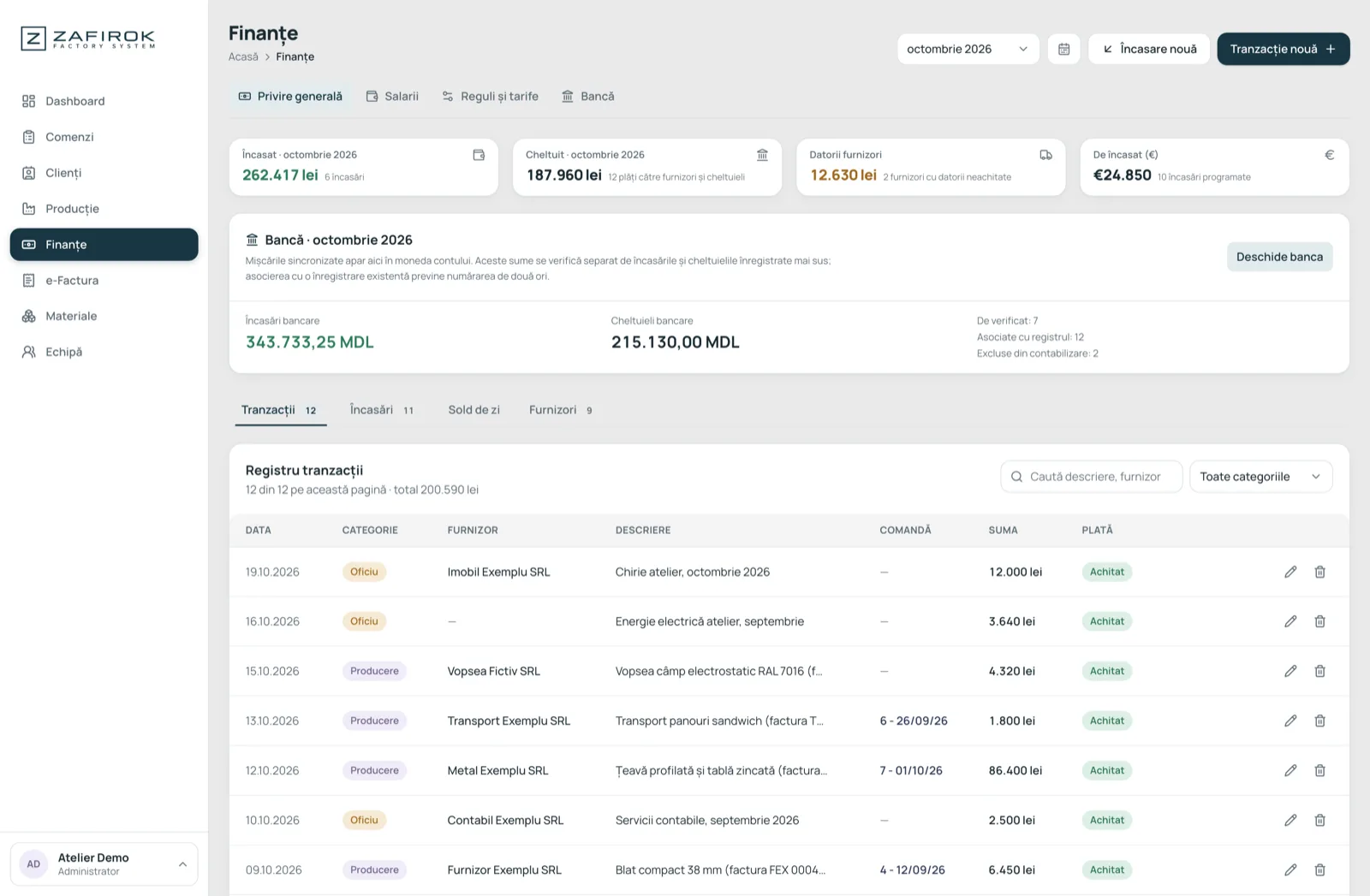
The Zafirok Finance module has four tabs for this – “Transactions”, “Payments”, “Daily balance” and “Suppliers” – and four figures for the chosen period: Collected, Spent, Supplier debts and Receivable. The period can be a month or a range you pick. The Bank and Payroll pages complete the picture.
Client payments per order: what was paid and what is due
In the “Payments” tab, every client payment gets a date, a method and a status: Paid or Unpaid. Linking it to an order is optional, but without the link the payment does not show on the order. In the production setups a payment also has a type: “60% advance”, “30% advance”, “10% advance” or “100%”; the 60–30–10 split is just a common model, not an obligation. You add one with the “New payment” button.
A useful habit for planning: a payment with the status Unpaid and a date works as a planned receivable. Unpaid payments also appear on the Dashboard under “Alerts” as “Receivable · order · due date”, so you can see the ones that are close to or past their date.
The order card shows profit, margin, the amount collected, “Left to collect” and “% paid”. The balance is calculated only from payments with the status Paid, so a planned payment never hides what the client still owes. For setting deposits and instalments, see the guide on tracking deposits and balances on orders.
Payment gates in the production setups
For windows, gates and fences, modular houses, sandwich panels, bespoke furniture and kitchens, and factories, the app has two rules tied to stage names: an order cannot leave “Design” (Designer) until 60% is paid, and cannot leave “Installation” (Instalare) until 100% is paid. If your company works with different payment rules, you can rename those stages and the rule no longer applies.
One currency for the company's books
Each company keeps its books in one currency: MDL, RON, USD or EUR. For companies working in lei, the production setups take the contract value in EUR and payments in lei, at the company's own EUR rate.
Expenses and part-payments
The “Transactions” tab is the expense register: materials, transport, rent, services. Each expense has a category and can be linked to an order, so it counts in that job's cost and margin. The list has search and a category filter.
Not every invoice is paid in one go. When you record an expense, the “Paid now” field takes the amount actually paid, and the rest stays as a debt to the supplier. Expense categories and payment methods (cash, bank, debt) are lists each company adapts in Settings → Commercial → Lists; the preset ones are only a starting point.
Supplier debts and how old they are
The “Suppliers” tab adds up what you owe each supplier and groups debts by age: up to 30 days, 31–60, 61–90 and over 90 days. Old debts are the ones that damage supplier relationships, so we recommend checking them regularly, for example once a week.
When you pay, “Pay debt” records the payment straight from this tab, and the “Supplier debts” figure shows what is left.
“Daily balance”: closing the cash register
“Daily balance” is the day's cash register: money in, money out and the “Day's turnover”, which is money in minus money out. At the end, “Close the day” saves the cash and bank balances calculated from the records in the app.
Note that the bank balance in “Daily balance” comes from what your team recorded in the app, not from the bank. The balance reported by the bank is shown separately under Finance → Bank. A short check before “Close the day” can help, for example:
- All of today's client payments are recorded on their orders.
- Cash expenses have a category and, where relevant, an order.
- The cash in the drawer matches the calculated balance; if not, it is worth finding the difference before closing.
Bank statements: proof that the money arrived
The Bank module brings statements from MAIB, ProCredit Bank and Victoriabank accounts into Finance. The connection is read-only: the app reads balances and transactions, never makes payments and never creates records by itself. Syncing is manual, with “Sync statements” for all banks or “Sync” for one, and it fetches the month on screen.
Each transaction in “Statements” has a status: “To review”, “Order linked”, “Recorded in ledger”, “Excluded from accounting” or “Changed by bank — review again”. On the Finance overview, the “Bank” card counts for the chosen period how many transactions are to review, matched to the ledger or excluded.
Watch out for a common mix-up: “Link an order” only records the link and does not change the amount paid. For a transfer to reduce the balance, record the payment with “New payment” (method “Transfer bancar”, the default name of the bank method, status Paid, date and amount from the statement), then in Bank choose “Match” → “Already recorded”. The detailed steps are in the guide on the MAIB bank integration.
MAIB and ProCredit Bank connect with API credentials issued by the bank. Victoriabank needs a secure channel approved by the bank and is activated together with the Zafirok team.
Payroll: rules, planning and payment
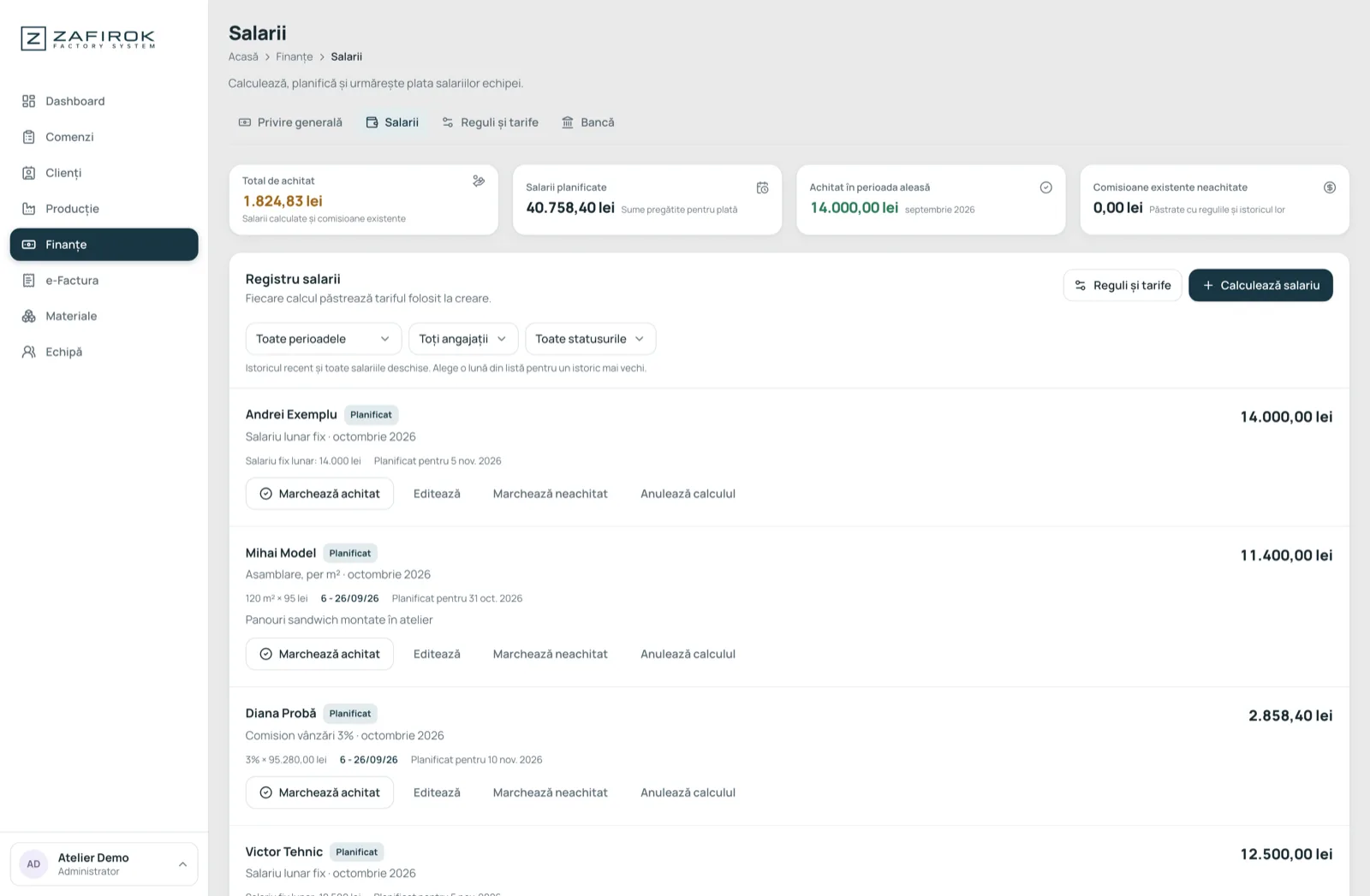
Salaries live under Finance → Payroll. First, in “Rules and rates”, you set how each person is paid: “Fixed monthly salary”, “Hourly”, “By volume” (a rate per unit you name, such as m² or pieces) or “% of order”, meaning a percentage of the order value, not of the money received. You can also use the levels “Beginner”, “Intermediate” and “Advanced”, with an hourly or per-unit rate.
How to plan salaries: for example at the end of the month, “Calculate salary” works out the pay for one employee, with quantities or hours typed in by hand and optionally linked to an order. Then you choose “Plan salary” with a “Scheduled payment date”, or “Create unpaid salary”. That way you see in advance which amounts are due and when.
On payday, “Mark paid” asks for the date and method and creates a salary expense („Salariu”) in Finance, so nobody enters it twice. The figures “Total outstanding”, “Planned salaries” and “Paid in selected period” give the picture at a glance. More on payroll in Zafirok.
What Payroll does not do: it does not split pay across the members of a crew automatically, does not calculate pay from tasks or production, and does not plan salaries from the bank balance.
Looking ahead with what exists today
Zafirok has no automatic cash-flow forecast, projected balance, recurring expenses or budgets. You can still see the coming weeks fairly well if records are entered on time. Three sources give you the picture:
- Unpaid client payments with dates: what should come in and when. You also see them under “Alerts” on the Dashboard.
- Planned salaries with their payment dates: what will go out to the team.
- Supplier debts by age: what must be paid and what is already late.
Hypothetical example in lei for the next two weeks: planned client payments 96,000, planned salaries 41,000, supplier debts to settle 27,000. The difference of 28,000 is not a forecast: it only shows what is left if every client pays on time and no other costs appear. You do this sum yourself, for example once a week; the app gives you the figures, not the conclusion.
If a client is late, you can update the date of the planned payment and give them a call. There are no automatic SMS payment reminders, so the “Alerts” list can serve as your call list.
How Zafirok helps as CRM and ERP software
- “Payments”: client payments linked to orders, with date, method and status; unpaid payments with a date act as planned receivables.
- “Transactions”: expenses by category, linked to orders, with part-payment through “Paid now”.
- “Suppliers”: debts by age and “Pay debt”.
- “Daily balance”: money in and out, “Day's turnover” and “Close the day”.
- Bank: read-only statements from MAIB, ProCredit Bank and Victoriabank, manual sync and matching, and “Export CSV” for statements.
- Payroll: rules and levels, calculation, planning with a date, and “Mark paid”, which creates the expense.
- On each order: profit, margin, collected, “Left to collect” and “% paid”; on the Dashboard, “Alerts” for unpaid client payments.
The expense categories, payment methods, pay rules and routines in this guide are a model to start from, not a rule. Each company sets up its own lists, roles and pay rules in Zafirok. If you prefer, the Zafirok team can set it up for you: write to us via the contact page or create an account.
Limits to know: one currency per company, no separate books per legal entity, no export of finance records (bank statements do have “Export CSV”) and no reports page. The full overview is on the Finance module page.
Prices in USD: Finance and payroll is an add-on of USD 5 per month on top of the subscription. The Bank module costs USD 5 per month separately, with 3 free days that start after the first successful bank connection.
Frequently asked questions
Does Zafirok replace accounting software?
No. Finance is the company's management record: payments per order, expenses, debts, the day's cash, bank and payroll. Statutory accounting, tax returns and mandatory registers stay with your accountant and their software.
Is there a cash-flow forecast?
No. The app does not project your future balance; you can look ahead using dated unpaid payments, planned salaries and supplier debts.
Are payments created automatically from bank statements?
No. Statements are only read. You record the payment in Finance and match it to the transfer with “Already recorded”, so it is not counted twice.
How does a salary end up in expenses?
When you press “Mark paid” on a salary and choose the date and method, the app creates a salary expense in Finance. You do not enter it by hand.
Can I adapt the Finance module to the way my company works?
Yes. Each company sets its own lists, pay rules and access to Finance, and the Zafirok team can help with the setup.
Create an account and start tracking your finances