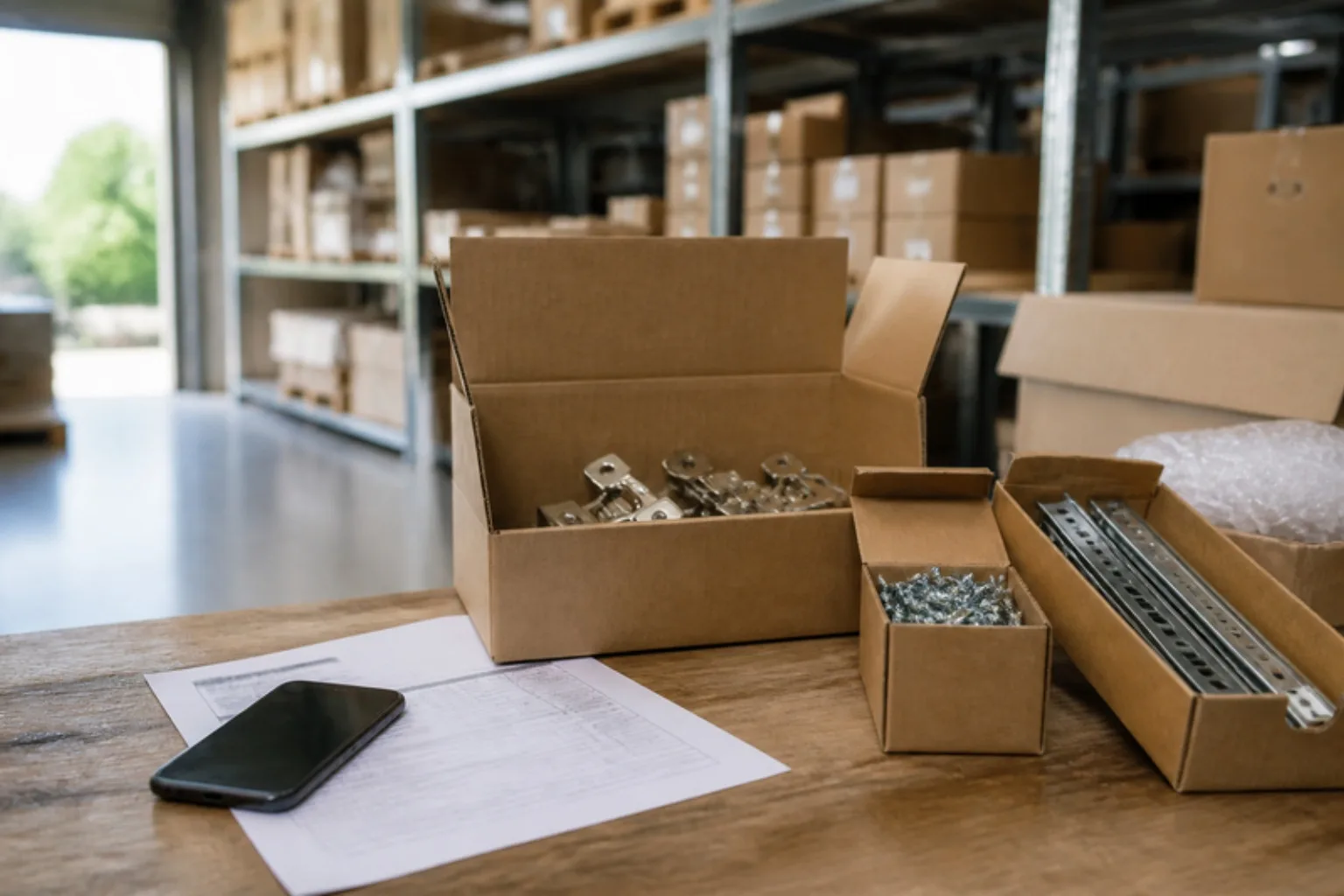
To track supplier invoices by job, every line on an invoice has to land where it was used: on the order you bought the material for, or in the warehouse if it stays in stock. In CRM and ERP software such as Zafirok, you then see the real material cost of each job, and your accountant receives checked data instead of a pile of paper at the end of the month.
The problem shows up in any workshop that buys often. A single invoice covers board for two kitchens, hardware for stock and the delivery charge. If the invoice only goes into a folder, a month later nobody knows which order used what. Below is a way of working you can use as a model, and how it looks in Zafirok, from a photo of the invoice to the export for your accountant.
In short
- Record each invoice once, as a document with lines; every line goes to an order or a warehouse.
- A line can be split between orders, and transport or unloading costs are spread over the goods.
- Payment goes through two steps: Approve for payment, then Mark as paid.
- Accounting categories carry an account code, and Export CSV gives your accountant the document lines.
- The Scan button reads a photo or a PDF, including a PDF downloaded from the e-Factura page; you check and save.
- e-Factura invoices are not imported automatically: the integration only reads them.
Why material costs get lost between orders
The real cost of a job usually goes wrong in three places. The first is the shared invoice: materials for several orders sit on one document and nobody splits them. The second is the small costs that do not look like materials, such as transport or unloading. The third is stock: something bought “for the warehouse” and later used on an order disappears from view.
Materials and stock software does not fix this on its own. A shared team habit helps, for example: one invoice becomes one document in the system, every line has a destination, and whoever receives the goods records the invoice close to the delivery day rather than at the end of the month.
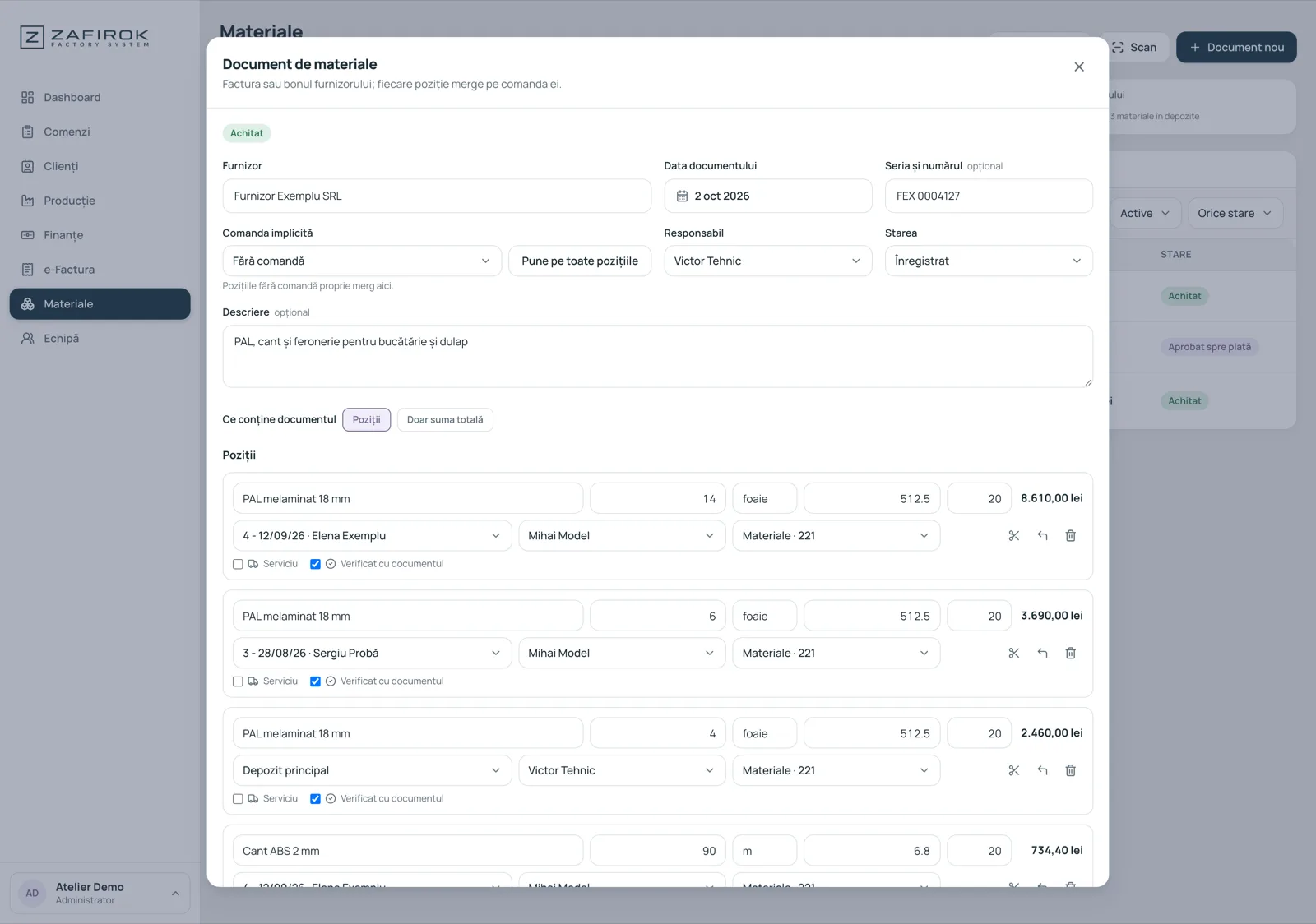
One invoice, one document. Every line with its destination: the order or the warehouse.
Working rule
How to track supplier invoices by job in the app, step by step
In Zafirok, supplier invoices and receipts are recorded in the Materials module, which is switched on by default for new companies. Each document has its own lines, with VAT per line, and each line has an Order / warehouse field.
- Open Materials and click New document (Document nou).
- Fill in the supplier, date, series and number, then the lines: name, quantity, unit, price without VAT and VAT. You can also use the Scan button described below.
- For each line, choose the order you bought it for or the warehouse where the goods will stay.
- If one line serves two orders, use Split line (Împarte poziția) to divide it between them.
- Add transport and unloading as service lines: their cost is spread over the goods on the document and does not go into stock.
- Compare the total with the printed invoice and save.
A hypothetical example in Moldovan lei, excluding VAT: an invoice lists 10 chipboard panels at 900 lei each, 40 hinges at 25 lei each and 500 lei of transport. Six panels are for the “Demo Kitchen” order, four for the “Demo Wardrobe” order, and the hinges stay in the warehouse. You split the chipboard line between the two orders, send the hinges to the warehouse and add the transport as a service. The 500 lei is spread over the goods, so the orders also carry their share of the transport, and the transport never appears as stock.
Small receipts: total amount only
For a receipt without lines, such as consumables bought in a hurry for one job, you can use the Total amount only mode (Doar suma totală). The amount counts towards the order's cost but does not go into stock, so it suits small purchases.
Returns to the supplier
For goods you send back there is a Return to supplier operation. We recommend recording the return on the day the goods leave, so your records match what you actually have on orders and in the warehouse.
VAT per line and the “The company deducts VAT” option
VAT is entered on each line because one invoice can carry different rates. The company deducts VAT option (Firma deduce TVA) shows material costs on orders without VAT. Whether your company deducts VAT is a question for your accountant; it is best to set the option according to the answer, so that material costs on orders in the app sit on the same basis as in your accounts.
Approval, payment and who sees prices
A recorded document is not a paid invoice. In Materials, a document goes through Approve for payment and then Mark as paid. That keeps three things separate: what has been recorded, what someone has approved for payment and what has already been paid.
Permissions are set per role: who sees prices, who approves, who pays, who manages categories, who makes transfers and who archives. Visibility can also be limited by category. For example, a workshop supervisor can see materials without prices, while approval and payment stay with the administrator.
Accounting categories, units and price history
- Accounting categories have an account code field (Cont contabil) and can have default suppliers. We recommend agreeing the list with your accountant, using the same accounts they use.
- Units have aliases: “mp” and “m2” are the same unit, so quantities and prices are not scattered across different spellings.
- Price analysis (Analiză prețuri) shows the price history of each material, with a quantity-weighted average. You quickly see whether a supplier has raised the price of sheet metal or chipboard.
The material estimate: planned versus bought
On every order, the Material estimate (Deviz de materiale) compares what you planned with what you actually bought and flags orders that are over budget. It is the simplest signal that a job is using more than you allowed for when you set the price.
Scanning supplier invoices: from a photo or PDF into the form
The Scan button, in Materials and in Warehouse, reads the invoice with AI and fills in the normal form: supplier, date, number, currency, quantities, units, net prices, VAT and categories. You can take a photo with your phone's camera or upload a file: PDF, image, Word, Excel, PowerPoint or plain text. The limits are 3 pages or files and 25 MB in total, with up to 300 lines per invoice.
- Click Scan and take the photo or choose the file.
- Check every field. Anything that could not be read clearly stays empty rather than guessed.
- Look at the difference from the printed total: if the amounts do not match, the difference stays visible on screen.
- Choose a destination for each line, an order or a warehouse, and save.
Scanning alone creates nothing: the document exists only once you save it. Responsibility for the figures stays with the person who checks them; the scan only saves them the typing.
Is the invoice in e-Factura? Download the PDF and scan it
If you have connected the e-Factura Moldova integration, received invoices appear under Finance › e-Factura. To be clear: the integration only reads invoices. Their lines are not imported automatically into Materials, Warehouse or orders, and they are not matched to your products on their own.
The bridge is manual but short: open the invoice on the e-Factura page, download the PDF, then use Scan in Materials or Warehouse. Check the fields, choose the destinations and save. For example, once a month you can compare the Received tab in e-Factura with your Materials documents to catch any invoice that was never recorded.
Goods going into stock: product matching in Warehouse
Warehouse is an optional paid module for stock by warehouse: receipts, transfers between warehouses and orders, goods handed to a person, issues and write-offs. When goods arrive, each invoice line becomes a product on your internal list, either an existing one or a new one, and Zafirok marks the match with one of three colours:
- green: the same product, with the same name and unit;
- orange: an uncertain suggestion that the operator confirms or replaces with another product;
- black: the product does not exist, and the operator confirms creating a new one.
Two things to know. Matches are not remembered, so next time the same supplier description goes through the check again. And the app never merges two products on its own, so a duplicate created in a hurry stays on the list. A naming rule such as “Chipboard 18 mm white 2800×2070” helps, and, if it suits your team, so does having one person decide when a new product is created.
Only goods go into Warehouse stock; services on the invoice, such as transport, are listed separately and never become stock. The price of the Warehouse module depends on the number of products; details are on the pricing page.
What to give your accountant
At month end, your accountant needs a complete list with no surprises. In Materials, Export CSV puts the document lines into a file you can send straight away, with the supplier, order, category and account code on each row. Categories agreed with your accountant make the list easier to post. An example pre-export check you can adapt:
- every invoice received during the month has a document in Materials; if you use e-Factura, compare with the Received tab;
- every line has an order or a warehouse;
- documents due for payment are approved, and paid ones are marked as paid;
- returns and total-only receipts are recorded;
- orders flagged as over budget in the materials estimate have an explanation.
How Zafirok helps
- Materials: new documents with lines assigned to orders or warehouses, Split line, services spread over goods, Return to supplier, Total amount only and VAT per line.
- Payment and control: Approve for payment, Mark as paid, role permissions and visibility by category.
- For your accountant: categories with account codes, The company deducts VAT option and Export CSV.
- For costs: the materials estimate on each order, Price analysis and units with aliases.
- Scan: photo or file, fields filled in automatically, then checked and saved by a person.
- Warehouse, optional: receipts, transfers, goods handed to a person, issues and product matching on receipt.
What it does not do: it does not import e-Factura invoices automatically, it has no mapping of e-Factura descriptions to your product list, it does not remember matches made on earlier receipts and it saves nothing from a scan without your check.
The steps, categories and approval rules in this article are a starting model, not the only way. Each company sets up its own accounting categories, default suppliers, units, roles and permissions in Zafirok and decides who records, who approves and who pays. If you prefer, the Zafirok team can set it up for you: write to us via the contact page or create an account.
Conclusion
The real cost of an order is easiest to see when every invoice is recorded once, promptly, with each line at its destination. We recommend starting with one month of invoices and two or three active orders, checking their materials estimates, and then gradually extending the approach across the workshop.
Frequently asked questions
Are e-Factura invoices imported into Materials automatically?
No. The e-Factura integration only reads invoices. To bring an invoice into Materials or Warehouse, download its PDF from the e-Factura page, use Scan, check the data and save.
What if the scan misreads an amount?
Nothing is saved without you. Unclear fields stay empty, and any difference from the printed total stays visible, so you correct it before saving.
Can I split one invoice line between two orders?
Yes, with Split line. Transport and unloading are added as services, and their cost is spread over the goods on the document.
Do I need Warehouse to track costs per order?
Not necessarily. Materials covers material costs per order. Warehouse, an optional paid module, adds stock operations: receipts, transfers, goods handed to a person, issues and product matching on receipt.
Which files can Scan read?
A photo taken with the camera, or a PDF, image, Word, Excel, PowerPoint or text file. The limits are 3 pages or files, 25 MB in total and up to 300 lines per invoice.