

Order tracking in Excel works well while one person keeps the spreadsheet and orders are few. When several people edit the same list, payments live somewhere else and nobody knows who changed what, the Excel vs software question is settled: it is time for order tracking software, such as a CRM and ERP app. You can switch without losing data: for example, clean the client list first, agree on your stages and move the data in small steps.
This guide is for small production and service businesses that keep their orders in a spreadsheet or a notebook. It does not ask you to drop Excel overnight; it shows how to spot the moment and move your data safely.
In short
- Excel is enough for one person who keeps the order list alone.
- Signs it is no longer enough: several editors, copies of the file, payments kept separately, orders without a clear stage.
- Before moving, we recommend cleaning the client list and agreeing on your work stages.
- In Zafirok, clients are imported from CSV or XLSX in Warehouse → Settings → “Import existing data” (Warehouse is not available in the “Standard” package without an industry module), and orders are moved by the Zafirok team on request.
- After the move it helps to keep one source of truth; Excel can stay as an archive.
When order tracking in Excel is still enough
A spreadsheet has real advantages: you already have it, everyone knows it, you can adapt it in five minutes and calculate anything. If one person takes the orders, follows them up and collects the money, a tidy spreadsheet may be all you need.
Nor is it always true any more that Excel has no history. In Microsoft 365, a file saved in OneDrive or SharePoint can be edited by several people at once and has a version history. The real problem is different: a spreadsheet does not enforce rules. Anyone can type anything in any column, and an order's row does not know that a deposit is unpaid or that it has sat in the same stage for a week.
Signs your Excel order log is no longer enough
- Several people work in the same file and copies like “orders_final_2.xlsx” appear.
- You cannot quickly tell who changed an order's status and why.
- Payments are in another sheet or a notebook, and balances are calculated by hand.
- An order gets lost between measuring and production because it has no clear stage and no owner.
- The same client appears three times, with the phone number written differently.
- Installers or the driver get the whole file, with prices and margins, because it is hard to show them only their part.
- A client calls to ask whether the order is ready, and the answer needs a search in three places.
If you recognise two or three of these, the spreadsheet has probably become a risk rather than a saving.
Excel vs order tracking software (CRM and ERP): a fair comparison
Where Excel is better
- It costs nothing extra if you already have it.
- Total flexibility: any column, any formula, any report.
- One-off calculations and analysis, such as pricing a job.
- Once installed and activated, the desktop version works offline.
Where software is better
- Everyone works in the same database, each with their own permissions.
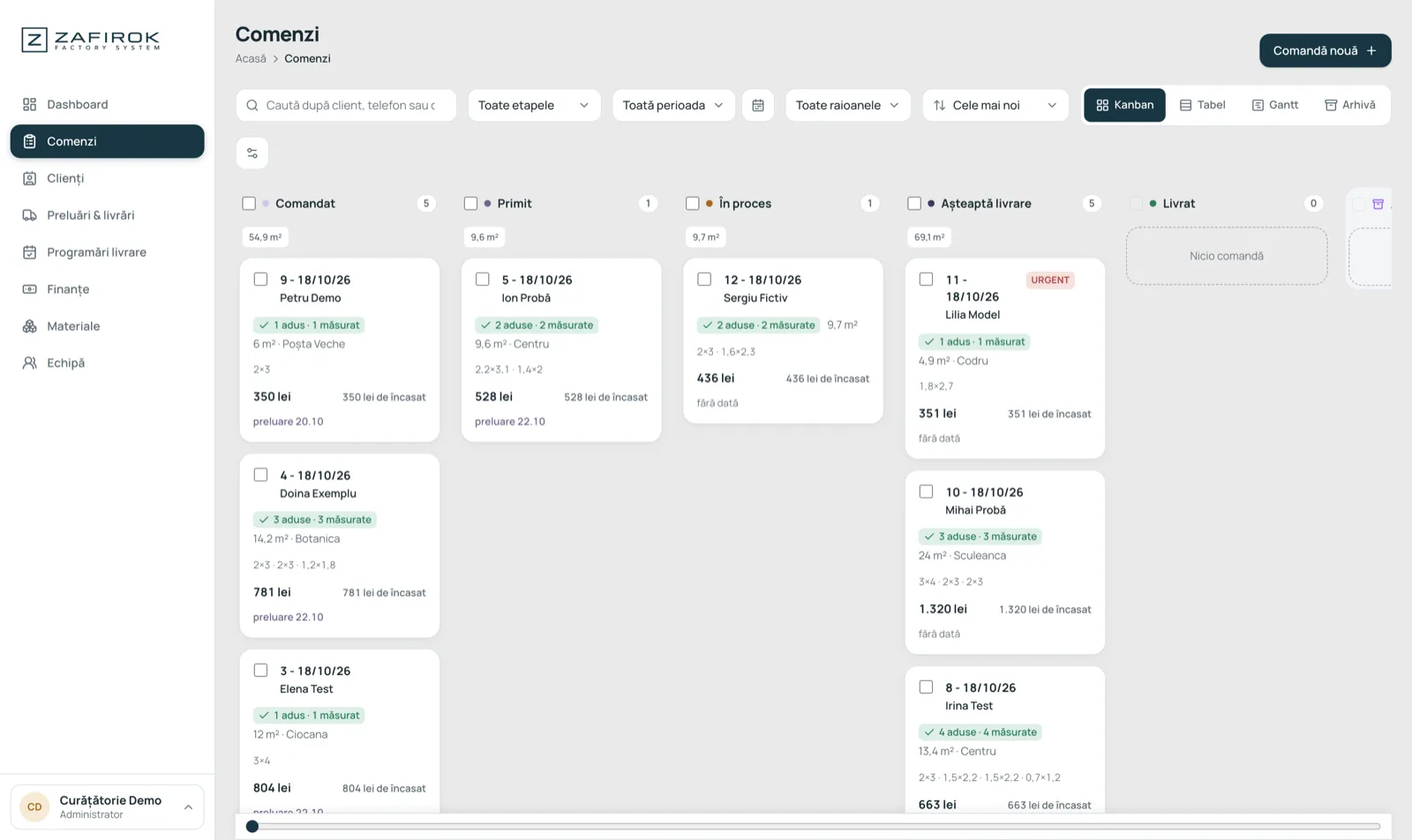
- Orders move through clear stages on a board the whole team can see.
- Payments are linked to the order and the balance is calculated automatically.
- Each order keeps its history, documents and photos in one place.
- A client's phone number, orders and payments are one search away.
- Some things happen automatically, such as a text message when the order is ready.
You do not have to choose forever. You can run daily work in the software and keep Excel for calculations or one-off analysis.
How to move from Excel to software, step by step
- Pick a start date. From that day, new orders can go only into the software; we recommend not keeping two parallel records for more than a few days.
- Clean the client list: for example, remove duplicates, write phone numbers in one format (for example 069123456), put name, phone, email and address in separate columns and mark which clients are companies (for the Zafirok import, the type column accepts only Fizica or Juridica, without diacritics; if the type is empty, a row with a company name becomes a legal entity).
- Agree on stages that describe how you actually work; four to seven is usually enough, each with a clear exit condition. A starting example: Ordered → Measured → In production → Ready → Delivered → Archive.
- Decide what to move. For example: all active clients, only open orders and, for each one, what has been paid and what is still due; closed orders can stay in Excel as an archive.
- We recommend importing a small batch of clients from a separate file first, checking 10–20 rows, and then importing the rest from a second file without the rows already imported (clients with no phone and no email are not checked for duplicates).
- Add the open orders with their payments and check the total still to collect against Excel.
- You can make the Excel file read-only so nobody keeps typing into it out of habit.
One source of truth: if an order lives both in the spreadsheet and in the software, within a week one of them will be wrong.
Rule of thumb
How Zafirok helps with the move
Zafirok has a few tools that make the switch easier, and a few limits worth knowing in advance. The “Standard” package without an industry module is simplified: its stages are fixed (no “Kanban settings”), and it has no Warehouse (so no client import), no Gantt view, no automatic SMS, and no client board, labels, timeline or “Problem client” flag. The list below describes Zafirok with an industry module:
- Client import: in Warehouse → Settings (“Depozit → Setări”), in the “Import existing data” section, you choose “Clients” (the default is “Stock”) and upload a CSV, TSV or XLSX file of up to 8 MB, 2,000 rows and 80 columns; save an old .xls file as .xlsx first. You map the columns manually or with AI help (in that case a sample of up to 60 rows is sent to the AI service), review the rows and correct them before saving. Clients whose phone number or email already exists are refused, so duplicates do not get in.
- The import lives in the Warehouse module, which the administrator switches on in Settings → System. Warehouse starts on a free plan with 10 products and no time limit, and imported clients do not count towards that limit; paid plans for more stock products start at $5 a month (price checked on 23 October 2026; current options are on the pricing page).
- Orders are not imported from within the app: for them, you write to the Zafirok team, who prepare the import on request.
- Stages are set up by the administrator in “Kanban settings” (“Configurare Kanban”), and Archive always stays last. Orders can be viewed as a Kanban board, a Table or a Gantt chart; the Table view is the closest to a spreadsheet.
- Clients have a board with New, In discussion and Active columns or a list, search by name or phone, configurable visible and required fields, coloured labels, a client timeline and a “Problem client” flag.
- Orders have a history, documents and photos up to 25 MB, a searchable archive and a 30-day trash for anything deleted by mistake.
- Your team joins through an invitation link valid for 7 days and gets one of the 6 default roles; access is set per module (Hide / View / Edit), and prices or the client's phone number can be hidden.
Limits to know: Zafirok has no reports page and does not export the order list, the client list or Finance transactions and payments to Excel or CSV (“Export CSV” exists only in Materials, Bank and e-Factura), so Excel stays useful for broader analysis, but data from the software does not reach it automatically. Once you have moved, you can also switch on the automatic “order ready” SMS to get fewer “is it ready?” calls.
The stages, steps and routine in this guide are a starting model, not a rule. Each company sets up its own stages, fields, labels, roles and access rights in Zafirok. If you prefer, the Zafirok team can set it up for you and prepare the order import: write to us via the contact page or create an account.
Your first week after the move: an example routine
- Day 1: invite the team, check the roles and show everyone what they see on their phone and computer.
- Day 2: every new order goes only into the software, and clients are looked up there first.
- Day 3: payments are recorded the same day in Finance with “New payment”, linked to the order; in the evening, check that the total matches the cash in the till.
- Day 4: a short meeting in front of the order board: what is blocked, what is late and who is on it.
- Day 5: check the imported data on a sample and fix the mistakes you find.
- End of the week: write down the team's questions and adjust the stages or fields that get in the way.
Frequently asked questions
Can I import orders straight from Excel into Zafirok?
Not from within the app. You import clients yourself in Warehouse → Settings → “Import existing data”, with the type set to “Clients”; for orders, write to the Zafirok team via the contact page, who prepare the import for you.
Do I need the Warehouse module just for the import?
Yes, client import is done from the Warehouse settings, so the module has to be switched on in Settings → System; it does not exist in the “Standard” package without an industry module. The free Warehouse plan, with 10 products and no time limit, is enough for the import, because imported clients do not count towards the product limit; paid plans from $5 a month (price checked on 23 October 2026) only matter if you keep more than 10 products in stock.
What happens to duplicate clients?
During import, rows with a phone number or email that already exists are refused. We recommend cleaning up duplicates in Excel first and deciding what to do when two different clients share a number, such as a husband and wife, because the second one will be refused.
Do I have to give up Excel completely?
No. Excel stays useful as an archive of closed orders and for calculations. For daily work with orders, payments and stages, we recommend one source: the software.
How long does the move take?
Mostly it depends on how clean your client list is. Cleaning can take longer than the import itself, so it is worth starting there.
Sources
- Microsoft Support: Collaborate on Excel workbooks at the same time with co-authoring (checked on 22 October 2026)
- Microsoft Support: What's the difference between Microsoft 365 and Office 2024? (checked on 23 October 2026)