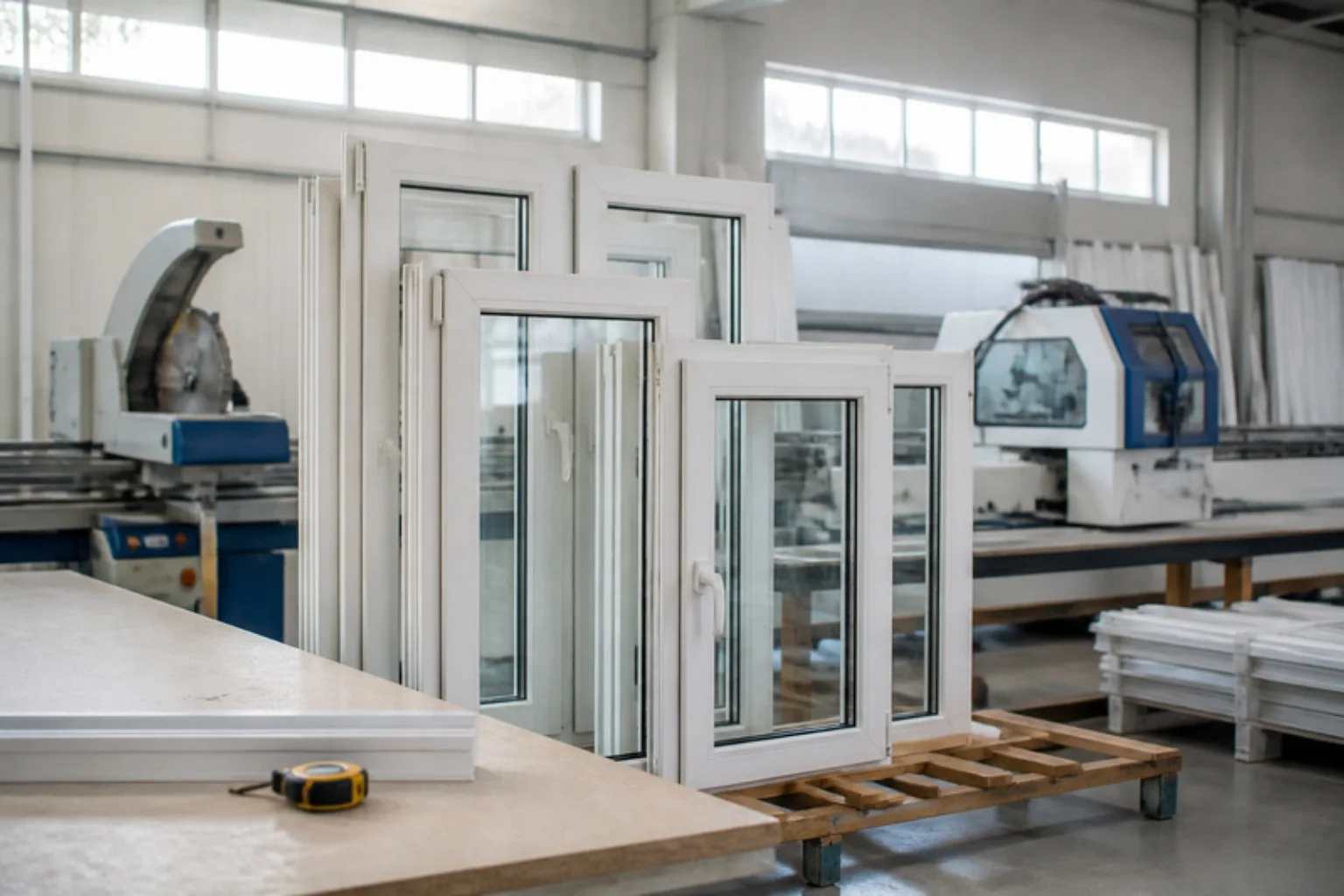
PVC window company software, a CRM and ERP app, helps you keep everything decided between the first enquiry and installation attached to each order: the measurements, the version the customer approved, the deposit, the production date and the installation crew. In practice, many companies record every opening the same way, release production once the version is confirmed and the agreed deposit is in, and move each order through stages the whole team can see.
This guide works both for companies that manufacture uPVC windows and for those that buy them from a factory and handle sales and installation themselves.
In short
- It helps to record measurements by numbered openings (for example W1, W2, W3…), using the same numbers on the sketch, in the quote and on the photos.
- We recommend starting production, or the factory order, once the customer has confirmed the final version and paid the agreed deposit.
- A change after release is safer to accept once you have worked out its cost and the new lead time.
- It is best to promise an installation date once the production date is confirmed.
- In Zafirok's default stages, an order cannot leave Designer until 60% is paid, or Instalare (installation) until 100% is paid; if you work differently, you can adapt the stages.
The life of a window order in 7 steps
Whether the windows are made in your own workshop or by a partner factory, the route of an order is almost the same. The only things that change are who does the production and who confirms the date. Here is a typical route you can adapt:
- Enquiry: note what the customer wants, the address and when measuring is possible.
- Measurement: a designated person measures each opening, takes photos and fills in the sheet.
- Quote: final configuration, price and what installation includes; the customer confirms and pays the deposit.
- Release: the office checks the sheet and the quote, then releases production or places the factory order.
- Production: windows, sills, insect screens, accessories and transport.
- Installation: removal of old frames, fitting, adjustment, clean-up, handover record and final payment.
- Archive: the closed order stays at hand for later adjustments or complaints.
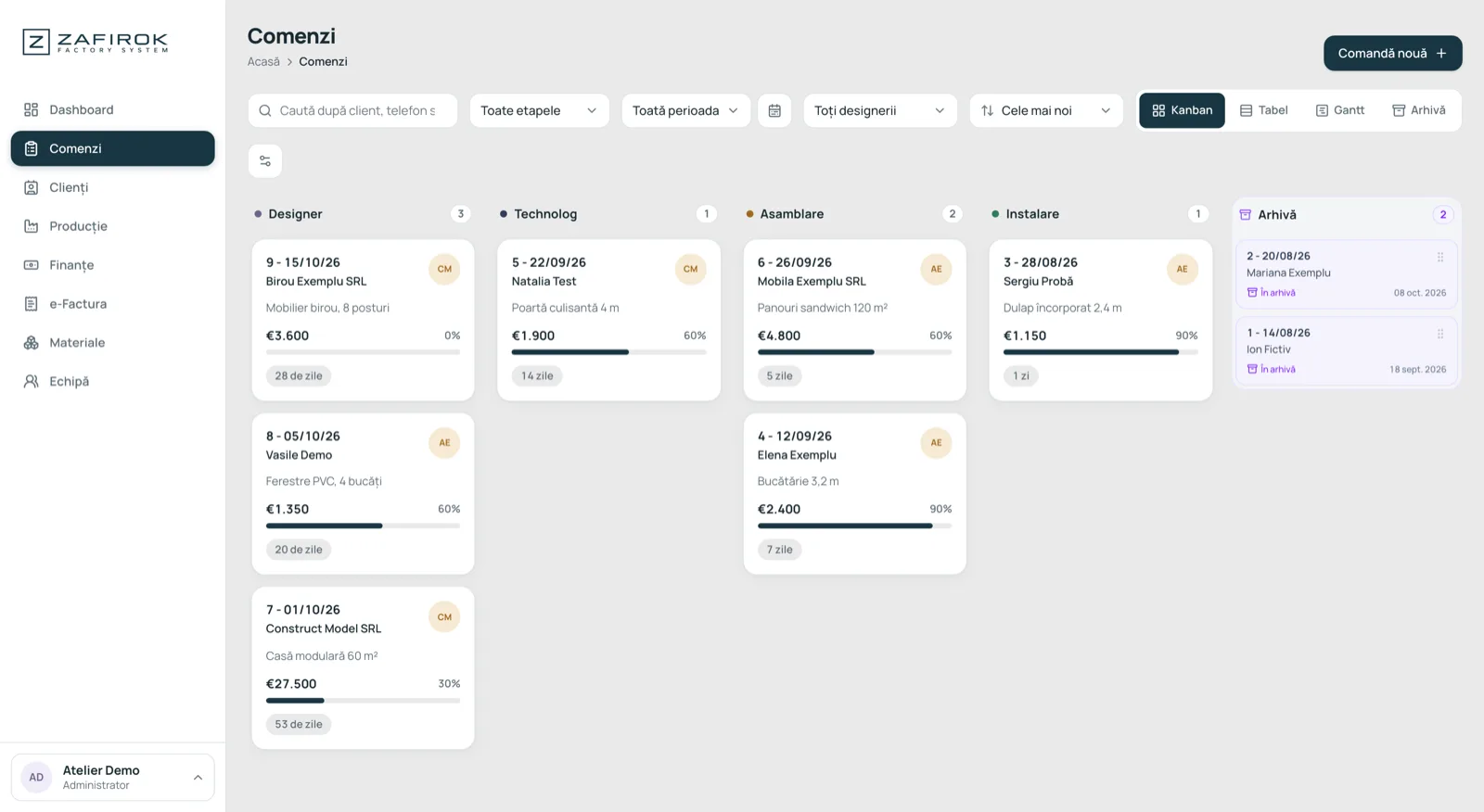
In Zafirok, the windows configuration starts with five stages, named in Romanian: Designer → Technolog → Asamblare → Instalare → Arhivă (designer, technologist, assembly, installation, archive). An admin can rename or extend them in Configurare Kanban (Kanban setup); the last stage in the list is the archive, and new stages are added before it. One possible mapping: Designer for measurement, quote and contract; Technolog for checking and release; Asamblare for production; Instalare for fitting.
Measurement: what to record for each opening
Many costly mistakes start at measurement: a window made to the wrong size often cannot be fitted properly on site and has to be remade, frequently at the company's expense. That is why many companies prefer production sizes to be taken by a designated person, using sizes sent by the customer only for a price estimate.
The sheet can be on paper or in a file, as long as it has the same structure every time. Adapt the list below to your products and your company's technical rules.
Example measurement sheet checklist
- Number and position of each opening (for example W1 – kitchen, W2 – bedroom), with the same numbering on the sketch, the photos and the quote.
- Width and height, stating whether they are opening sizes or manufacturing sizes, and who applied the deductions.
- Opening type for each sash (fixed, side-hung, tilt-and-turn) and the handle side.
- Profile system, inside and outside colour, glazing type and chosen hardware.
- Inside and outside sills, insect screens, roller shutters or blinds.
- What the job includes: removing old frames, finishing the reveals, taking away debris.
- Installation conditions: floor, lift, access, wall material and the hours when work is allowed.
- Photos from inside and outside for each opening, plus one photo of the whole façade.
To be clear: Zafirok has no dedicated fields for window dimensions, such as width × height rows. A summary goes into the order's Descriere (description) field, for example “5 openings, white profile, W3 balcony door, removal included”, while the full sheet, the sketch and the photos are uploaded to the order's Documente (documents) tab as files of up to 25 MB. Images and PDFs open in a preview, and the account has 1 GB of file storage in total.
If a dimension is not on the sheet, it does not exist. If the sheet is not on the order, nobody will find it when it matters.
Rule of thumb
The approved version and later changes
Before signing, a quote often changes several times: another colour, another opening type, one more window on the balcony. It helps to name each version clearly (for example Quote_v1, Quote_v2…) and write in Descriere (the order description) which version was approved, so production works from the approved version, not from the latest message on someone's phone.
When the customer asks for a change after release, first check what has already been ordered or cut. Record the request, the extra cost and the new date, get the customer's written confirmation and upload it to the order, then tell production. It also helps if installers do not accept changes on site without telling the office.
The 60% deposit and the final payment, tied to stages
In the default stages of Zafirok's production configurations, windows included, two payment checks are tied to stages: an order cannot leave Designer until 60% of its value is paid and cannot leave Instalare until it is paid in full. Payments are recorded in Finanțe (finance) with Încasare nouă (new payment) and linked to the order; the order's Încasări (payments) tab then shows the 60–30–10 collection plan and the percentage paid, calculated from payments with the status Achitat (paid).
The check is linked to the default stage names. If you rename Designer, for example to “Measurement and quote”, the deposit check stops, which is useful if your company works with a different deposit. If you want to keep it, leave the Designer and Instalare stages with their default names and add other stages around them, for example “Ordered from factory” after Technolog. We recommend renaming or deleting a stage while it is empty: orders in a renamed or deleted stage are moved to the first stage.
The logic of the default model: the deposit comes before the profile order or the production release, the balance at installation. An installed order that is not fully paid stays visible in the Instalare column and cannot be moved to the archive. Note that the check runs only when an order leaves Instalare: an order moved straight from an earlier stage to Arhivă (archive) is not stopped.
Production and installation scheduling
Keep two dates apart: the date promised to the customer, entered in the order's Termen livrare (delivery deadline) field, and the production date confirmed by the workshop or the factory. We recommend booking the crew and confirming the day with the customer once the second date is firm. If production slips, it is best to update the order and call the customer before they call you.
A short weekly meeting in front of the order board surfaces problems early: for each order in Asamblare and Instalare, check whether production is confirmed, the accessories are ready, who is installing and whether the customer has confirmed access.
Installation day checklist
Checklists are an optional tool on the order: in Setări → Flux de lucru (Settings → Workflow) you choose whether new orders get them by default, and on a single order you switch them on with the Instrumente (tools) button. Templates are created and applied from the order's Checklist-uri tab, under Tipuri de checklist (checklist types): task groups, usually one per stage, with a default responsible person per group or per task. An example for installation, to adapt:
- Confirm the day and time with the customer by phone.
- Check the load: windows by their W1…Wn numbers, sills, screens and fixing materials.
- Protect furniture and floors, then remove the old frames.
- Fit, fix and adjust the hardware on every sash.
- Clean up, take after-installation photos and upload them to Documente.
- Get the handover record signed, photograph it and attach it to the order.
- Collect the balance; the office records it in Finanțe with Încasare nouă (new payment), status Achitat (paid).
Who does what: roles and access
Zafirok comes with six default roles: Administrator, Manager proiect (project manager), Executant (field worker), Colaborator proiect (project collaborator), Observator (observer) and Contabil (accountant). For each module you choose whether it is hidden from the role, view-only or editable (Ascunde / Vede / Modifică). You can hide prices or the customer's phone and, under Coloanele comenzilor (order columns), choose which stages each role sees and in which it can edit or move orders. Under Vizibilitatea sarcinilor (task visibility) you decide whether a person sees only the tasks assigned to them or all tasks of the project. One possible split:
- Sales or project manager: all stages, with prices and payments.
- The person who measures and the installers: only the stages they work in (for example Designer for measuring, Instalare for installation) and the tasks assigned to them, without prices, but with the customer's address and phone.
- Accountant: the finance data they need, without the right to move orders between stages.
- Administrator: everything, plus the Activitate (activity) log showing what the team did.
Colleagues join through an invitation link valid for 7 days. Zafirok is a web app: it runs in the browser on phones and computers and can be installed from the browser; there is no separate native app.
An SMS tells the customer the windows are ready
In Setări → SMS (SMS settings; off by default) you enable one automatic SMS per order, sent when the order enters the stage you choose as “ready”, for example Instalare, when the windows are ready to fit. You write the text yourself with the variables {nume} (customer name), {comanda} (order number) and {alias} (sender name), and check it in the Așa îl vede clientul (as the customer sees it) preview and with the Trimite test (send test) button. Messages go out through the company's own sms.md account: in the settings you enter the sms.md token and the Expeditor (sender name shown on the phone).
The SMS screen was first built for carpet cleaners and comes with two default texts about carpets. Window orders use the text in the Când vine clientul să le ia (when the customer collects) field, so rewrite it before you switch sending on, and do not use {total}, which does not show the contract value on these orders. Example: “Hello {nume}, the windows for order {comanda} are ready. We will call you to arrange the installation day. The {alias} team”.
In Setări → SMS you can also see how many messages went out (Trimise azi, Luna aceasta, Nereușite: sent today, this month, failed) and the latest messages with the result of each. There are no manual, bulk or reminder messages, so the installation day is still confirmed by phone.
Common mistakes in window companies
- Production starts from sizes given by the customer, without your own measurement.
- The factory order goes out after a “yes” on the phone, without a confirmed version or a deposit.
- The customer asks the installer for a change and the office finds out at handover.
- The scope (reveals, sills, removal of old frames) is not written down and becomes a dispute at the end.
- The installation day is promised before production confirms its date.
How Zafirok helps: CRM and ERP software for PVC window companies
Zafirok has a ready-made configuration for window companies. To track window orders, you use:
- Orders by stage, in the Kanban or Tabel (table) view, with drag-and-drop, bulk moves and a searchable archive.
- The order form: customer (name, phone, private person or legal entity, source), Descriere (description), Adresă livrare (delivery address), Valoare contract (contract value, in EUR), Designer, Manager and Termen livrare (delivery deadline).
- The Documente (documents) tab for measurement sheets, sketches, quotes and photos (up to 25 MB per file, with a preview for images and PDFs).
- Payments linked to the order: you enter them in Finanțe with Încasare nouă (new payment), with a type (60% avans, 30% avans, 10% avans or 100%), status Achitat (paid) or Neachitat (unpaid) and a date, and the order's Încasări tab lists them; the side cards show the percentage paid, the balance due, profit and margin.
- Checklists from templates, with a responsible person per group or per task.
- Roles and access per module and per stage, with prices and phone numbers hidden where they are not needed.
- One automatic SMS, sent through the company's sms.md account, when the order reaches the “ready” stage.
The stages, checklists, roles and SMS text above are the default model, a starting point: each company sets them up to match the way it works. If you prefer, the Zafirok team can do the setup for you: write to us via the contact page or create an account.
What it does not do: it has no window-dimension fields, no quoting module or configuration-based pricing, no profile cutting optimisation and no portal where customers follow their order themselves. You prepare the quote in the calculation software you already use and attach it to the order as a PDF.
Frequently asked questions
Can I enter each window's dimensions in separate fields?
No. Zafirok has no dedicated window fields. Put a summary in Descriere (description) and upload the measurement sheet, sketch and photos to Documente (documents), using the same opening numbers everywhere.
What happens to the 60% check if I rename the Designer stage?
The deposit check stops, because it is linked to the stage name. The 100% check likewise depends on the stage name Instalare. If you want both checks, keep the two names and add your other stages around them; if you work with a different deposit, renaming lets you adapt the flow. The Zafirok team can help with the setup (contact page).
Can installers see only installation orders, without prices?
Yes. For their role, you leave only the Instalare stage visible and hide prices, and they can be limited to the tasks assigned to them. In the phone's browser they see the address, description and documents of the orders in that stage.
We buy windows from a factory and only sell and install. Is the software still useful?
Yes. Stages adapt: for example, Asamblare can become “Ordered from factory” without affecting the payment checks. We recommend renaming it while it is empty, because orders in a renamed stage are moved to the first stage. What matters is that the measurement sheet, the approved version, the factory-confirmed date and the payments sit on the same order.
A customer calls a year later about an adjustment. How do I find the order?
Search for the customer by name or phone, or search the order archive. The measurement sheet, the after-installation photos and the handover record are where you attached them: on the order.
Create an account and organise your window orders