Small factory production software, meaning a CRM and ERP app for the workshop, usually connects three things: the customer's order, the work on the shop floor and the materials used. In Zafirok, the order follows its commercial stages, while each product or batch gets a separate production job with its own stages, quality checks and material consumption based on a recipe. It is not an MRP system: the app does not plan purchasing or workshop capacity automatically.
In a small workshop, the plan usually lives in the production manager's head, orders sit in a notebook or spreadsheet, and a missing material is discovered once work has already started. Tracking production on the shop floor does not need a complicated system, just a few clear rules and one shared place. Below is a model to start from: how you can separate the order from the production job, how to build the workflow and quality checks, how to connect materials, and where the app's capabilities end.
In short
- The order holds the customer, the contract value, payments and the commercial stages; the production job holds the execution in the workshop.
- A production job can be linked to an order or made for stock.
- The default workflow, Preparation → Production → Quality check → Ready for handover, is a starting point: you configure it to fit your workshop.
- A stage can require a quality confirmation, and warnings and blocks require a reason, can include photos and stop the job from advancing until resolved.
- A product recipe consumes materials from stock at launch or when the job enters the chosen stage; if stock is short, the launch or move is refused.
- There is no MRP and no automatic capacity planning: you make the plan, helped by Gantt charts and checklists.
Orders and production jobs: why it pays to keep them separate
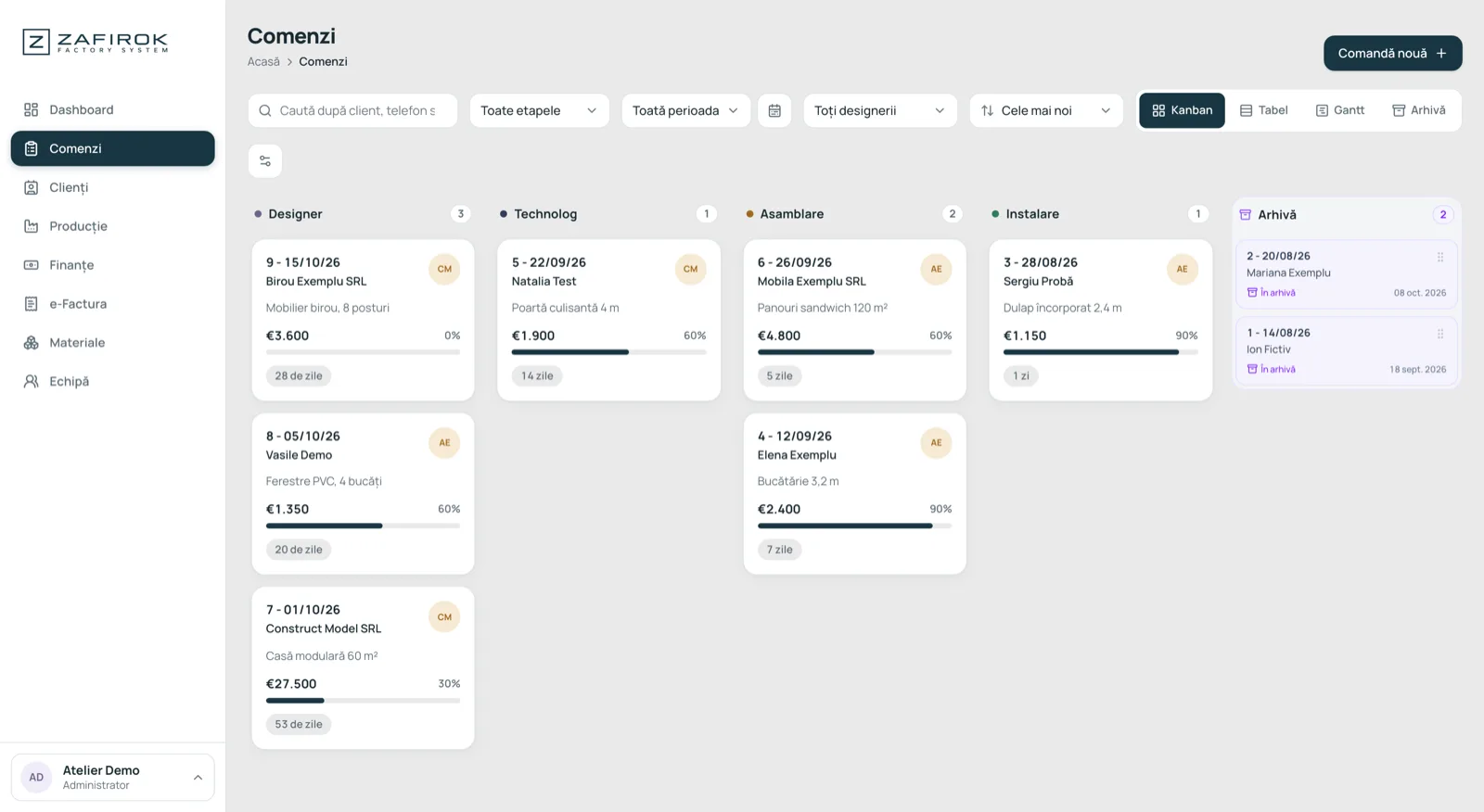
The order answers the customer and money questions: who ordered, what the contract is worth, how much has been collected and which stage it has reached. In the Factories & production configuration, the default stages are Designer → Technologist (Technolog) → Assembly (Asamblare) → Installation (Instalare) → Archive (Arhivă), and they can be renamed. If you keep the default names, two payment rules apply: an order cannot leave Designer before 60% has been paid, or Installation before 100%. If you rename those stages, the rules no longer apply, so you keep them only if they fit the way you work.
The production job answers the workshop's questions: what is being made, which stage it is at and what problem has come up. It can be linked to an order or made for stock, such as a batch of standard products you sell often. The job does not change the order's stage or its payments: when the batch is ready, someone moves the order on, and the payment is recorded in Finance.
Orders can be viewed as Kanban, Table or Gantt. You drag them between stages or move several at once with a bulk move, and each order keeps a History and a Documents tab for files and photos up to 25 MB. The app has no dedicated fields for dimensions or technical specifications: write them in the description, attach them as files or put them in checklists.
The shop-floor workflow: configurable stages and quality checks
The default workflow for a production job is Preparation → Production → Quality check → Ready for handover (Pregătire → Producție → Control de calitate → Pregătit de predare). Adapt it to your workshop, for example Cutting → Welding → Painting → Quality control → Packing for a metal fabrication shop. Time estimates are available if you find them useful, and they stay optional.
Quality control as a gate
Quality checks work as gates. At a stage marked for quality control, the job leaves only after someone confirms that it meets the criteria, and the confirmation stays in the job history. Any problem is flagged as a warning (orange) or a block (red), always with a reason and, if you like, with photos. The job stays at its current stage until someone notes how it was resolved. The problem then stops being a conversation on the shop floor and becomes a note on the job, which the colleague taking over the batch the next day can see too.
The workshop sets the criteria, not the app. An example list for the Quality check stage:
- critical dimensions checked against the drawing, with a photo of the measurement;
- a surface free of scratches, marks or unpainted areas;
- hardware complete and working;
- the order label on the packaging.
Product recipes: materials are consumed by stage
For products you make repeatedly, you set up a standard product with a recipe in the Production catalogue: how much material goes into one unit and on entering which stage it is consumed. When you launch a batch, the requirement is multiplied by the quantity. Materials for the first stage are deducted from stock at launch, the others when the job enters their stage. If there is not enough stock, the launch or the move is refused, so the team finds out before starting rather than halfway through a batch.
A hypothetical example: the recipe for a metal shelving unit has 4 tubes, consumed at Cutting, and 2 kg of powder coating, consumed at Painting. A batch of 50 units needs 200 tubes and 100 kg of powder. If the tubes are in stock but there is only 80 kg of powder, the batch launches (the tubes are deducted at launch, because Cutting is the first stage), but the move into Painting is refused. Stock for later stages is not reserved at launch, so it is worth checking early what you need to buy.
Recipes use the stock ledger shared by the Materials and Warehouse modules. Purchased materials go into a warehouse through supplier documents recorded in Materials, where you see them on the Warehouse & stock tab. The Warehouse module, switched on separately, adds direct receipts, transfers, goods handed to a person, issues and stocktaking.
Materials per order and the materials estimate
For work done to order, cost matters too. In Materials, each line on a supplier invoice goes to the order it was bought for or to a warehouse, and the materials estimate on each order shows what was planned, what was bought and whether the budget has been exceeded. The detailed steps, including invoice scanning, are in our guide on how to track supplier invoices by job.
Gantt planning for long orders
For a large order with many stages and teams, you can turn on Gantt planning for that order; it is off by default. The plan has groups and tasks, FS, SS, FF and SF dependencies with lag, critical tasks, a baseline, resources with an allocation percentage, and planned cost against budget. You can view it as a Gantt chart, list, Kanban board or calendar, and start from templates for similar orders.
The simplest dependency is FS (finish-to-start): installation starts only after painting has finished. Dependencies help you see which tasks rely on cutting if it runs two days late. What the plan does not tell you automatically is whether the workshop has free people and machines for every order in the same week: checking capacity remains your decision at the planning meeting.
Checklists and team roles
Checklists are set up as templates under Settings → Workflow (Flux de lucru): groups, tasks, a responsible person and durations. When all tasks for a stage are ticked, the app offers to move the order to the next stage, without forcing it.
There are 6 default roles: Administrator, Project manager, Worker, Project collaborator, Observer and Accountant. Access is set per module (Hide, View or Edit); you can hide prices or the client's phone number and limit a person to their own orders. Employees can exist without a login, and the Activity log records actions in the app.
What the app does not do
- no MRP: it does not calculate what to buy and when based on future orders;
- no automatic capacity planning for people and machines;
- a production job does not change the order's stage or payments;
- time estimates are optional and do not calculate pay; in Payroll, quantities are entered by hand;
- stock is not reserved at launch: materials for later stages are checked only when the job reaches their stage;
- no dedicated technical fields for dimensions or specifications; use the description, files and checklists.
How to introduce small factory production software in two weeks
A starting plan you can adapt:
- Pick one product or product family and write down the real workflow in your workshop, in 4–6 stages.
- Agree the quality criteria and who checks them.
- Build the recipe for your most repetitive product and check the stock of its materials in Materials or Warehouse.
- For two weeks, start every new job for that product in the app, without migrating old history.
- At the end, review the recorded blocks and the materials estimates on orders, then adjust the workflow.
How Zafirok helps
- The Factories & production configuration: orders through configurable stages, payments with the 60% and 100% rules, expenses, and profit and margin per order.
- Production: jobs for orders or for stock, configurable workflows, quality gates with reasons and photos, recipes that consume stock by stage and optional time estimates.
- Gantt planning: dependencies with lag, critical tasks, a baseline, resources with allocation and planned cost against budget.
- Materials and Warehouse: supplier invoices assigned to orders, the materials estimate and stock by warehouse. Production and Materials are on by default for new companies in the manufacturing configurations; Warehouse is switched on separately.
- Team: roles, access per module, employees without a login and the Activity log.
The workflows, stages, recipes and quality criteria in this guide are examples: each workshop configures them to match the way it works. If you prefer, the Zafirok team can do the setup for you and help move your data: write to us via the contact page or create an account.
Conclusion
Small factory production software does not replace organisation, but it makes it visible: each batch has its stage, each problem has a reason and a photo, and a material shortage shows up before work starts. We recommend beginning with one product, its workflow and its recipe, and expand once the team works in the app naturally.
Frequently asked questions
Is Zafirok an MRP system?
No. Recipes consume materials from stock by stage, and a launch or move is refused if stock is short, but the app does not plan purchasing or workshop capacity automatically. Those decisions stay with you.
Can I produce for stock without a customer order?
Yes. A production job can be linked to an order or made for stock, for example for standard products you sell often.
What happens if I do not have enough material for a batch?
When the job enters the stage where the recipe consumes materials, the move is refused if stock is short. Buy the material, record it in stock and move the job again.
Does a production job move the order to the next stage?
No. A production job changes neither the order's stage nor its payments. You move the order yourself and record payments in Finance with New payment (Încasare nouă).
Can I add photos to a quality check?
Yes. Warnings and blocks require a reason and can include photos, so the problem stays documented on the job. The job does not advance until the block is marked as resolved, with a note.
Create an account and start your first production job