Good dental clinic and lab collaboration means every case leaves with a complete record, the right files and a clear requested date, while design approval and questions stay with the case instead of being scattered across calls and chats. The simplest set-up is dental clinic–lab collaboration software, such as a shared CRM and ERP app, that gives each case a shared space, where the clinic sends only what the lab needs, for example a patient code instead of a name.
This guide shows how to organise the exchange of cases step by step, which rules a clinic and a lab should agree on, and how dental collaboration works in Zafirok, including its limits. The lab's side (case record, the 10 internal steps, quality control) is covered in our guide for dental laboratories.
In short
- The lab receives what it needs to complete the case, while the patient's name and contact details stay in the clinic; a patient code instead of a name limits the personal data that is shared.
- STL or PLY scans, photos and PDFs are attached to the case instead of travelling through separate channels.
- The design is approved or returned with change requests in the same place, and the decision stays in the case timeline.
- We recommend that the date requested from the lab leaves a buffer before the patient's appointment.
- In Zafirok, collaboration starts with an invitation link valid for 7 days; a case has only one active collaboration, and updates appear on reload, not in real time.
Where dental clinic and lab collaboration breaks down
The typical problems are not about professionalism but about channels. The scan goes by email, the shade photo over a messaging app, an extra instruction by phone. At the lab, someone has to gather it all onto one record, and a lost detail is often discovered only at the try-in.
Other sources of delay: the lab does not know how much time is left before the patient's appointment, the design is approved verbally and can no longer be checked, and the question “where is the case?” is asked by phone several times a day.
The clinic workflow: where the lab comes in
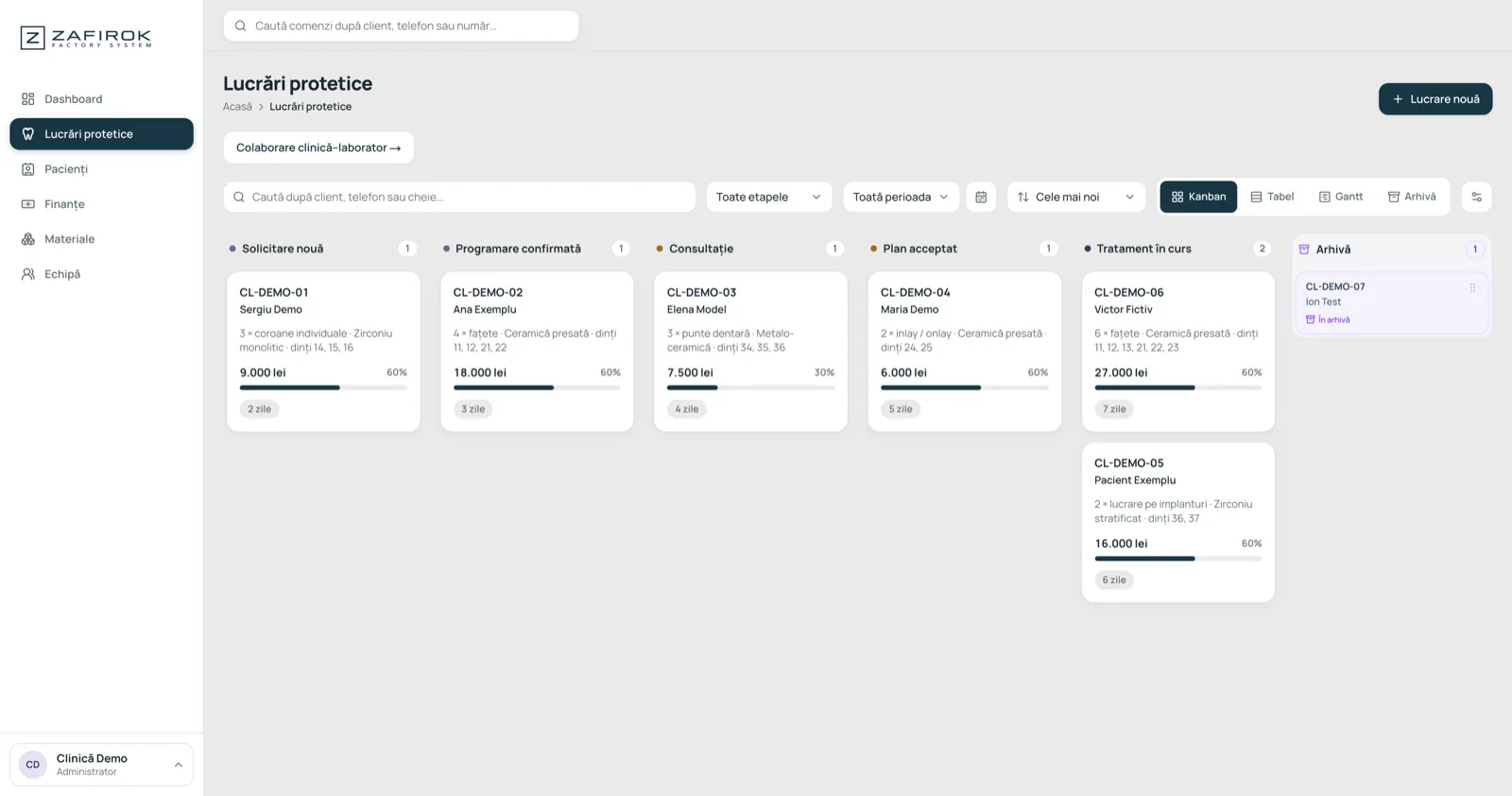
Dental clinic software is most useful when it shows, besides appointments, the path of every prosthetic case. Zafirok does not keep the clinic's appointment book (the work record only has a Fitting appointment field); cases move through the clinic stages, by default Solicitare nouă (new request) → Programare confirmată (appointment confirmed) → Consultație (consultation) → Plan acceptat (plan accepted) → Tratament în curs (treatment in progress) → Completed. The board shows the first five under these Romanian names until the administrator renames them.
As a rule, the case reaches the lab after the patient has accepted the plan, and the work comes back during treatment. The stages describe how the clinic is organised, not medical decisions: the dentist decides what is done and when.
Each case uses the same work record as the lab: teeth on the FDI chart, type of work, material, shade, quantity, dentist, lab, instructions and dates. That way the clinic and the lab use the same names for the same things.
What goes to the lab and what stays in the clinic
The lab needs the technical information about the work, not the patient's contact details. When you send a case through collaboration in Zafirok, the split is as follows.
Sent to the lab
- The patient code, instead of the name.
- Teeth, type of work, material, shade and quantity.
- The dentist and their instructions.
- The requested date.
- The files the clinic chose.
Kept only in the clinic
- The patient's name and contact details.
- The clinic's internal observations.
- The fitting appointment.
- The patient's price and payments.
Sending a code instead of the name limits the personal data that reaches the lab. What obligations the clinic has regarding patient data is a legal question for the clinic's lawyer; official information on data protection in the Republic of Moldova is linked in the sources at the end.
Because the patient's appointment stays in the clinic, the date requested from the lab should include a buffer. Hypothetical example: the patient's fitting is on Friday, so the clinic asks for the work by Wednesday, leaving time for a check or a small adjustment.
Files: scans, photos and documents
The clinic chooses which files to send with each case: STL or PLY scans, images and PDFs, up to 25 MB each. A file sent by mistake can be withdrawn while the case is open in the collaboration: the lab can no longer download it, but a copy it has already downloaded stays with the lab. The lab works only with what has been made available to it. A few simple rules prevent a lot of back-and-forth:
- Name files with the patient code and the type of work, never with the patient's name.
- Before sending, check that you have all the files the lab requires for that type of work.
- Photograph the shade with the shade tab visible in the frame.
- When you replace a file, withdraw the old one so that there are never two versions.
Design approval or change requests
When the lab finishes the design, it sends it for approval. The dentist approves it or clicks Request changes and explains what needs to change. The decision stays in the case timeline with a date, so it no longer depends on anyone's memory.
At the lab, the production steps stay locked until approval, and a change of specification after approval requires a new approval. For the clinic, this means that a shade or material changed late moves the deadline, and it is best to tell the patient in good time.
Shared messages and timeline: fewer calls
Every case that is sent has a shared timeline and messages that both sides can see. A question about a design detail or the delivery date is asked there, and the answer stays with the case for whoever picks it up later, such as an assistant or another technician.
Updates do not arrive in real time: the partner's changes appear when you reload the page or return to the app window. For anything urgent, call, then note the decision briefly in the timeline.
How to start collaborating, step by step
- In Settings → Dental collaboration, switch collaboration on; until then it is off.
- Enter the email of the partner lab's administrator and create the invitation link; only the account with that email can accept it, once the address is verified. The link is valid for 7 days and can be revoked.
- Copy the link and send it to the lab through your usual channel; the app does not send the email for you.
- Once connected, open a case in the clinic, click Send to laboratory, pick the partner lab, check the patient code the app suggests (you can change it) and tick the files to share.
- The lab accepts or declines the case, assigns a technician and fills in the estimates and its fee.
- The lab sends the design for approval, and the dentist approves it or requests changes.
- The lab marks the work as delivered, and the clinic continues treatment through its own stages.
Example working rules between clinic and lab
The app keeps the information in order, but the clinic and the lab set the rules to suit the way they work. Some examples worth agreeing in writing, once:
- Who sends cases and who approves the design, usually the treating dentist.
- Which files are mandatory for each type of work.
- The format of the patient code, the same for all of the clinic's dentists.
- How quickly the lab confirms that it has accepted a new case.
- How much buffer the clinic leaves between the requested date and the patient's appointment.
- How an urgent issue is flagged (by phone) and who then records the decision in the timeline.
- Who checks the work on arrival and where observations are recorded.
How Zafirok helps: CRM and ERP software for clinics and labs
Zafirok has separate configurations for dental clinics and dental laboratories, and collaboration links the two. What the clinic gets:
- Clinic stages, by default Solicitare nouă (new request) → Programare confirmată (appointment confirmed) → Consultație (consultation) → Plan acceptat (plan accepted) → Tratament în curs (treatment in progress) → Completed; the board shows the first five in Romanian until the administrator renames them.
- The same work record as the lab: FDI chart, type, material, shade, quantity, dentist, lab, instructions, dates and the patient's cost.
- Send to laboratory with a patient code and the files you choose (STL, PLY, images, PDF, up to 25 MB each), which can be withdrawn.
- Data separation: the lab sees the technical information, while the name, contacts, observations, fitting appointment, patient price and payments stay in the clinic.
- Design approval or change requests, plus a shared timeline and messages per case.
- An invitation link valid for 7 days, which can be revoked.
The stages, steps and rules in this guide are a starting model: the first five stages can be renamed, and each clinic or lab sets its own roles and access. If you prefer, the Zafirok team can configure it for you: write to us via the contact page or create an account.
Limits to know: a case can have only one active collaboration; updates appear on reload or when you return to the window, not in real time; the app sends neither the invitation nor notifications between clinic and lab, so you pass on the link yourself, and new cases, messages and approvals are visible only in the app. Zafirok organises the workflow, but it does not keep the patient appointment book and gives no medical recommendations.
You will find more about the clinic configuration on the page Zafirok for dental clinics, and about the lab side on the page for dental laboratories.
Frequently asked questions
Does the lab see the patient's name?
No, the patient's name field is not sent: through collaboration in Zafirok, the lab receives a patient code and the technical information, while the name, contact details, price and payments stay in the clinic. The code (suggested by the app but editable), instructions, messages and files do reach the lab exactly as written or named, so keep the patient's name out of them.
Which files can I send to the lab?
STL or PLY scans, images and PDFs, up to 25 MB each. The clinic chooses the files for each case and can withdraw a file sent by mistake; after that the lab can no longer download it, but a copy it has already downloaded stays with the lab.
Does the lab also have to work in Zafirok?
For collaboration, yes: the clinic's account and the lab's account are linked through an invitation link. If the lab does not use Zafirok, the clinic can still track the case on its own record, but files and approvals are exchanged outside the app.
Will I see the lab's changes straight away?
Not in real time. Changes appear when you reload the page or return to the app window, so for anything urgent a phone call is safer.
Can I send the same case to two labs?
Not in parallel: a case can have only one active collaboration. If a piece of work needs several partners, it helps to agree in advance which lab coordinates the case.