Carpet cleaning software, meaning a CRM and ERP app for the business, keeps the whole life of an order in one place: how many carpets the client handed over, their area in square metres, the price, who collects them, when they are ready and what was paid on delivery. This guide walks through one working day in Zafirok step by step, from setting rates to closing the till, with screenshots of the main steps.
The screenshots come from a fictional company, “Curățătorie Demo”, with fictional clients in Chișinău such as Maria Exemplu and Andrei Demo. They show the Romanian interface; Zafirok is also available in English and Russian, and we give the Romanian labels in quotes so you can match them. The rates used (45 and 55 lei per m², disinfection 12 lei per m², +30% for urgent jobs, a 350 lei minimum order) are example values, not pricing advice. Likewise, the stages, SMS text and roles show one possible setup: yours may look different, because each cleaning business sets its own stages, rates, texts, roles and rules. For the management side, such as setting prices, deadlines and pickup rules, see our guide to running a carpet cleaning business.
In short
- Rates (per m² with and without pickup, disinfection, urgent surcharge, minimum order) and the SMS texts are set once, to match your own rules.
- The order number is shown before you save, so you can write it on the carpet tag; it is confirmed on saving.
- In the example, orders move through six stages, which you can adapt: ordered, received, in progress, awaiting delivery, delivered and closed (“Comandat”, “Primit”, “În proces”, “Așteaptă livrare”, “Livrat”, “Închis”).
- The driver works from a phone on the pickups and deliveries screen, with stops grouped by district and sorted by time.
- If you switch SMS on, the client automatically gets one message when the order enters “Așteaptă livrare”.
- At the door, the amount comes from the order and cannot be changed; the driver only picks the payment method.
- In the evening you can check the daily balance (“Sold de zi”) and the dashboard alerts. There is no automatic route optimisation and no shelf location for carpets.
Step 1. Set rates and the SMS once
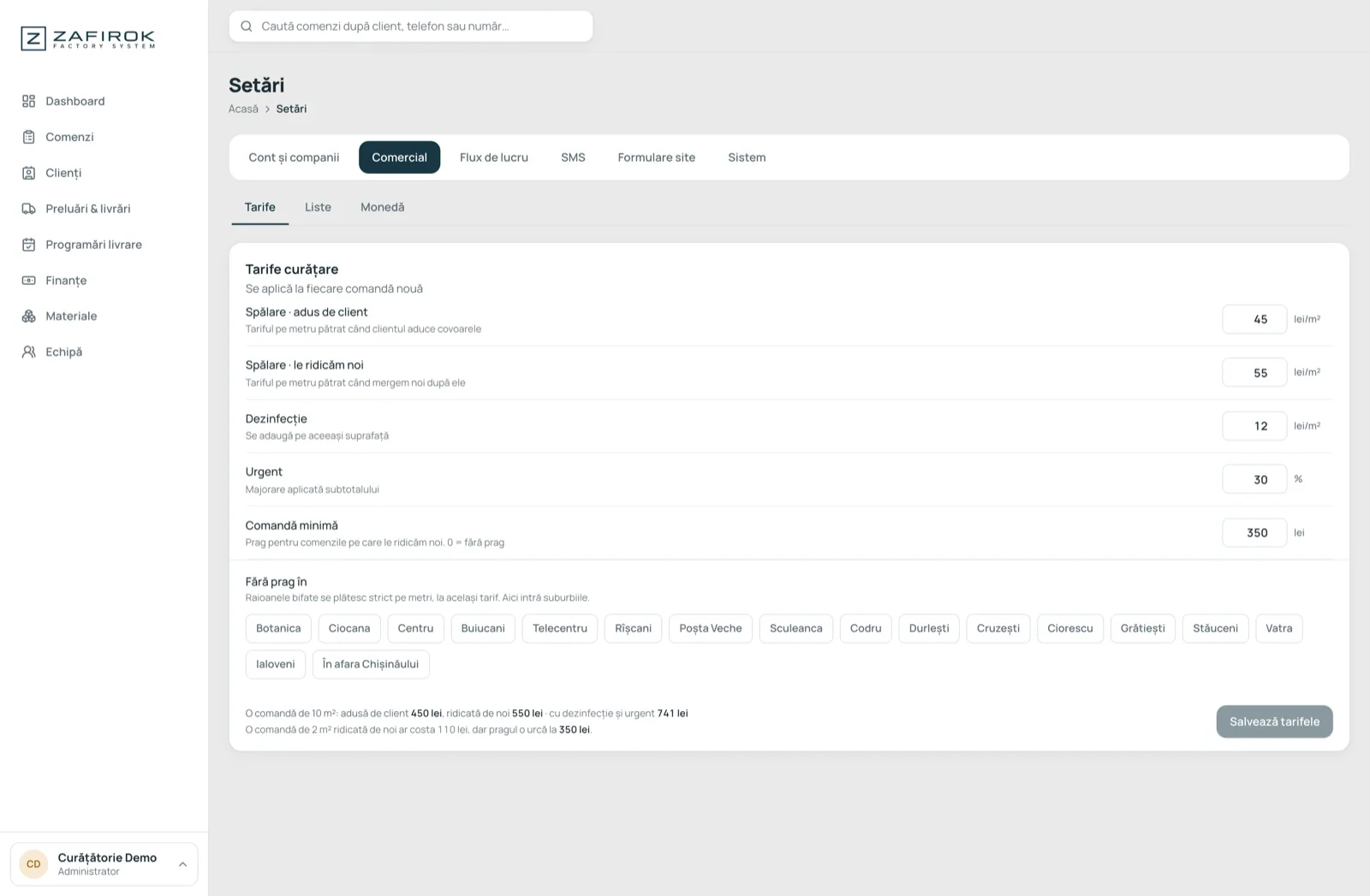
Before the first order, the administrator fills in the cleaning rates in the settings, under the commercial rates section (“Setări → Comercial → Tarife”, “Tarife curățare”; see the screenshot above). Order prices are calculated from them: the total carpet area, rounded to one decimal place, multiplied by the rate per m². The demo company uses the values below; yours may differ, and you also choose the minimum order and the exempt districts:
- price per m² when the client brings the carpets: 45 lei;
- price per m² with pickup from the client’s home: 55 lei;
- disinfection: 12 lei per m²;
- urgent surcharge: +30%;
- minimum order: 350 lei, applied only to pickup orders; selected districts can be exempt.
The “order ready” SMS is also prepared once, under Settings → SMS: how it is sent, which stage triggers it and what the client reads. We cover it in step 6, where it comes into play. If the driver will use the app, invite them to the team; the invitation link is valid for 7 days.
Step 2. Take the order at the counter or by phone
The new order form starts with the order number, for example “Comandă nouă · 13” (new order no. 13). The number appears before you save, so you can write it on the carpet tag straight away. It is a preview: the number is confirmed on saving, and if a colleague saved another order in the meantime, the confirmation message shows the actual number, which you then correct on the tag. Then fill in the fields in the order you talk to the client:
- The client: who is handing over the carpets and how to reach them.
- How the carpets reach you (“Cum ajung covoarele la noi”): “Adus singur” if the client brings them, or “Livrare” if you collect them.
- For pickups: the address, the district (“Raion”, from the list of Chișinău districts) and the pickup day and time (“Când ridicăm”).
- The number of carpets: “Câte covoare s-au adus” (how many were brought in) at the counter, or “Câte covoare are clientul” (how many the client has) for a pickup, which the driver confirms on collection.
- The carpets, one row each: width × length in metres and an optional carpet label (“Etichetă covor”; the field appears under each carpet after you click “Etichete pe covoare”), for example “bedroom, beige”.
- The price per m² and the options: disinfection, urgent, free re-wash (“Respălăm gratuit”) and a percentage discount (administrator only).
- Throws and blankets (“Pleduri”: count and amount typed by hand) and, if needed, an extra delivery charge (“Livrare suplimentară”): an amount in lei typed by hand, for example for a longer trip.
- Check the total shown on the create button (“Creează”) and save.
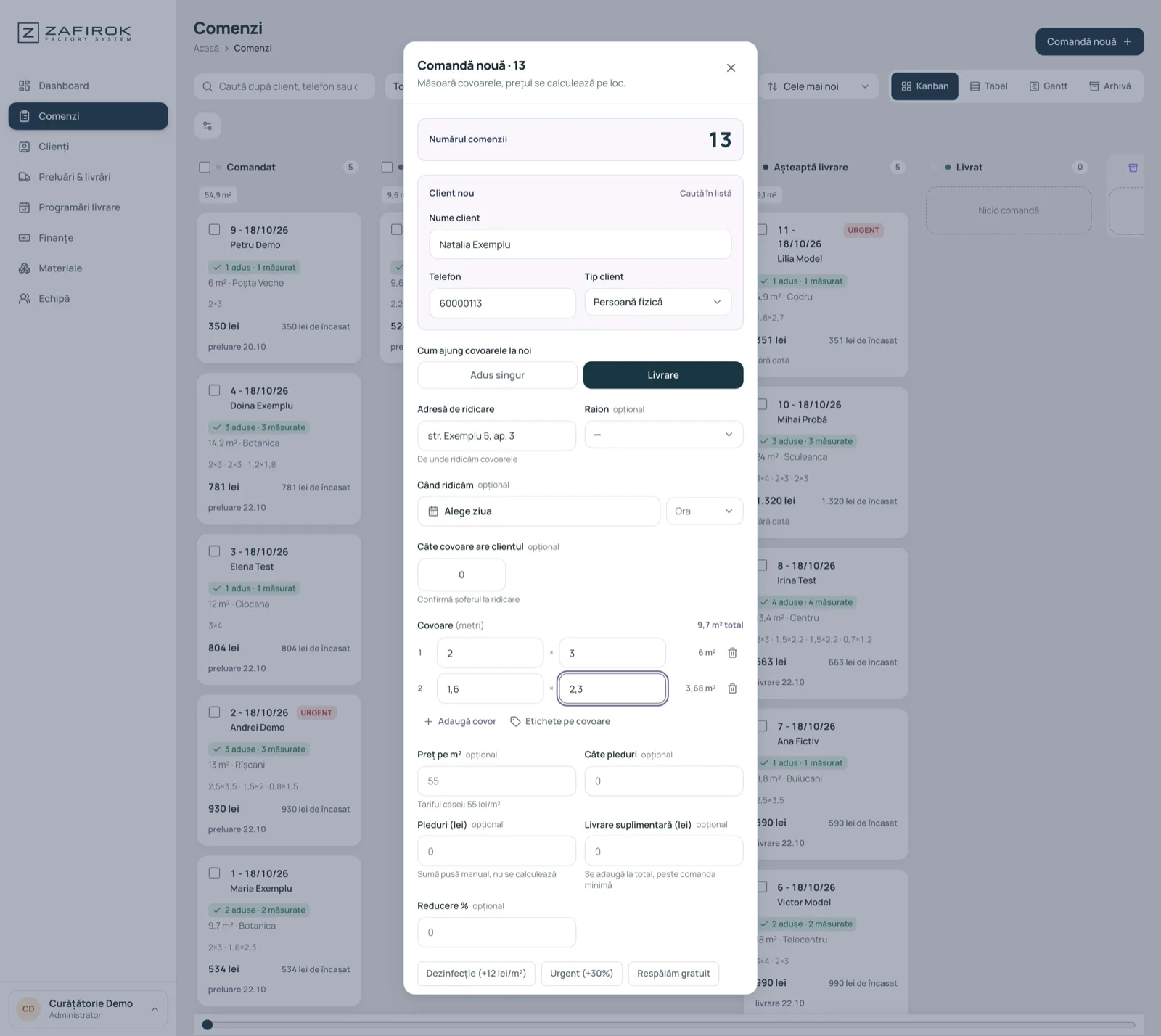
The price is visible before you save. In the screenshot below, two carpets of 2 × 3 m and 1.6 × 2.3 m give 6 + 3.68 = 9.68 m², rounded to 9.7 m². At 55 lei per m², the demo company’s pickup rate, washing costs 534 lei, and disinfection, also charged per m² (9.7 × 12 lei), adds 116 lei; amounts are shown rounded to the leu. The total is 650 lei, and the button reads “Creează · 650 lei”.
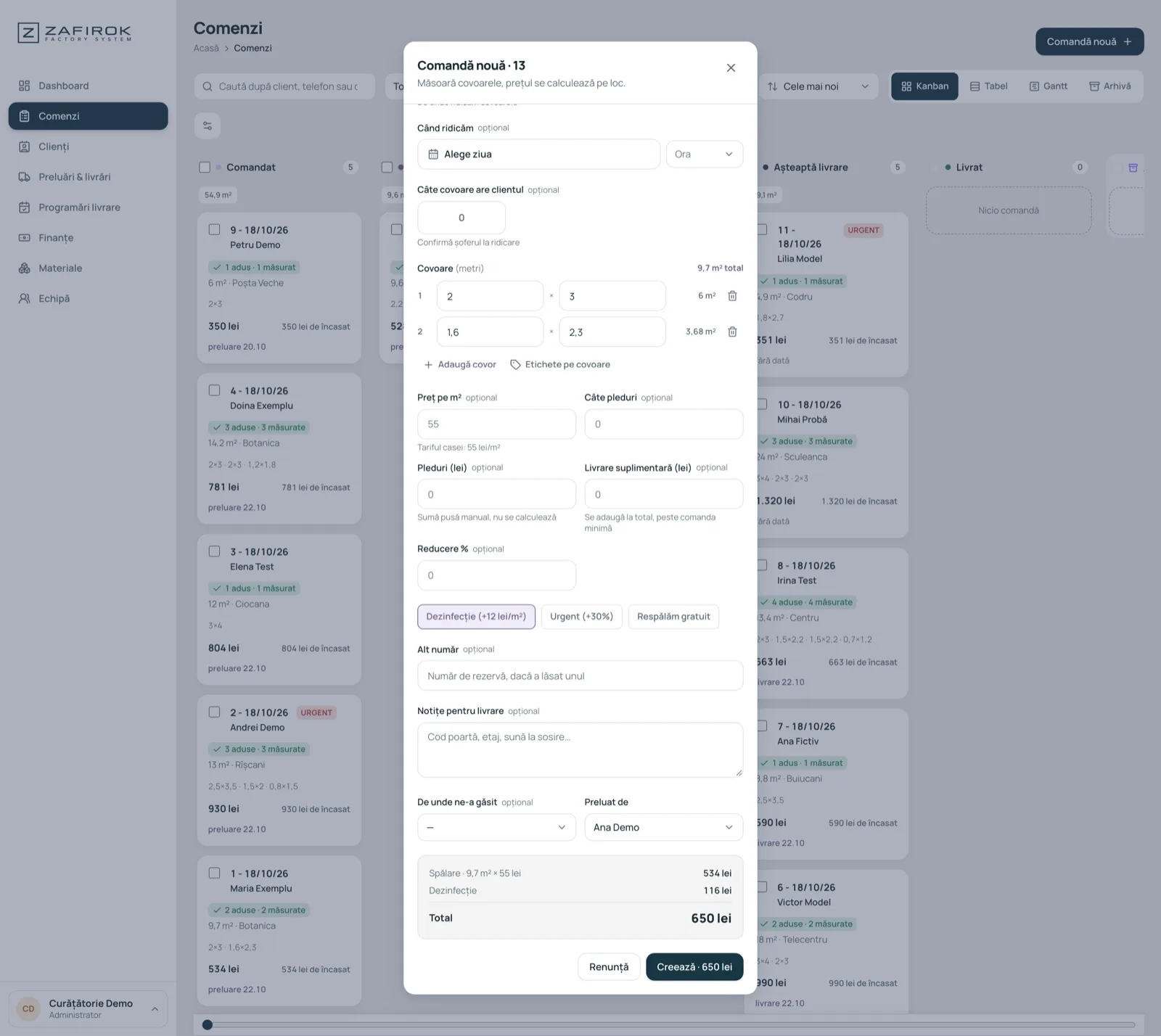
The urgent option adds the percentage from the settings to washing and disinfection, and throws add the amount you typed. The percentage discount is calculated only on washing, disinfection and the urgent surcharge, not on throws or the extra delivery charge. The extra delivery charge is added at the end, on top of the minimum order, and “Respălăm gratuit” (free re-wash) brings the order total to 0 lei but keeps the line-by-line breakdown, so you can still see what the work was worth. The minimum order only applies to pickups: a single 1.5 × 2.0 m carpet brought to the counter costs 3.0 × 45 = 135 lei, with no minimum.
Orders brought to the counter start directly in the received stage (“Primit”), while pickup orders start as ordered (“Comandat”) until the driver actually collects the carpets. If there is no time to measure on the spot, save the order with the number of carpets and add the sizes later, in step 5.
Step 3. The order board: where every order stands
On the order board, each column is a stage: Comandat, Primit, În proces, Așteaptă livrare, Livrat and Închis. You move an order by dragging its card, or by ticking it and choosing the stage in the bar that appears at the bottom (“mută în”, move to); the same bar moves several orders at once. A cancelled order is closed with a reason and leaves the flow as “Anulat”.
For day-to-day carpet tracking, each card shows what matters at a glance: “N aduse · M măsurate” (N brought in, M measured), the area in m², the district, the total, the amount still to collect, the pickup date and an URGENT badge for rush jobs. When the board gets crowded, the same orders can be viewed as a table.
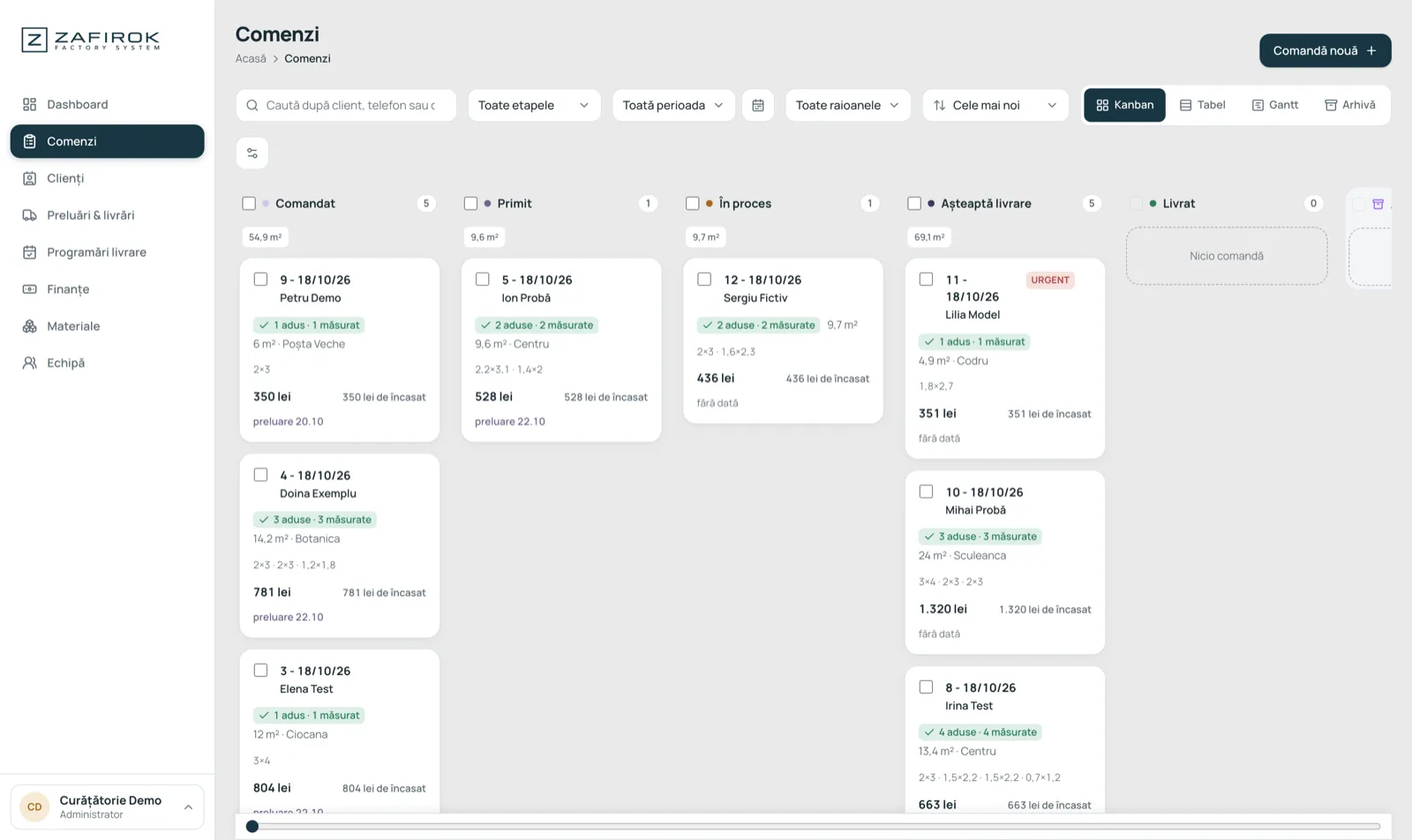
We recommend moving an order to the next stage only when all its carpets have passed the current one: the stage belongs to the order, not to each carpet.
Recommendation
The app does not record where a carpet sits on a shelf or in storage. To find the right carpet quickly, you can rely on the order number written on the tag and the carpet label in the order.
Step 4. The driver’s day: pickups
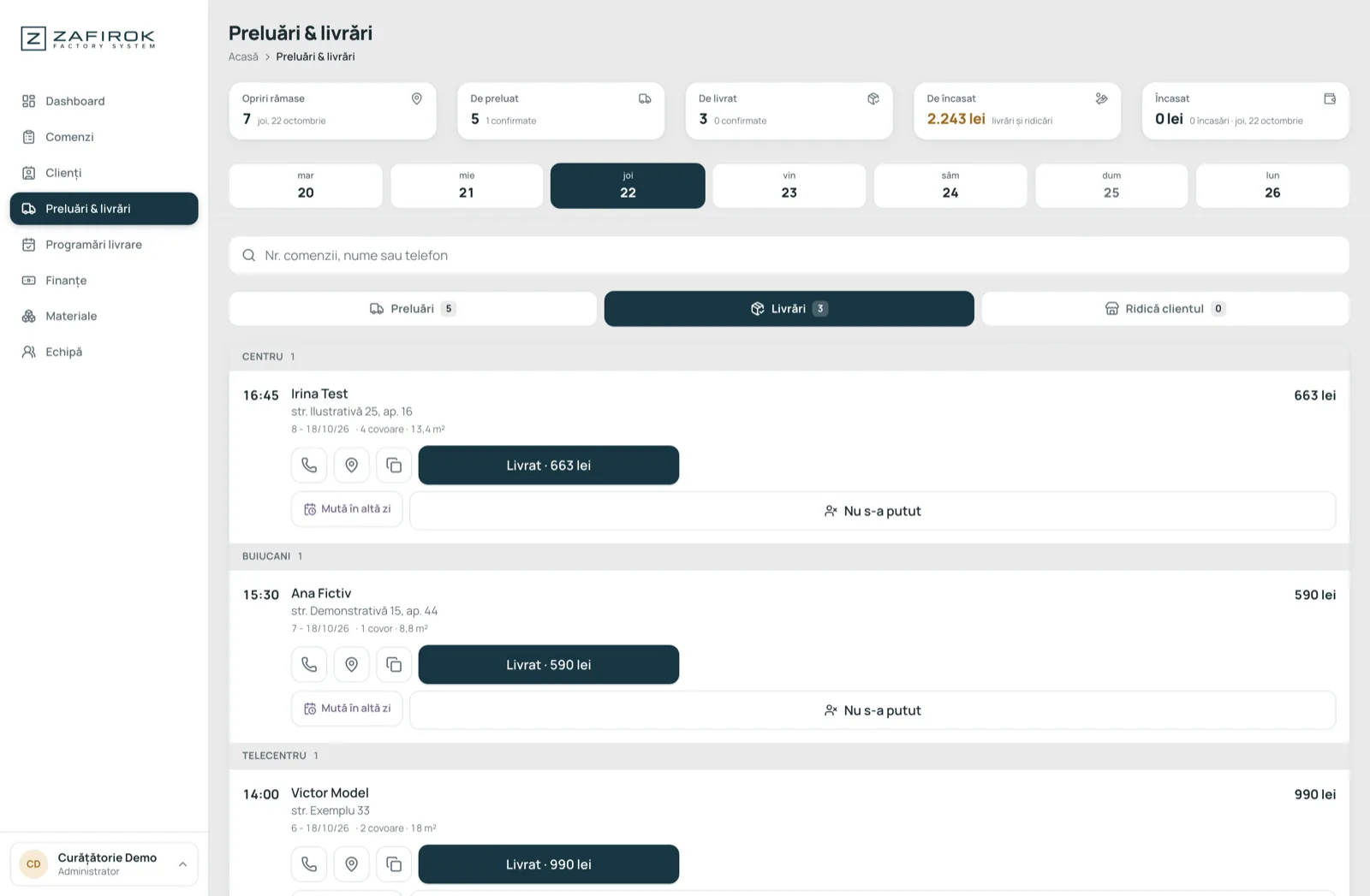
In the morning, the driver opens the pickups and deliveries screen (“Preluări & livrări”). At the top are the day’s figures: stops remaining, money to collect and money collected (“Opriri rămase”, “De încasat”, “Încasat”); larger screens also show the pickup and delivery counts (“De preluat”, “De livrat”). Below is a 7-day strip and three tabs, each with its count: pickups, deliveries and clients collecting from you (“Preluări”, “Livrări”, “Ridică clientul”). Stops are grouped by district and sorted by time.
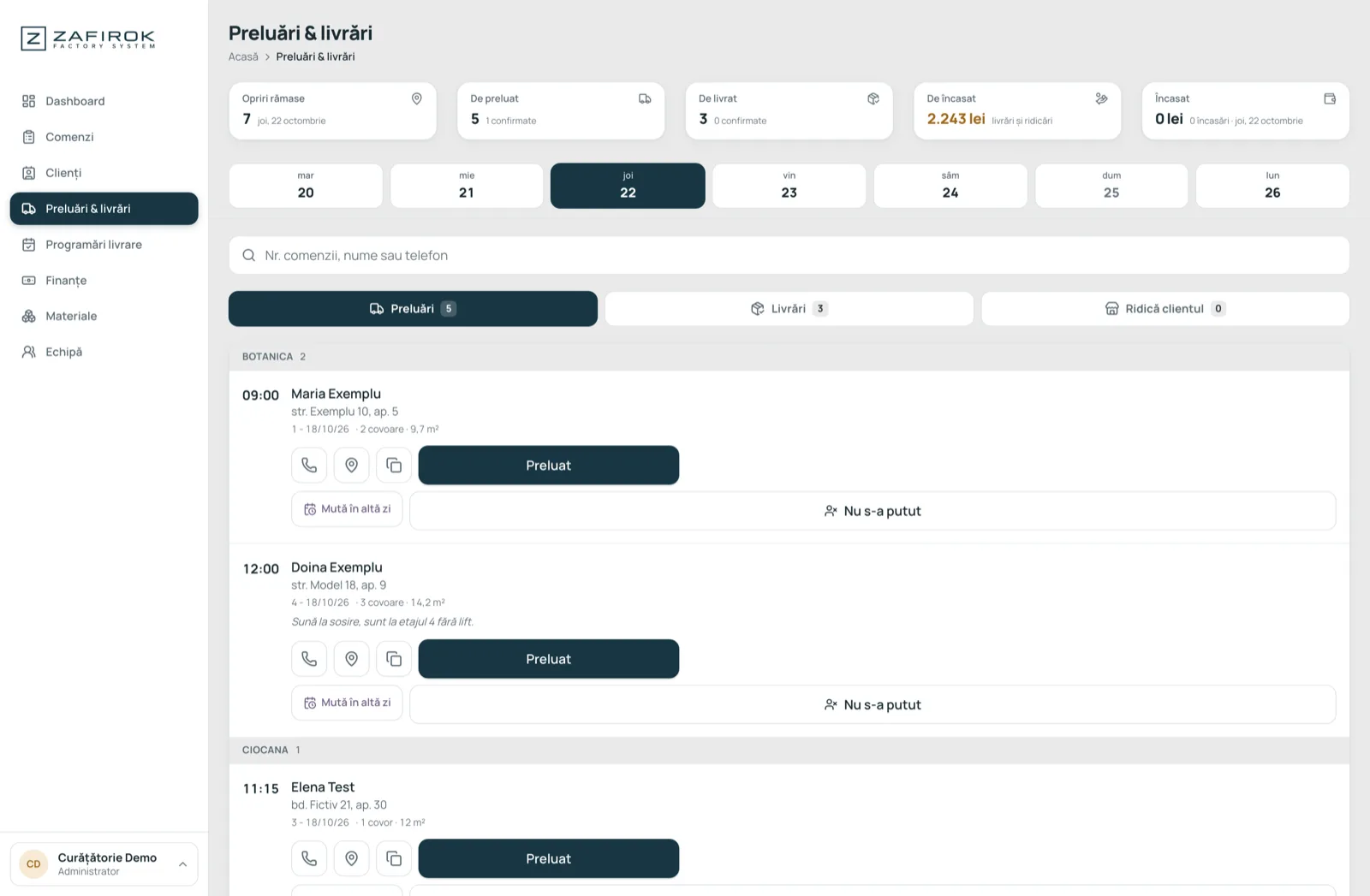
At each stop the driver has everything at hand without calling the office:
- Call the client straight from the list to announce the arrival.
- Open the address in maps, or copy it to paste into navigation or send to a colleague.
- On collecting the carpets, tap “Preluat” and answer the question “Câte covoare ai ridicat?” (how many carpets did you collect?).
- Tap “Confirmă preluarea” (confirm pickup); the order moves to the received stage.
- If the pickup failed, tap “Nu s-a putut” and choose the reason: not at home, not answering the phone, asked for another day or wrong address (“Nu era acasă”, “Nu răspunde la telefon”, “A cerut altă zi”, “Adresă greșită”). If the client asked for another day, move the stop with “Mută în altă zi”.
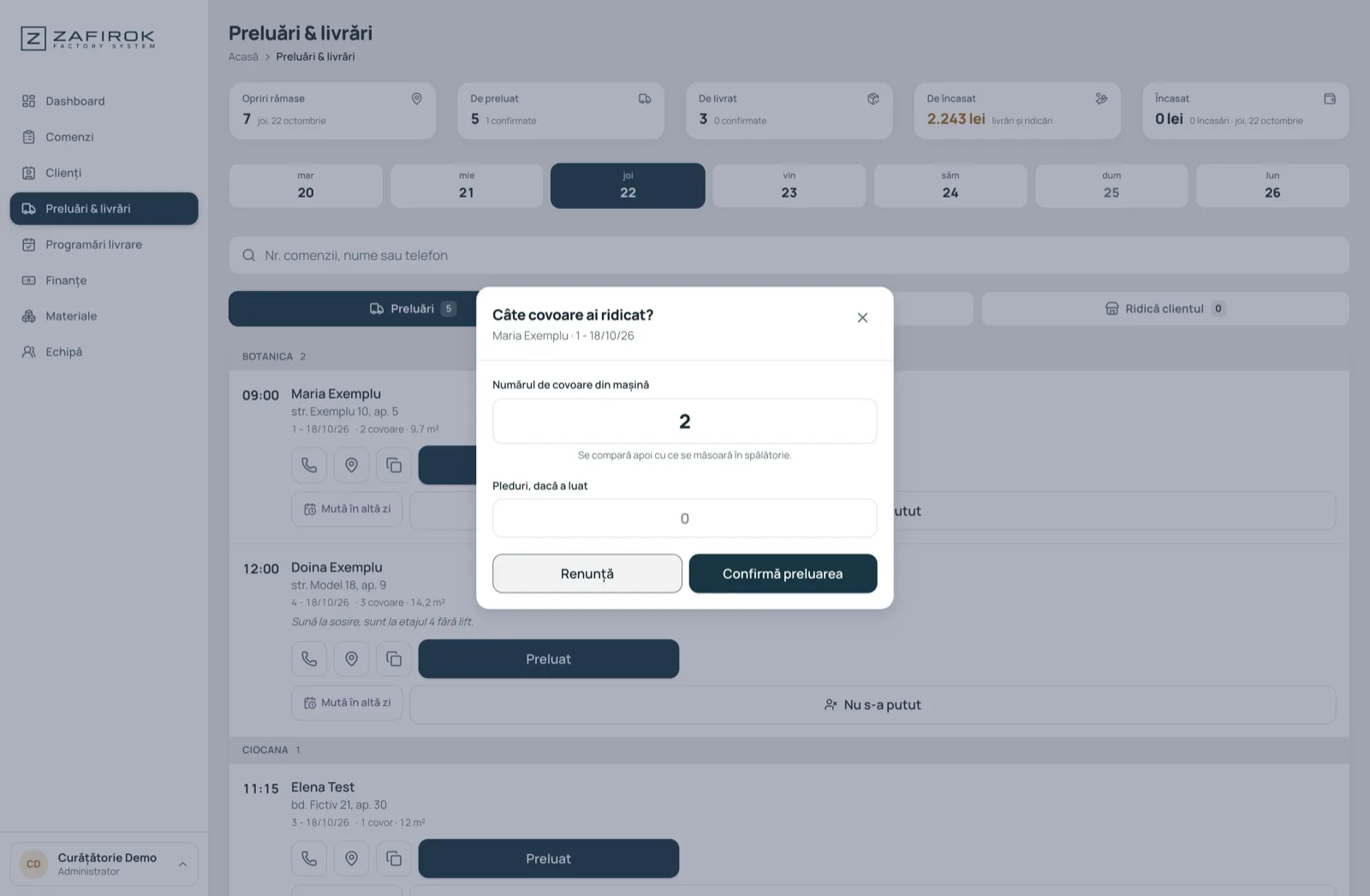
A confirmation tapped by mistake can be undone. Pickups not done on time stay visible in the overdue pickups card (“De preluat, restante”), so they are not forgotten.
The driver does not need a separate app: Zafirok is a web app that opens in the phone’s browser and can be installed from the browser. There is no dedicated driver role; the closest default role is “Executant”, and each role’s access to modules is set to hidden, view or edit (“Ascunde”, “Vede”, “Modifică”).
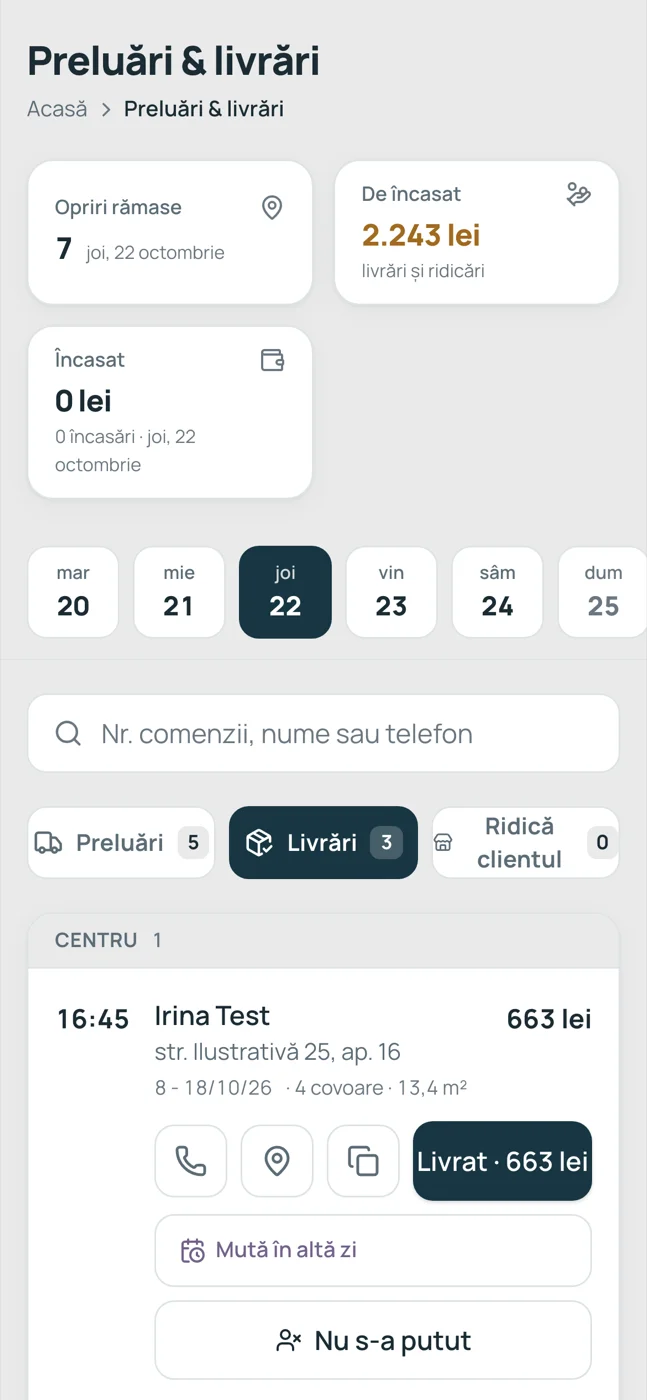
The app does not calculate an optimal route: grouping by district and sorting by time is the starting point, and the exact sequence of stops is decided by the driver or the dispatcher. How to order stops, handle failed attempts and hand over cash in the evening is covered in depth in our guide to planning pickups and deliveries. The module overview is on the pickups and deliveries page.
Step 5. Measure the carpets and check the order page
Carpets collected by the driver are measured in the workshop, directly in the order: “Editează” (edit) → “Măsurători și preț” (measurements and price). Enter the width and length of each carpet and the price is recalculated. On the card, “3 aduse · 1 măsurat” tells you two carpets are still waiting to be measured.
After the order is created, an employee can change the carpet sizes only once, usually when measuring in the workshop, so it is easier to enter all the order’s carpets in one go. A second correction, and any change after money has been collected or after delivery, can only be made by the administrator. That way the price the client paid is not changed by accident in a later edit.
The order page brings it all together: the carpets with their sizes, files and photos (up to 25 MB, with preview), the current stage and the buttons “Editează” (edit), “Bon” (receipt) and “Anulează comanda” (cancel order); the stage itself is changed on the order board. Alongside, you see the order’s profit and how much is left to collect. When washing starts, move the order to “În proces”.
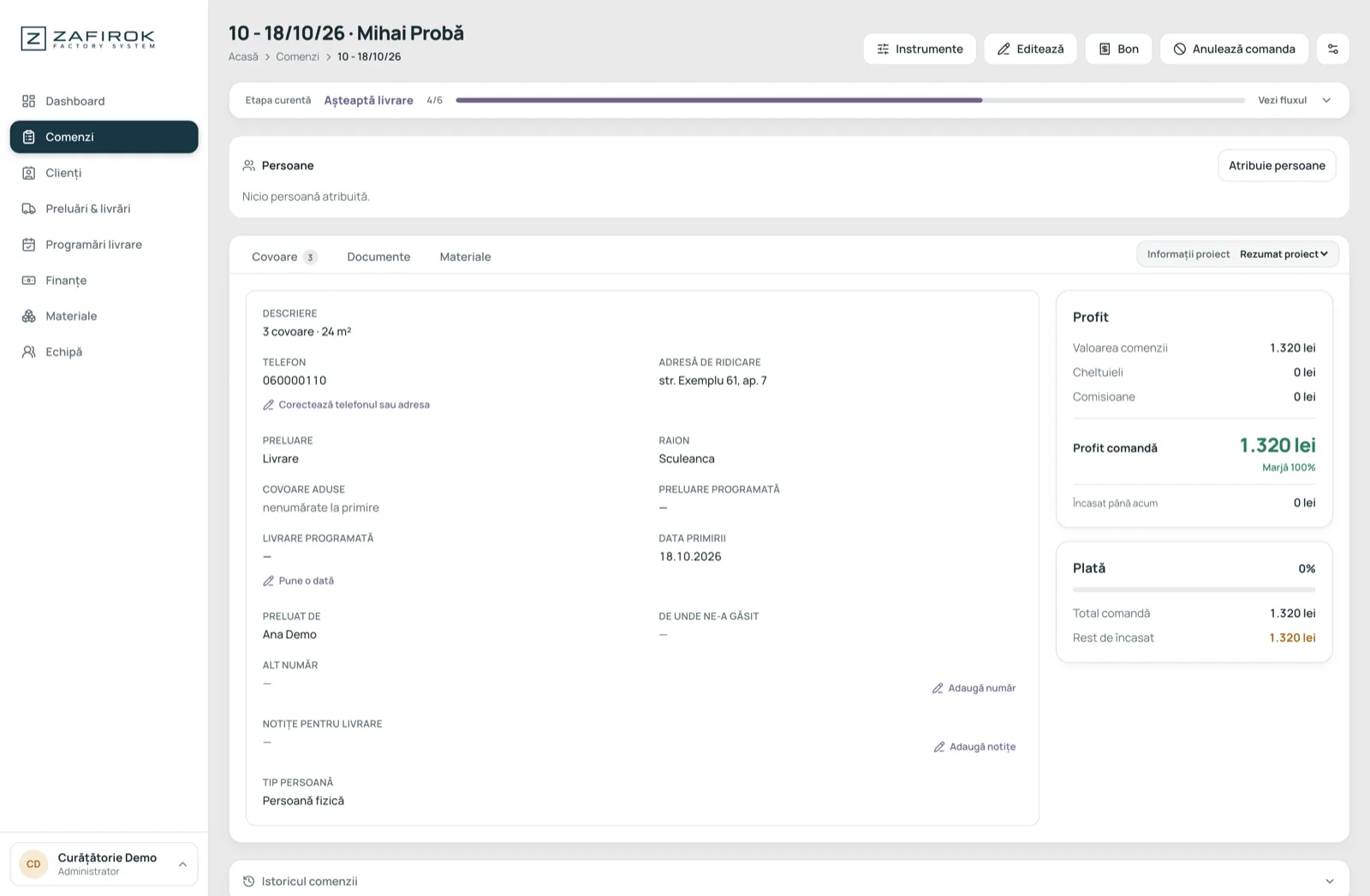
A useful habit, for example, to avoid arguments at delivery: at intake you photograph old stains, torn fringes or faded areas and attach the photos to the order, in the documents tab. If the client later asks about a stain, you have the picture from the day you received the carpet.
Step 6. Automatic SMS when the carpets are ready
When the carpets are washed and dry, move the order to “Așteaptă livrare”. If SMS is switched on, the client gets an automatic message at that moment, once per order, whether you dragged the card or moved the order, alone or with others, from the bar at the bottom of the board.
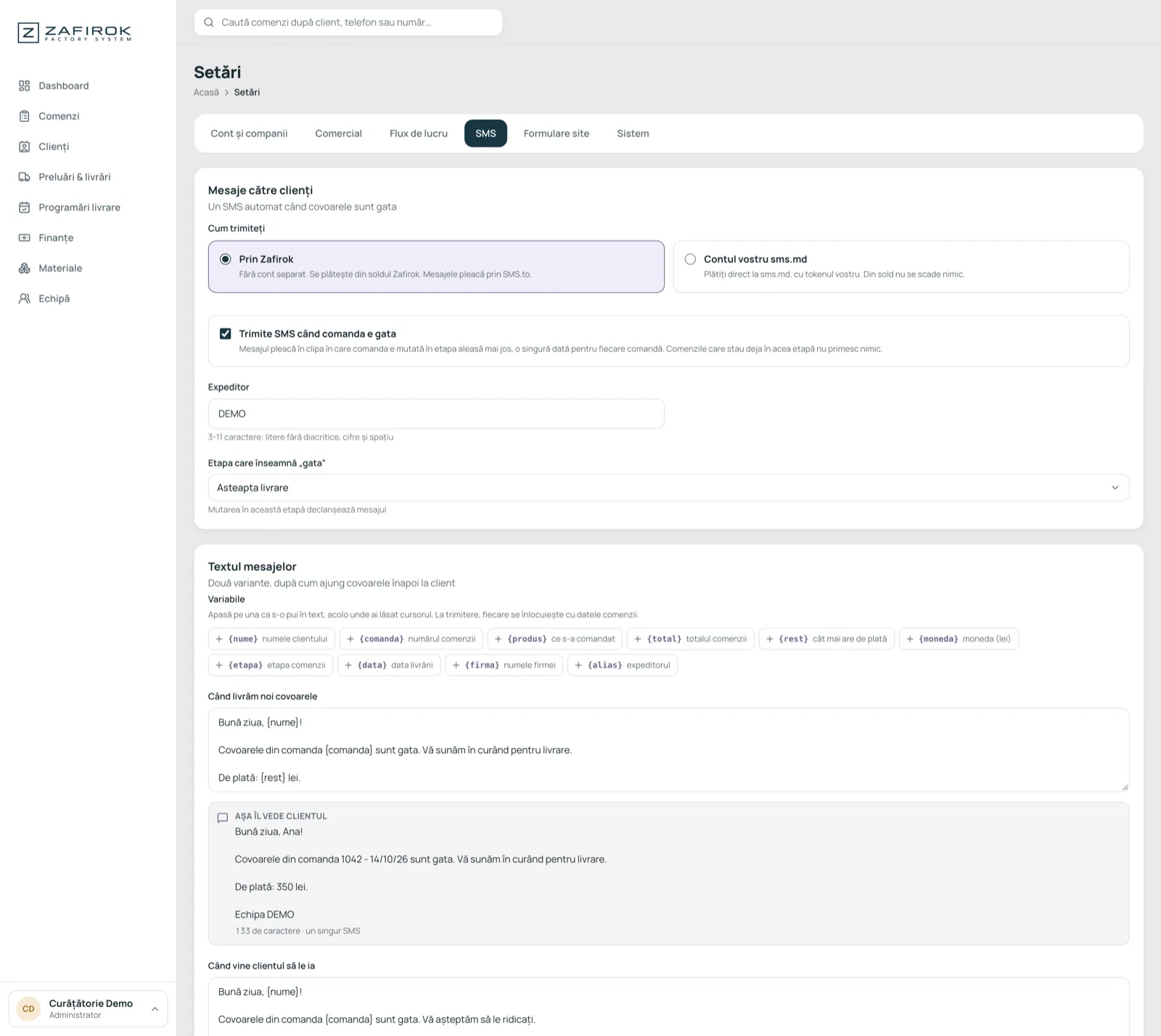
SMS is configured under Settings → SMS and is off until you switch it on. Cleaning companies get two texts: one for orders you deliver (“Când livrăm noi covoarele”) and one for clients who come to collect (“Când vine clientul să le ia”). If you tick the option “Doar celor care și-au adus singuri covoarele” (only clients who brought their carpets themselves), the SMS goes only to orders the client dropped off at the counter; clients you deliver to get no message, since you call them anyway to agree on a delivery time. The ready stage is “Așteaptă livrare” by default and can be changed.
The text uses variables such as {nume} (name), {comanda} (order), {total}, {rest} (balance), {moneda} (currency), {firma} (company) and {alias} (sender name); unknown variables are rejected. The preview shows the message as the client will see it and how many SMS it will be billed as, and the test button sends a trial message before you go live.
Hello {nume}, the carpets from order {comanda} are ready. Balance due: {rest} {moneda}. We will call you to arrange delivery. The {alias} team
Example delivery text
Messages can go out in two ways. “Prin Zafirok” (through Zafirok) is paid from your Zafirok balance or from the “Notificări SMS” package in your subscription, and is not available to companies that keep their books in USD. With the company’s own sms.md account, for Moldovan numbers, you pay sms.md directly for the messages, and in Zafirok you also activate the SMS module with a plan from 100 SMS a month (with 3 free days after the first successful test), which caps how many messages can go out. On the order, the “SMS de gata” section shows the exact text sent, and the card shows “SMS trimis” (sent) with the date or “SMS netrimis” (not sent).
Mind the length: one SMS holds 160 plain Latin characters, but a Cyrillic letter, or through the sms.md account a single Romanian diacritic (even one in the company name), lowers the limit to 70, and a text of this length is then billed as two or three SMS. That is why the example, like the app’s default texts, signs off with {alias}, the sender name, rather than the company name.
The limits, so you know them from the start: the app sends one automatic SMS per order. There are no manual or bulk SMS, no per-stage texts, no reminders (including payment reminders) and no WhatsApp, Viber or Telegram messages. The sending options and how SMS are paid for are described on the SMS and telephony page.
Step 7. Schedule deliveries by district
Washed orders that you deliver appear on the delivery scheduling screen (“Programări livrare”), grouped by district; the “Fără zi” (no day) tile shows how many still have no delivery day. The dispatcher calls the clients in one district, ticks them and picks today, tomorrow or another day (“Azi”, “Mâine”, “Altă zi”) in the bar that appears at the bottom. When everyone in a district agrees, the checkbox next to the district name selects them all in one go.
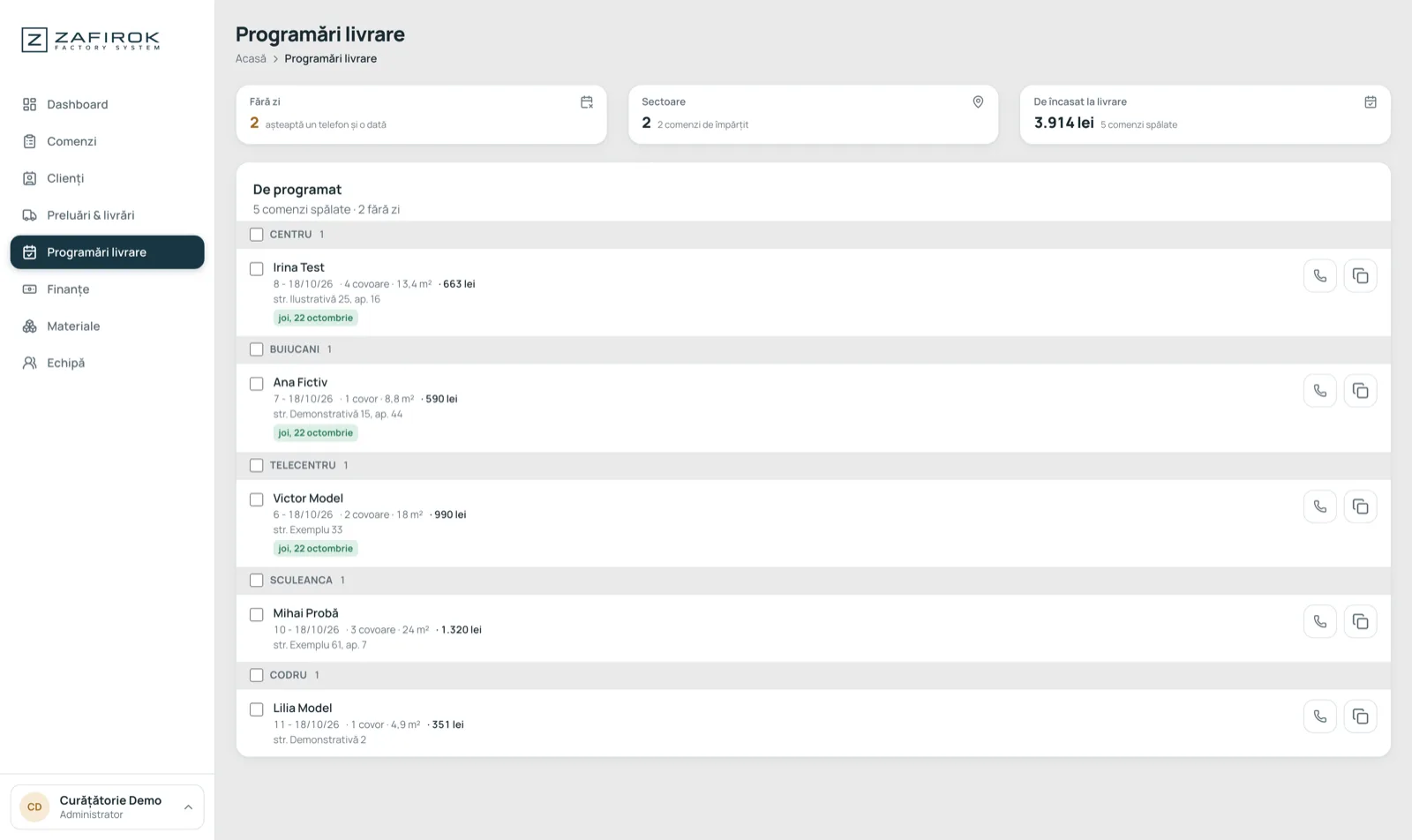
Anything left unscheduled is not lost: the “Spălate, neprogramate” (washed, not scheduled) alert on the dashboard shows ready orders that still have no delivery day.
Step 8. Delivery and payment at the door
On delivery day, the driver works in the deliveries tab. Each stop has a “Livrat” (delivered) button; when money is still due, the button also shows the amount, so the driver knows in advance how much to take (an order that is already paid is confirmed with one tap, without the payment dialog).
On handover, “Livrat” opens the payment on delivery dialog (“Încasare la livrare”). The amount comes from the order, and the dialog says so plainly: “Suma e stabilită pe comandă și nu se schimbă la ușă” (the amount is set on the order and does not change at the door). The driver only chooses the method: cash, bank transfer or invoice (“Numerar”, “Transfer”, “Factură”).
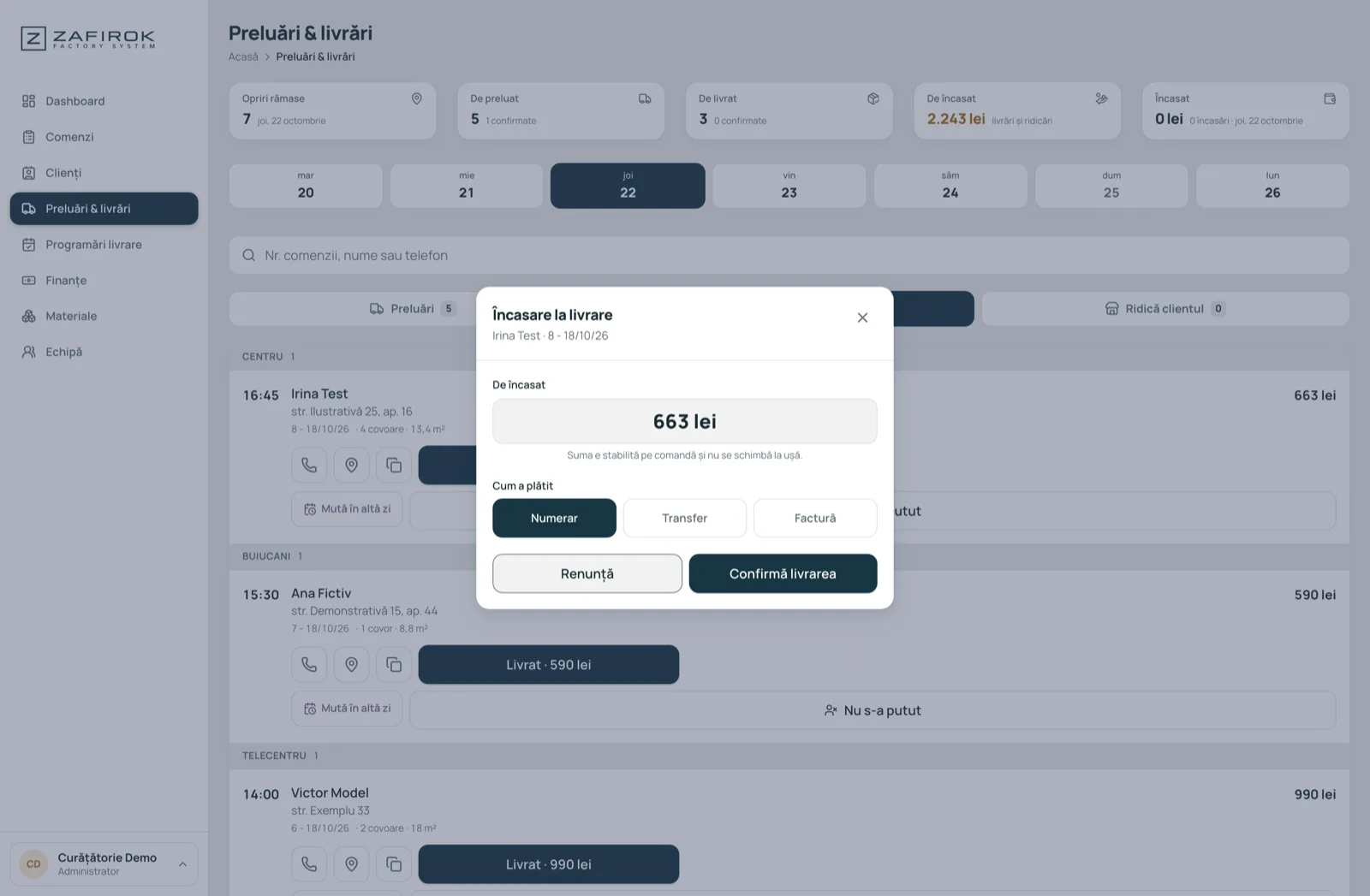
After “Confirmă livrarea”, the order moves to delivered and the payment is recorded as paid if the client paid by Numerar (cash) or Transfer. With Factură (invoice), the button reads “Confirmă · pe factură” and the amount stays outstanding on the order until you mark it paid in Finance, when the money actually arrives. A wrong confirmation can be undone. On the day screen, the money to collect and money collected figures show what is still outstanding and what has been taken.
If the amount needs correcting, for example after a discount approved by the administrator, we recommend making the correction in the order before the van leaves, because the amount cannot be changed at the door. Clients who come to collect their carpets themselves are listed in the “Ridică clientul” tab.
Step 9. Print the intake receipt
The “Bon” button in the order prints a “Bon de primire” (intake receipt) on an 80 mm receipt printer. It shows the company, each carpet with its size and label, the amount due (“De plată”), with the paid and remaining amounts (“Achitat”, “Rest”) once something has been paid or the note “Se achită la livrare.” (paid on delivery) otherwise, and the line “Păstrați bonul până la ridicarea covoarelor.” (keep this receipt until you collect your carpets). It is most useful at the counter: the client leaves knowing exactly what they handed over and how much is still to pay.
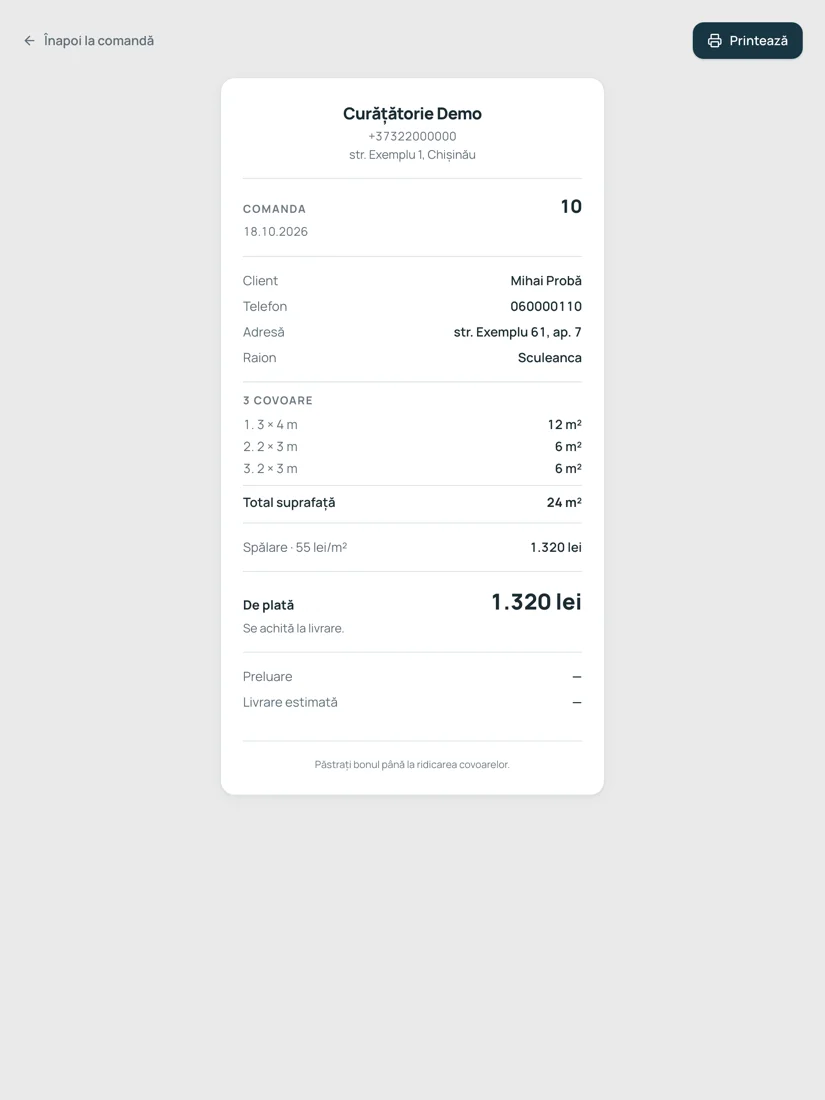
The app does not print labels, QR codes or barcodes for carpets. The link between carpet and order remains the number handwritten on the tag, together with the carpet label in the order.
Step 10. Close the day: daily balance and alerts
In the evening, open the daily balance in Finance (“Sold de zi”) to see money in and out and the day’s turnover (“Rulajul zilei”). Money from delivered orders is shown separately from money paid by clients who collected their carpets themselves, so you can quickly compare the driver’s cash with what the app shows. “Închide ziua” (close the day) saves the cash and bank balances calculated from the app’s records; a closed day can be reopened if you find a mistake.
On the dashboard, alerts show what has fallen behind:
- “De preluat, restante”: pickups not done on time;
- “Spălate, neprogramate”: ready orders without a delivery day;
- “Urgent în întârziere”: urgent orders running late;
- “Stă în lucru”: orders sitting in progress for a long time;
- “Livrat, neîncasat”: delivered orders that still have money to collect, for example those handed over on invoice.
An example end-of-day checklist
- Every stop of the day has an outcome: collected, delivered or “Nu s-a putut” with a reason.
- Carpets brought in today carry the order number on their tag, and each order has the right number of carpets.
- Washed orders have a delivery day or a clear reason to wait.
- The driver’s cash matches the daily balance.
- The day is closed with “Închide ziua”.
How Zafirok helps as CRM and ERP software for carpet cleaning
- Cleaning rates: per m² with and without pickup, disinfection, urgent surcharge and a minimum order with exempt districts.
- Orders with a number visible before saving, width × length carpet rows with labels, throws, options, a total shown before saving and later measurement.
- Stages built for cleaning: Comandat, Primit, În proces, Așteaptă livrare, Livrat, Închis, plus Anulat.
- Pickups and deliveries: stops by district and time, call, map, copy address, move to another day, reasons for failed stops and payment on delivery with a fixed amount.
- Delivery scheduling: washed orders to deliver, by district, scheduled for today, tomorrow or another day.
- One automatic order-ready SMS, through Zafirok or your own sms.md account.
- An intake receipt for 80 mm printers.
- Daily balance, dashboard alerts and roles with per-module access for the team.
The stages, rates, SMS texts and roles in this example are a starting model, not a rule. Each company sets up its own stages, rates, texts, roles and rules in Zafirok to match the way it works. If you prefer, the Zafirok team can set it up for you: write to us via the contact page or create an account.
What the app does not do, so you know from the start: it does not optimise routes, record where carpets sit on shelves, offer a calendar view for pickups and deliveries, have a separate item type for upholstery, or print labels or QR codes. It sends no reminders or win-back campaigns and has no client portal or order-tracking link.
On top of the base package, the cleaning industry module (“Cleaning și curățătorii”), active employees (such as the driver), Pickups and deliveries, Finance and payroll, and SMS notifications are paid separately; see current prices. An overview of the cleaning setup is on the cleaning businesses page.
Frequently asked questions
Can I use the software on a phone?
Yes. Zafirok is a web app: it opens in the browser of a phone, tablet or computer and can be installed from the browser. There is no separate app-store app, and the driver uses the same app as the office.
How is the price of an order calculated?
The total carpet area, rounded to one decimal place, is multiplied by the rate per m², and disinfection is added per m² as well. The urgent option adds a percentage to these amounts, throws are added as the amount typed in, and the percentage discount is calculated only on washing, disinfection and the urgent surcharge. The minimum order is a floor for pickup orders outside exempt districts; the extra delivery charge (“Livrare suplimentară”) is added on top of it, and “Respălăm gratuit” (free re-wash) sets the total to 0 lei while keeping the breakdown.
How many SMS messages does the client get?
At most one: the automatic SMS sent when the order enters the stage chosen as “ready” (by default “Așteaptă livrare”), if you have switched SMS on. With the option “Doar celor care și-au adus singuri covoarele”, clients you deliver to get no SMS at all. The app sends no reminders and no manual SMS.
Can the price change after the client has paid?
Not by the team: once money has been collected on an order or the order has been delivered, only the administrator can correct its price and measurements. At the door, the driver cannot change the amount because it comes from the order.
Can I find a carpet by its shelf location?
No, the app does not track shelf locations. A carpet is identified by the order number on its tag and the carpet label in the order, so a tagging rule agreed by the team helps.
Do I have to use the same stages and rates as the demo company?
No. The demo company is only an example: you set the rates, the minimum order and exempt districts, the stage names, the SMS texts and role access to fit the way your business works, yourself or with help from the Zafirok team. The limits described above, such as one automatic SMS per order, stay the same.
The simplest way to judge a carpet cleaning app is a real day: enter your rates, create two orders, one brought to the counter and one with pickup, and follow them through to delivery and the daily balance, together with your driver.
Create an account and start the free trial