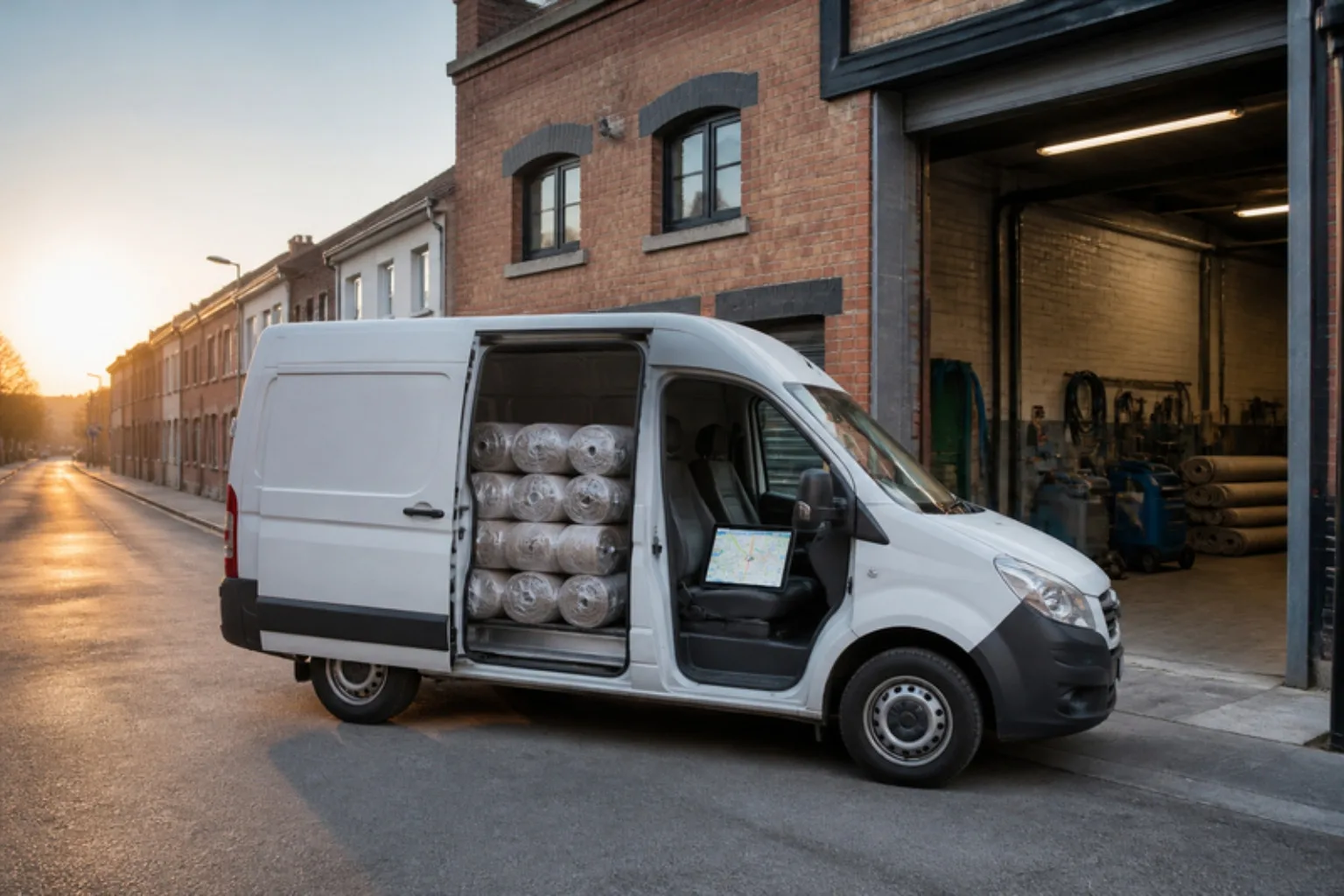
Pickup and delivery planning for cleaning businesses usually rests on three habits: know the evening before which pickups and deliveries you have the next day, group them by district and time, and give every failed stop a reason and a new day straight away. Cash at the door, the backlog and the driver’s phone all rely on that same daily list, which CRM and ERP software such as Zafirok keeps in one place.
This guide is written for carpet cleaning companies that collect carpets from clients’ homes and bring them back, but the method suits any service with pickup and delivery. For prices, deadlines and general company rules, see the guide to running a carpet cleaning business.
In short
- For example, you plan the next day the evening before: deliveries from the delivery scheduling screen (“Programări livrare”), pickups from the 7-day strip of the pickups and deliveries screen (“Preluări & livrări”).
- Stops can be grouped by district and time; the app lists them that way, but you decide the exact route.
- The time is confirmed by phone: the app sends no reminders before a visit.
- A failed stop gets a reason (not at home, wrong address and so on) and, where needed, a new day.
- The amount at the door comes from the order; in the evening, compare the driver’s cash with the daily balance (“Sold de zi”).
- A backlog check every morning and evening stops it from building up.
Where time and money get lost on the road
Every extra trip costs fuel and working hours, and the losses usually show up in the same places:
- incomplete addresses with no block, entrance, floor or intercom code;
- unconfirmed times, so the client is out or does not answer;
- routes that cross the city twice because stops were not grouped;
- cash taken at the door that does not match what the office knows in the evening;
- washed orders sitting in the workshop because nobody scheduled their delivery.
Each of these problems can be fixed with a clear routine. In Zafirok, the pickups and deliveries screen and the delivery scheduling screen keep the day’s list in one place, and the rules below are examples your company adapts.
The day before: planning pickups and deliveries
Tomorrow’s plan is made today, in the afternoon, by the dispatcher or administrator. An example sequence that works well:
- Open delivery scheduling (“Programări livrare”). It lists all washed orders to be delivered, grouped by district: those without a delivery day, counted in the “Fără zi” (no day) tile, and those already scheduled, with their day shown under the address.
- Call the clients in one district and check whether they will be at home. Schedule those who confirm for tomorrow (“Mâine”) and the others for another day (“Altă zi”): tick the orders and pick the day in the bar that appears at the bottom (Azi, Mâine or Altă zi). If everyone in a district agrees, the checkbox next to the district name selects them all in one go.
- On the pickups and deliveries screen, pick tomorrow from the 7-day strip and check the pickups: address, district and time.
- Compare the number of stops with what one driver can realistically do in a day. If there are too many, move some in advance with “Mută în altă zi” (move to another day) and let the clients know.
- Check the backlog cards for overdue pickups and deliveries (“De preluat, restante”, “De livrat, restante”) and give those stops a day before adding new ones.
A minimum order keeps a trip across the city for a single small rug from running at a loss. In the cleaning rates it applies only to pickup orders, and selected districts, for example nearby ones, can be exempt. You choose the value; for example, 350 lei.
The driver’s route: ordering stops by district and time
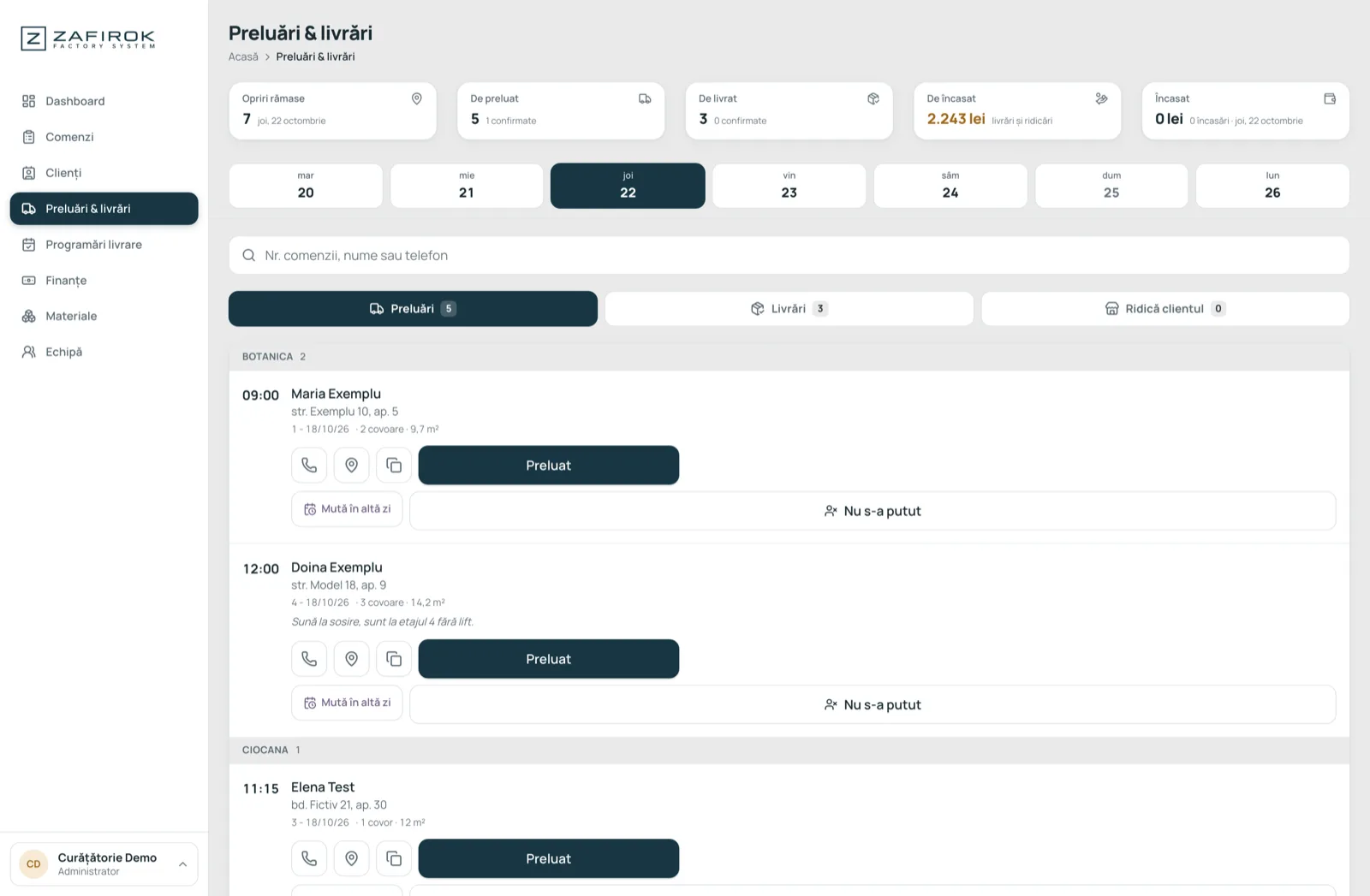
On the pickups and deliveries screen, the day’s stops are grouped by district and sorted by time, in three tabs: pickups, deliveries and clients who come to collect their carpets (“Preluări”, “Livrări”, “Ridică clientul”). The app does not calculate an optimal route, so the sequence of districts is set by the dispatcher or the driver, who knows the city. Some practical ideas:
- You can assign fixed days to areas, for example Botanica and Centru on Mondays and Thursdays, Râșcani and Ciocana on Tuesdays and Fridays. Clients get used to their day, and the van stops crossing the city for nothing.
- It helps to combine pickups and deliveries in the same district on one run: the van unloads and loads along the way.
- A convenient order: stops with a promised time first, then flexible ones in the same district.
- The map button opens the address in maps; copying the address is handy for sending it to a colleague or pasting it into navigation.
- With two drivers, it is usually simpler to split districts rather than individual stops.
Group by district, sort by time, and let the person who knows the streets decide the rest.
Practical tip
Time windows: what you promise the client
For pickups, the order stores the day and time (“Când ridicăm”). In practice it is safer to promise a window, such as 10:00–12:00, than an exact time that traffic can ruin; enter the window’s start time in the order. For deliveries, set the day in delivery scheduling and confirm the window by phone.
The app sends no reminders before a visit, so confirmation stays a phone call: for example, the dispatcher calls the day before, and the driver calls from the list 15–30 minutes before arriving. The only automatic SMS is the order-ready message, sent once when the order enters the chosen stage (by default “Așteaptă livrare”, awaiting delivery); its text can say that you will call to arrange delivery. SMS sending stays off until you switch it on in Settings → SMS (“Setări → SMS”); for setup details, see the SMS and telephony module page.
Many failed trips start when the order is taken. It helps to ask for the full address, with block, entrance, floor and intercom, and to check the district before saving the order: a wrong district puts the stop in the wrong group.
When the client is not at home: failed attempts and rescheduling
It is best if a failed stop does not live only in the driver’s memory. In the list, the driver taps “Nu s-a putut” (could not be done) and picks one of the reasons: not at home, not answering the phone, asked for another day or wrong address (“Nu era acasă”, “Nu răspunde la telefon”, “A cerut altă zi”, “Adresă greșită”). An example response for each:
- Asked for another day: in the same dialog, under “Când reîncercăm” (when do we retry), the driver picks “Altă zi” (another day) and enters the agreed day and time (the default is tomorrow at 10:00).
- Wrong address: the office corrects the address in the order before the next attempt.
- Not at home or not answering: if no day was agreed, the driver picks “Sună clientul întâi” (call the client first), and the office calls again and offers another day. One possible rule: after two failed attempts, the van goes out only with a clear confirmation.
Anything unresolved stays visible in the overdue pickup and delivery cards, so a bad day does not vanish from the records. When a pickup succeeds, the driver taps “Preluat” (collected), enters how many carpets were collected and confirms with “Confirmă preluarea”; the order moves to the “Primit” (received) stage, and the workshop sees the carpets are on their way.
Cash at the door: taking payment and handing it over
On delivery, if money is still due, “Livrat” (delivered) opens the payment on delivery dialog (“Încasare la livrare”); an order that is already paid is confirmed with one tap. The amount comes from the order and does not change at the door; the driver only chooses cash, transfer or invoice (“Numerar”, “Transfer”, “Factură”) and confirms with “Confirmă livrarea” (confirm delivery) or, for an invoice, “Confirmă · pe factură”. The order moves to the “Livrat” (delivered) stage. With cash or transfer the payment is recorded as paid; with an invoice, the amount stays outstanding on the order and is marked as paid in Finance (“Finanțe”) when the money arrives. A wrong confirmation, at pickup or at delivery, can be undone.
This suggests a useful rule for the office: discounts or corrections are made in the order before the van leaves, not on the doorstep. That way the driver does not discuss prices, and the client pays the amount the office communicated.
In the evening, the cash handover goes quickly with fixed steps, for example:
- The driver counts the cash and hands it over.
- The office compares it with the day’s delivery money in the daily balance (“Sold de zi”), where deliveries are shown separately from clients who collected their carpets themselves.
- Transfer payments are checked separately, against the statement from the bank.
- If everything matches, click “Închide ziua” (close the day); the cash and bank balances are saved from the app’s records.
During the day, the money to collect and money collected figures on the pickups and deliveries screen show what has been taken and what is still outstanding.
The driver’s phone: access and settings
The driver uses the same web app as the office, opened in the phone’s browser; it can be installed from the browser, and there is no separate app in the App Store or Google Play. You invite the driver to the team with a link valid for 7 days. There is no dedicated driver role; the closest default role is “Executant” (shown as “Worker” in the English interface).
Before the first run, it is worth checking what the driver sees:
- module access (hidden, view or edit): usually you keep what is needed on the road and hide the rest;
- the pickups and deliveries module (“Preluări & livrări”) set to edit (“Modifică”): with view only (“Vede”), the driver sees the stops but cannot confirm “Preluat” or “Livrat”;
- client phone numbers: the role’s client phone setting (“Telefonul clientului”) hides the number only on the order page; on the pickups and deliveries screen, the call button is shown to anyone with access to the module, so the driver can call from the list;
- “Vezi ca acest rol” (view as this role): the administrator sees the app exactly as the driver will.
On the phone, what matters is that the driver confirms on the spot: “Preluat” with the carpet count when collecting, “Livrat” with the payment method when handing over. If everything is confirmed in the evening from memory, the day’s figures tell the office nothing during the day.
The backlog: a morning and evening routine
A backlog builds up when a bad day is not fixed the next day. A short routine, such as this one, keeps it under control:
- Morning: the overdue pickup and delivery cards; every stop gets a new day or a call.
- Morning: delivery scheduling; washed orders without a delivery day get one.
- Evening: every stop of the day has an outcome: collected, delivered, or could not be done with a reason.
- Evening: the cash handed over matches the daily balance, then you close the day.
- Weekly: go through failed stops and their reasons with the driver. If wrong addresses come up often, it is worth asking for more detail when taking the order.
Pickup and delivery planning for cleaning businesses: how the Zafirok app helps
- Pickups and deliveries screen: the day’s figures, a 7-day strip and tabs for pickups, deliveries and clients who collect their carpets themselves.
- Stops grouped by district and sorted by time, with call, map, copy address and move to another day.
- “Nu s-a putut” with four reasons, and backlog cards for pickups and deliveries.
- “Preluat” with the number of carpets collected, which moves the order to “Primit” (received).
- Payment on delivery with a fixed amount from the order and cash, transfer or invoice.
- Delivery scheduling: washed orders to deliver, by district, with a checkbox for the whole district and scheduling for Azi, Mâine or Altă zi (today, tomorrow, another day).
- Daily balance, with delivery money shown separately from counter pickups.
The limits, plainly: there is no automatic route optimisation, no calendar view and no SMS reminder before a visit. There is no separate item type for upholstery either: orders are built around carpets (width × length) and throws. The module overview is on the pickups and deliveries page; the module is a paid add-on, and its current cost is on the pricing page.
The routine in this guide is an example. You configure the stages, rates, roles and what each person sees to match the way your company works; if you prefer, the Zafirok team can do the setup for you and help move your data: write to us via the contact page or create an account.
You can test the method for a week: schedule deliveries by district, record a reason for every failed stop and close each day with the daily balance.
Frequently asked questions
Can Zafirok calculate the shortest route?
No. Stops are grouped by district and sorted by time, and each address opens in maps with one button. The dispatcher or driver chooses the final order.
What does the driver do if the client is not at home?
Tap “Nu s-a putut” and pick the reason, for example not at home. In the same dialog, choose “Altă zi” (another day) with the new date and time if you agreed on one, or “Sună clientul întâi” (call the client first): the order then goes to the backlog until the office gives it a new day.
Can the driver change the amount at delivery?
No. The amount comes from the order, and the payment dialog says so explicitly. The driver only chooses the method: cash, transfer or invoice.
Can several drivers work at the same time?
Yes, each with their own access in the same app. They all see the same list for the day: the app does not assign stops to drivers, so you decide how stops are split; the simplest way is by district, so each driver knows their areas.
Does the client get an SMS before delivery?
Not automatically. If you switch SMS on in Settings → SMS, the app sends one SMS per order, when the carpets are ready; you confirm the delivery day and time by phone.
Create an account and organise your pickups and deliveries